> ## Documentation Index
> Fetch the complete documentation index at: https://docs.cloud.vessl.ai/llms.txt
> Use this file to discover all available pages before exploring further.
# Billing overview
> Credit-based billing, at-a-glance balances, and spend rate visibility.
VESSL Cloud bills in credits (1 credit = USD 1.00). Admins can view org-wide balances, spend rates, and manage credits.
## Usage dashboard
The billing overview page provides a comprehensive view of your organization's credit usage and payment information.
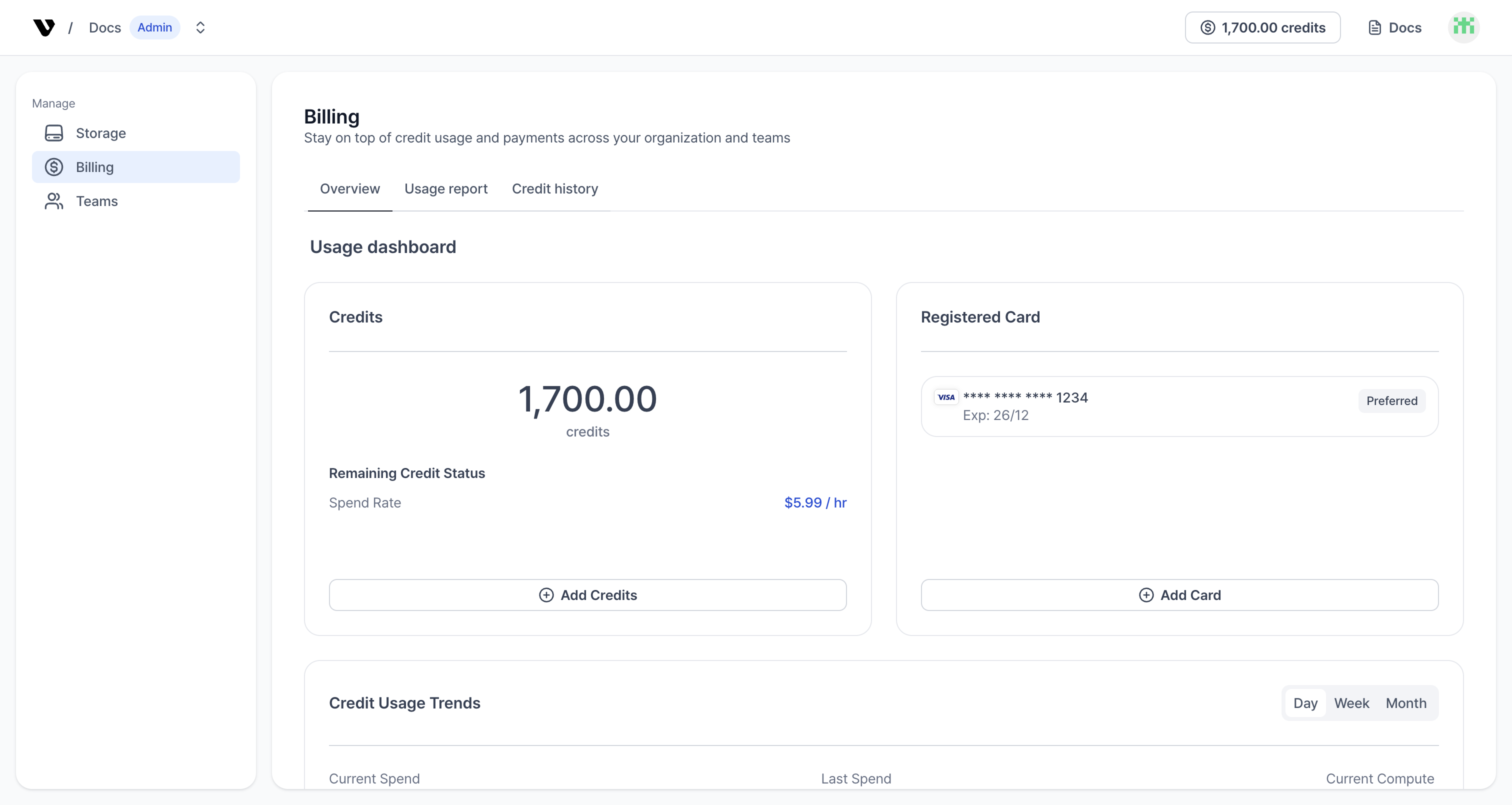 Example: Billing overview
The dashboard includes:
* **Credits panel**: Displays your current credit balance, spend rate (hourly), and an **Add Credits** button to top up your account
* **Registered Card panel**: Shows your saved payment method (masked card number and expiration date) with an **Add Card** button to register a new payment method
* **Credit Usage Trends graph**: Visualizes credit usage over time with options to view trends by **Day**, **Week**, or **Month**. The graph shows current spending, prior spend, and current spending rate
## What admins can see
* Organization-level available credits and spend rate
* Charge credits using the top-up flow
* Manage payment methods (add/remove cards)
* Track org/team usage trends and download CSV reports
## Payment method registration
If you haven't registered a payment method or your credits are low, you'll see a banner prompting you to add a payment method or top up credits.
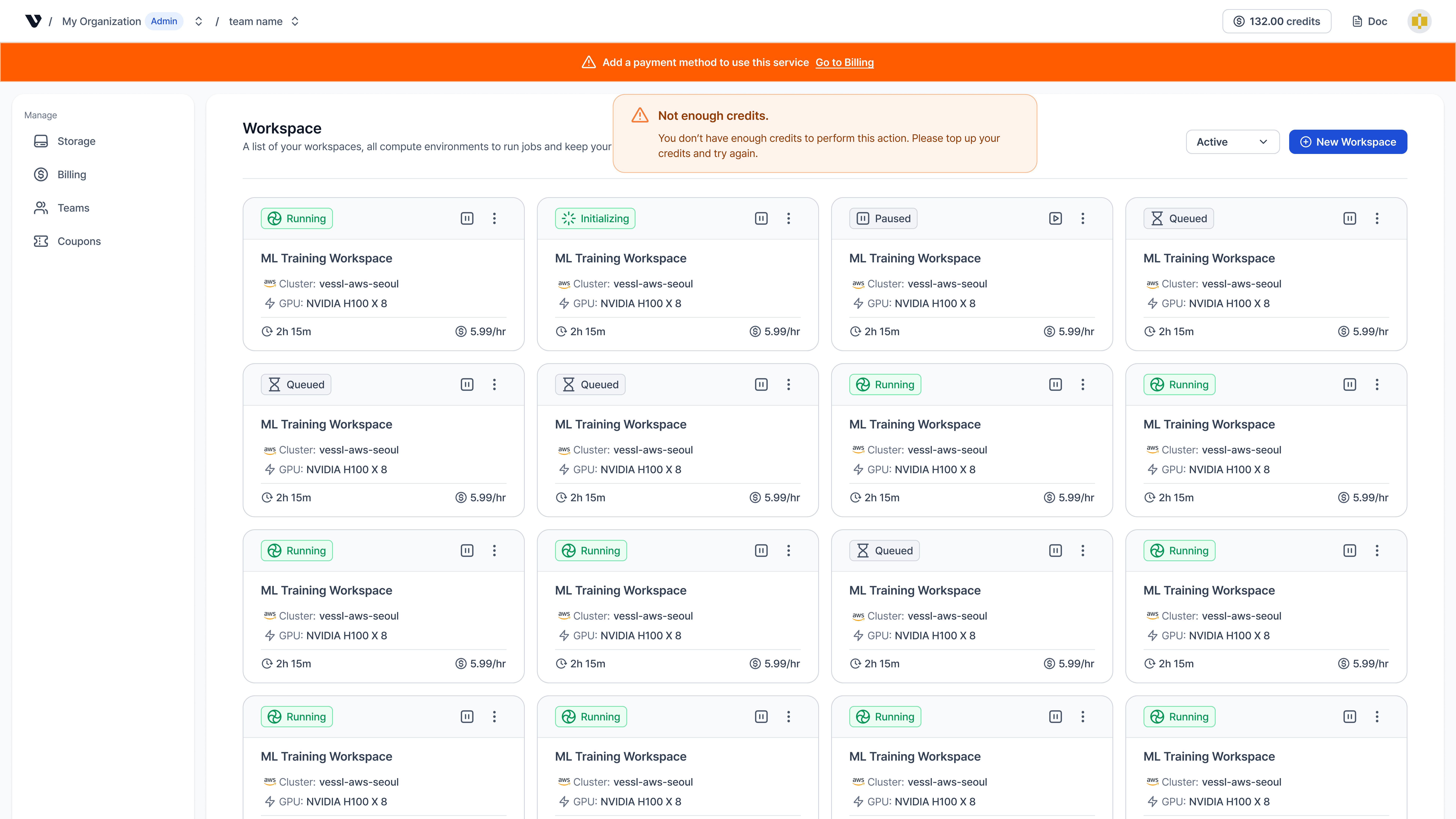 Example: Payment method registration banner
## Access paths
* **Header credits badge**: Hover to view remaining credits and spend rate, then click to open **Credit usage history**
* **Organization admin page**: Click your Organization name from the top navigation bar, then open the **Billing** tab in the sidebar
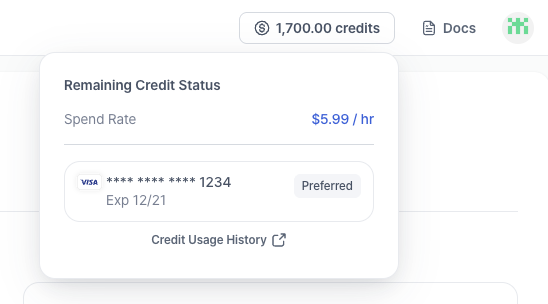 Example: Credit header
Spend rate includes currently running GPU resources. Paused workspaces contribute storage costs only.
For detailed spend trends and team-level cost breakdown, see the [Organization dashboard](../dashboard/overview).