> ## Documentation Index
> Fetch the complete documentation index at: https://docs.cloud.vessl.ai/llms.txt
> Use this file to discover all available pages before exploring further.
# Create a volume
> Create Cluster storage or Object storage volumes and assign team access.
As an admin, you can create both Cluster storage and Object storage volumes and assign them to specific teams.
## Create Object storage volume
Members can also create Object storage volumes directly. See [Create Object storage volume](/member/volume/create) for the member guide.
To create an Object storage volume:
1. Click **Object storage** in the sidebar.
2. Click **Create new volume**.
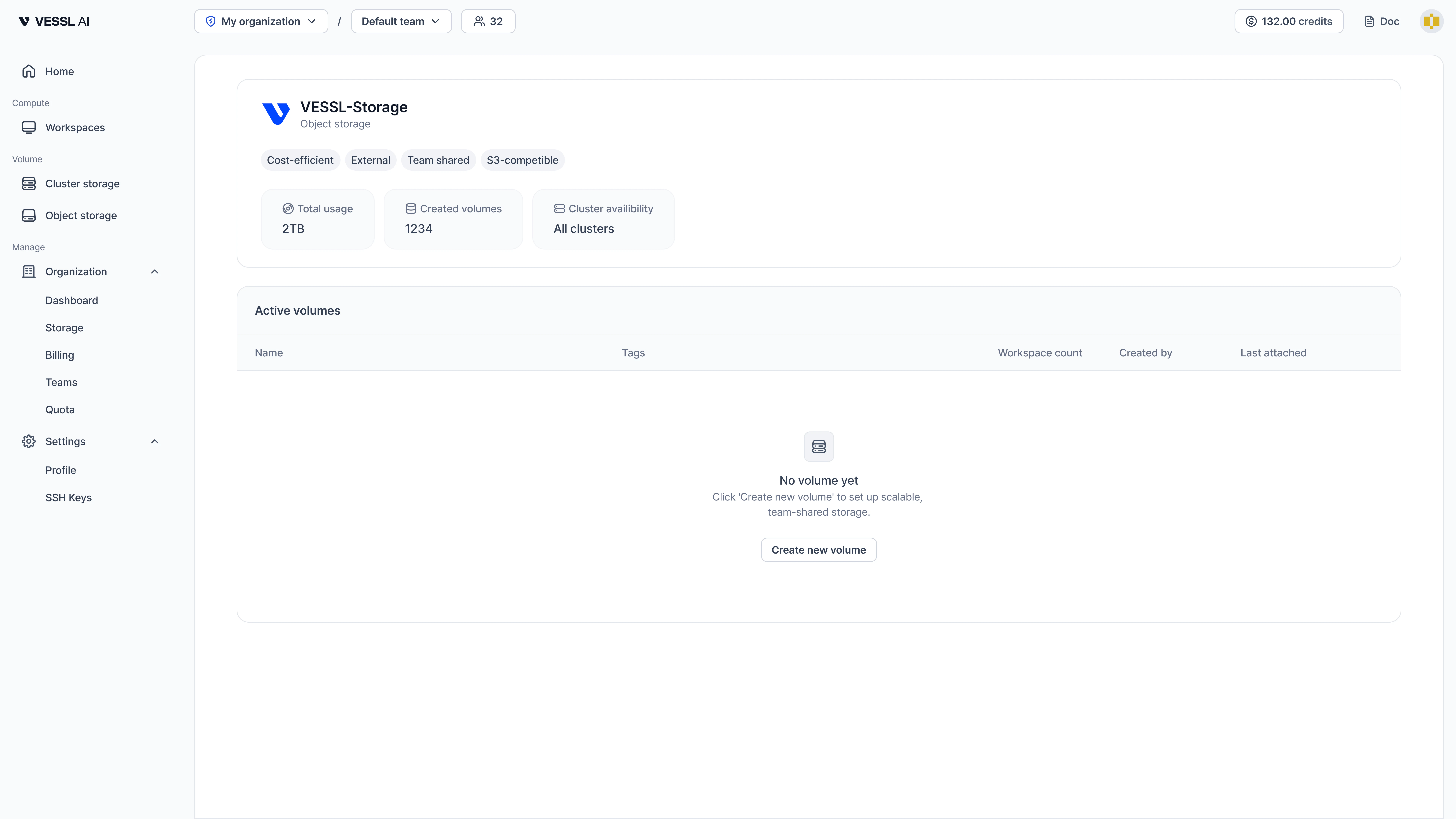 Example: Object storage page
| Setting | Description |
| ------------------------ | ----------------------------------------------------------------------------------------------------------------- |
| Volume name | Name of the volume |
| Volume description | Optional description |
| Storage | Select the Object storage backend for this volume |
| Volume size | Size in GiB. You can increase later, but cannot reduce |
| Assign teams with access | Select one or more teams to share this volume. Team members will be able to view, update, and delete this volume. |
Once created, you can attach the volume to workspaces and adjust team access. Size reductions are not supported.
**Team assignments and permissions:**
* Team members can view and use volumes assigned to their teams.
* Team members can update and delete volumes if they belong to at least one assigned team.
* When updating team assignments, non-admin users can only add or remove teams they belong to.
* Volumes without team assignments can only be managed by organization admins.
Check the pricing summary before creating the volume.
## Create Cluster storage
Before creating volumes, you need at least one Cluster storage. To create a new Cluster storage:
1. Go to **Organization > Storage** in the sidebar.
2. Click **Create new storage**.
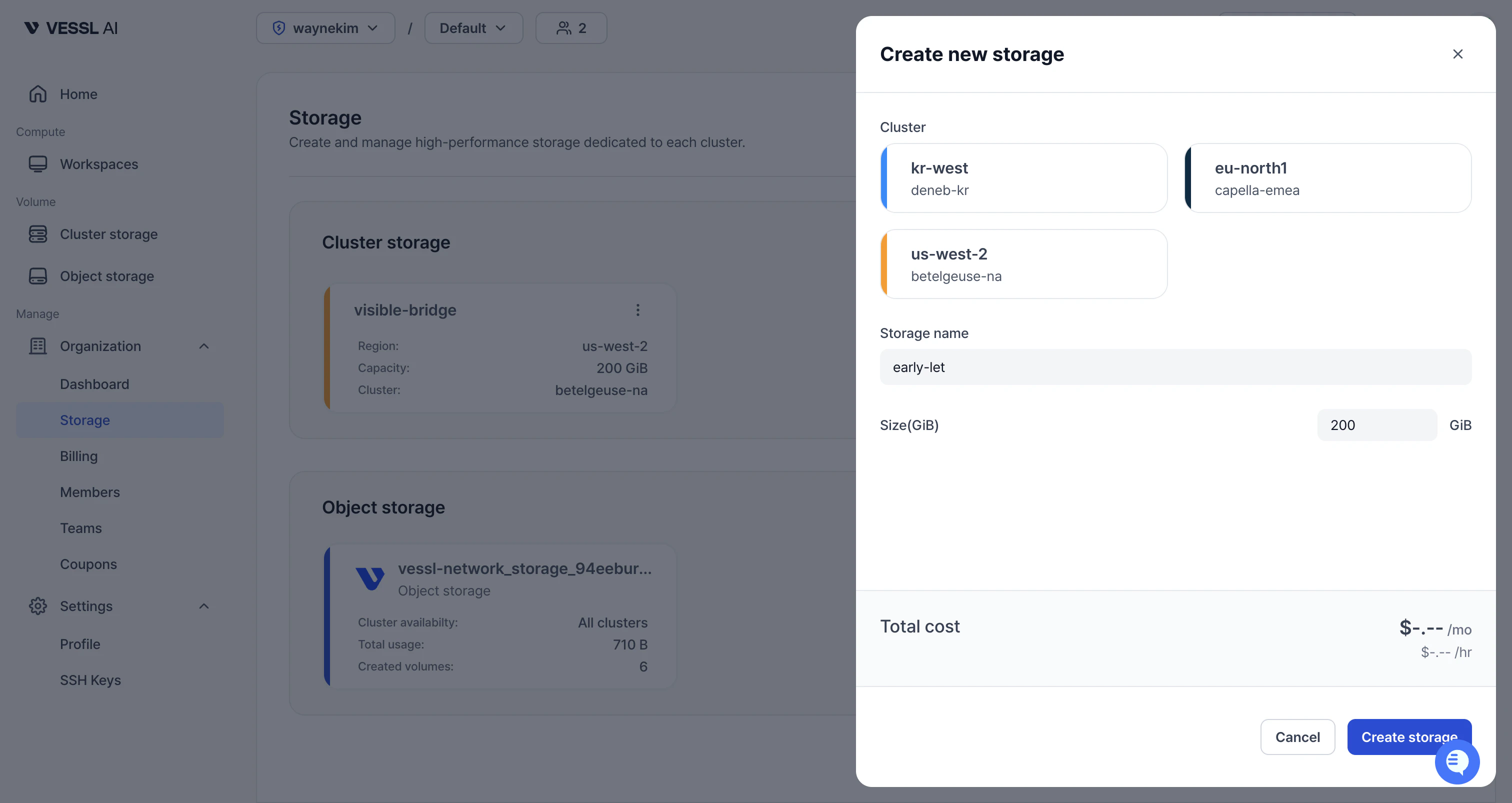 Example: Create new storage modal
| Setting | Description |
| ---------------- | --------------------------------------------------------- |
| **Cluster** | Select the cluster where this storage will be provisioned |
| **Storage name** | Name of the Cluster storage |
| **Size (GiB)** | Storage capacity in GiB |
The **Total cost** is displayed at the bottom of the modal before you confirm.
Click **Create storage** to provision the Cluster storage. Once created, you can create volumes within it.
Cluster storage is bound to the cluster's region. When creating a workspace, you can only attach Cluster storage volumes from the same region as your selected GPU. Make sure to create Cluster storage in every region where your team runs workspaces.
## Create Cluster storage volume
To create a Cluster storage volume:
1. Click **Cluster storage** in the sidebar.
2. Select a storage from the left panel.
3. Click **Create new volume**.
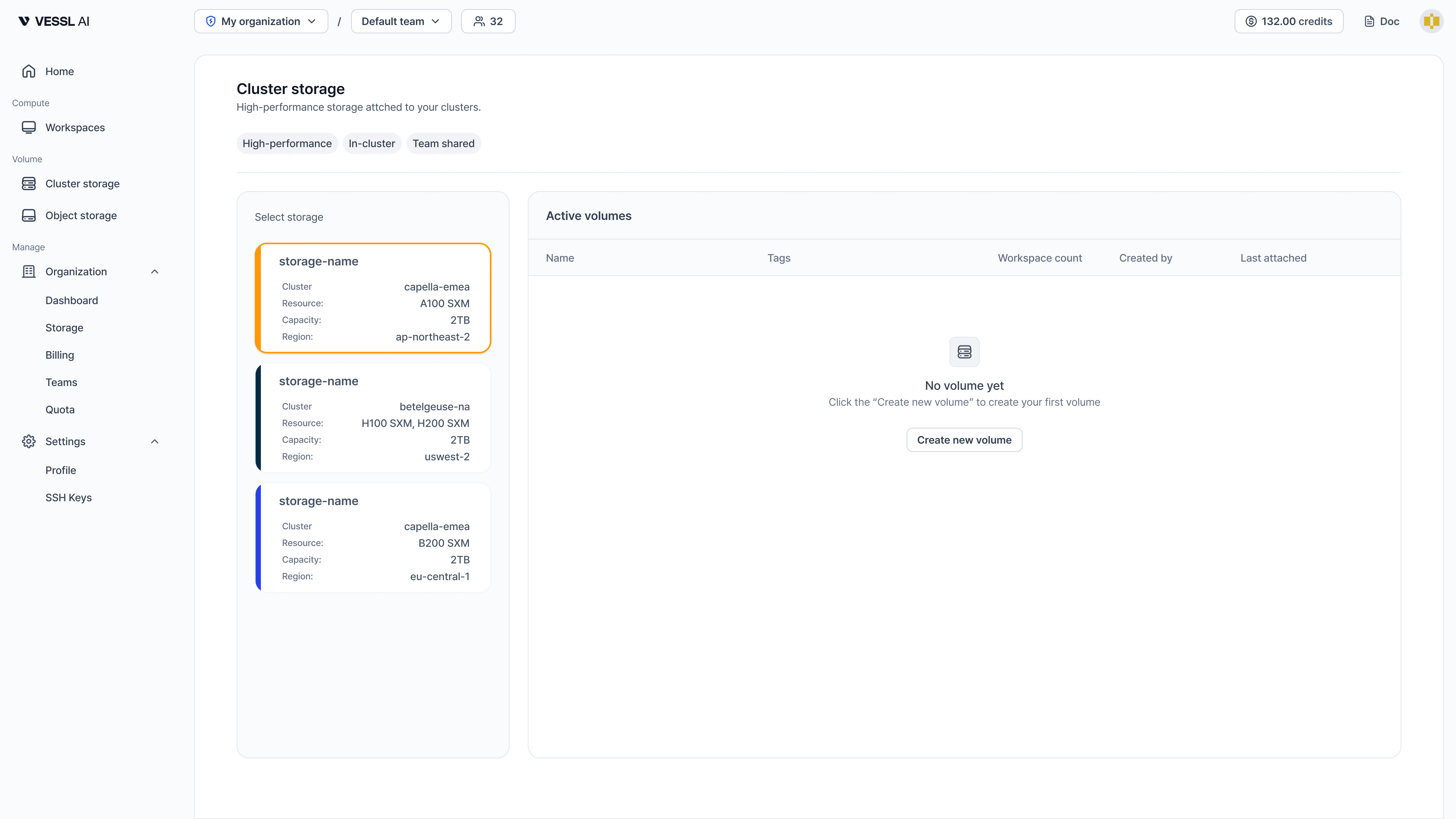 Example: Cluster storage page
| Setting | Description |
| ---------------------------- | ----------------------------------------------------------------------------------------------------------------- |
| **Volume name** | Name of the volume |
| **Volume description** | Optional description |
| **Volume size** | Size in GiB. You can increase later, but cannot reduce |
| **Assign teams with access** | Select one or more teams to share this volume. Team members will be able to view, update, and delete this volume. |
Once created, you can attach the volume to workspaces and adjust team access. Size reductions are not supported.
**Team assignments and permissions:**
* Team members can view and use volumes assigned to their teams.
* Team members can update and delete volumes if they belong to at least one assigned team.
* When updating team assignments, non-admin users can only add or remove teams they belong to.
* Volumes without team assignments can only be managed by organization admins.
Cluster storage is bound to a single cluster. Only workspaces on the same cluster can mount these volumes.
**Cluster storage pricing:** Billed at **\$0.20/GiB/month** based on actual usage, measured daily (effective 2026-07-01). You no longer need to pre-provision exact capacity — billing follows what you actually store. See [Storage pricing](/pricing/storage) for the latest rates.
If no Cluster storage is available, contact your Organization Admin to set up Cluster storage for your team.
***
**Key differences:**
* **Object storage**: S3-backed, accessible from any cluster. Best for cross-cluster data sharing.
* **Cluster storage**: CephFS/NVMe, bound to one cluster. Best for fast, persistent storage within a cluster.