> ## Documentation Index
> Fetch the complete documentation index at: https://docs.cloud.vessl.ai/llms.txt
> Use this file to discover all available pages before exploring further.
# Volume detail
> Inspect files, attached workspaces, and provide CLI guidance.
You can review volume files, see attached workspaces, and use short-lived credentials for CLI data management. Members can also access these features and delete volumes they created.
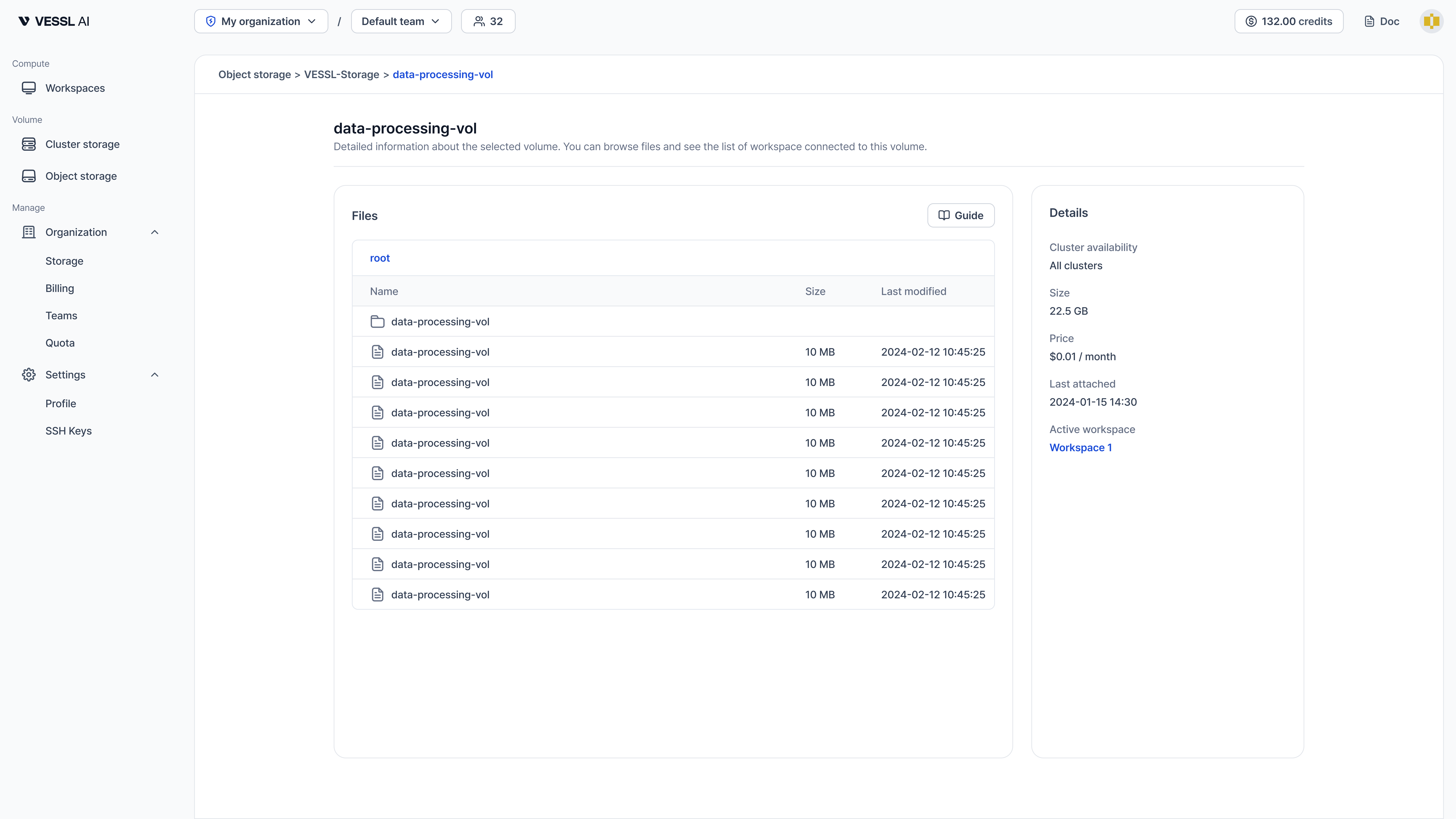 Example: Storage-VolumeDetails-Files on VESSL Cloud.
Learn how to browse files, see attached workspaces, and use AWS CLI with temporary credentials to manage data.
## Permissions
Volume access is controlled by team membership and organization roles.
### Who can view and use volumes
* **Organization admins**: Can view, update, and delete all volumes in the organization.
* **Team members**: Can view and use volumes that are assigned to teams they belong to.
### Who can update volumes
* **Organization admins**: Can update any volume, including changing the name, description, and team assignments.
* **Team members**: Can update volumes if they belong to at least one team assigned to the volume. When modifying team assignments:
* You can add teams you belong to.
* You can remove teams you belong to.
* You cannot add or remove teams you do not belong to (admin only).
### Who can delete volumes
* **Organization admins**: Can delete any volume in the organization.
* **Team members**: Can delete volumes if they belong to at least one team assigned to the volume.
* **Unassigned volumes**: Volumes without any team assignments can only be deleted by organization admins.
## Delete volume
Deleting a volume permanently removes all data. This action cannot be undone.
**Deletion restrictions:**
* You cannot delete a volume while it is attached to active workspaces. Before deleting, you must stop or terminate all workspaces using this volume.
* You must be an organization admin or a member of at least one team assigned to the volume.
* This applies to both Object storage and Cluster storage volumes.
Watch the demo below to see the delete flow.
To delete a volume:
1. Go to the **Volume detail** page.
2. Click the **Delete** button.
3. Confirm the deletion by typing the volume name.