> ## Documentation Index
> Fetch the complete documentation index at: https://docs.cloud.vessl.ai/llms.txt
> Use this file to discover all available pages before exploring further.
# Create a team
> Create a new team and set it as the default for your primary web console view.
Create teams to organize members and manage shared resources like storage volumes.
Navigate to **Manage** → **Teams** in the sidebar.
Click the **Create team** button in the top right of the Teams page.
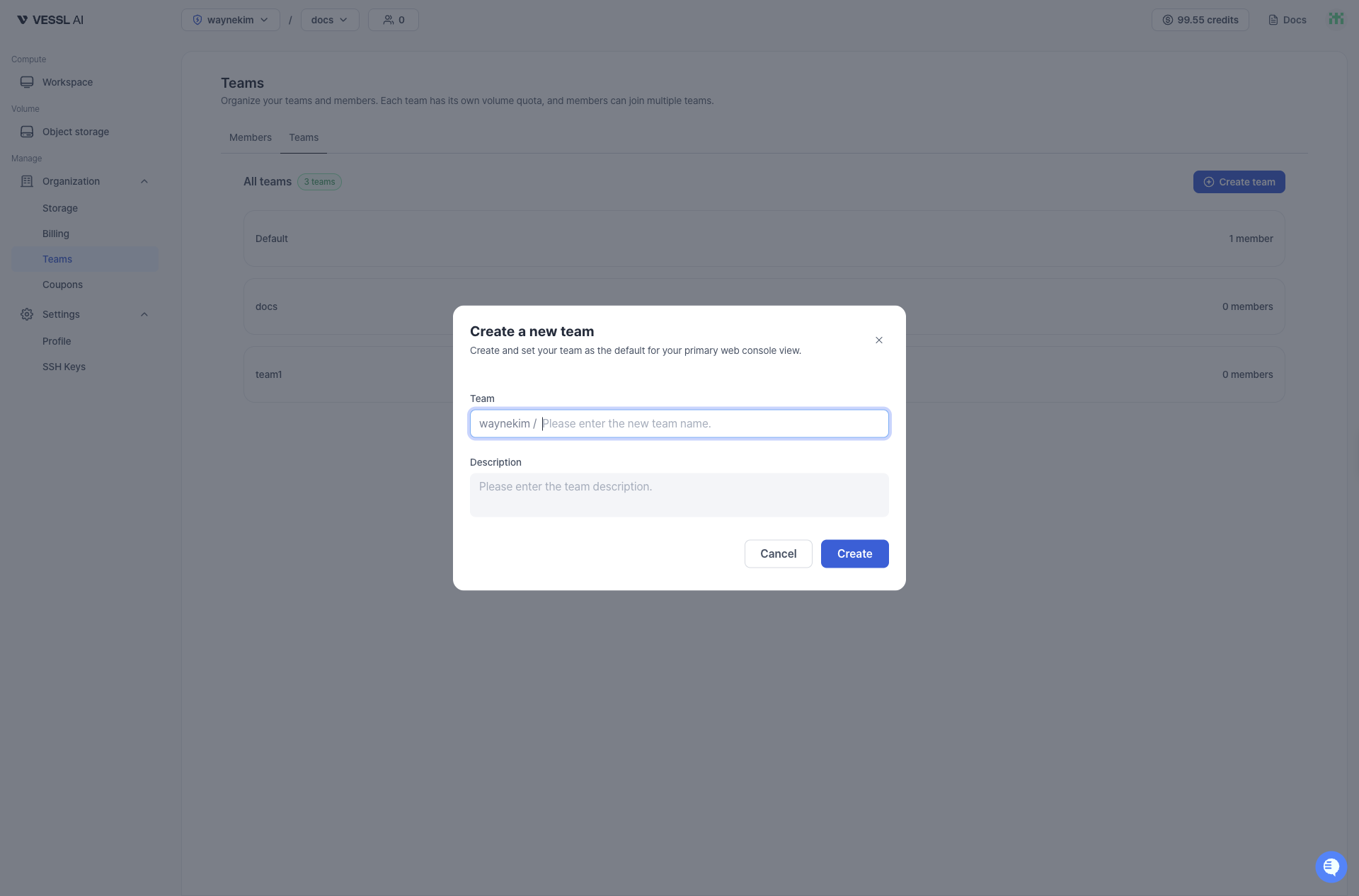 Example: Create a new team
1. Enter a **Team** name.
2. (Optional) Add a **Description** to help identify the team's purpose.
3. Click **Create** to finish.
You can set a team as the default for your primary web console view. This helps streamline workflows by showing the most frequently used team's resources first.
After creating a team, you can:
* Assign members to the team from the [Member list](/admin/teams/member-list) or [Invite member](/admin/teams/invite-member) page
* Create and assign storage volumes for team collaboration
* View team details in the [Team list](/admin/teams/team-list)