> ## Documentation Index
> Fetch the complete documentation index at: https://docs.cloud.vessl.ai/llms.txt
> Use this file to discover all available pages before exploring further.
# vesslctl workspace
> Create, manage, and connect to interactive development workspaces.
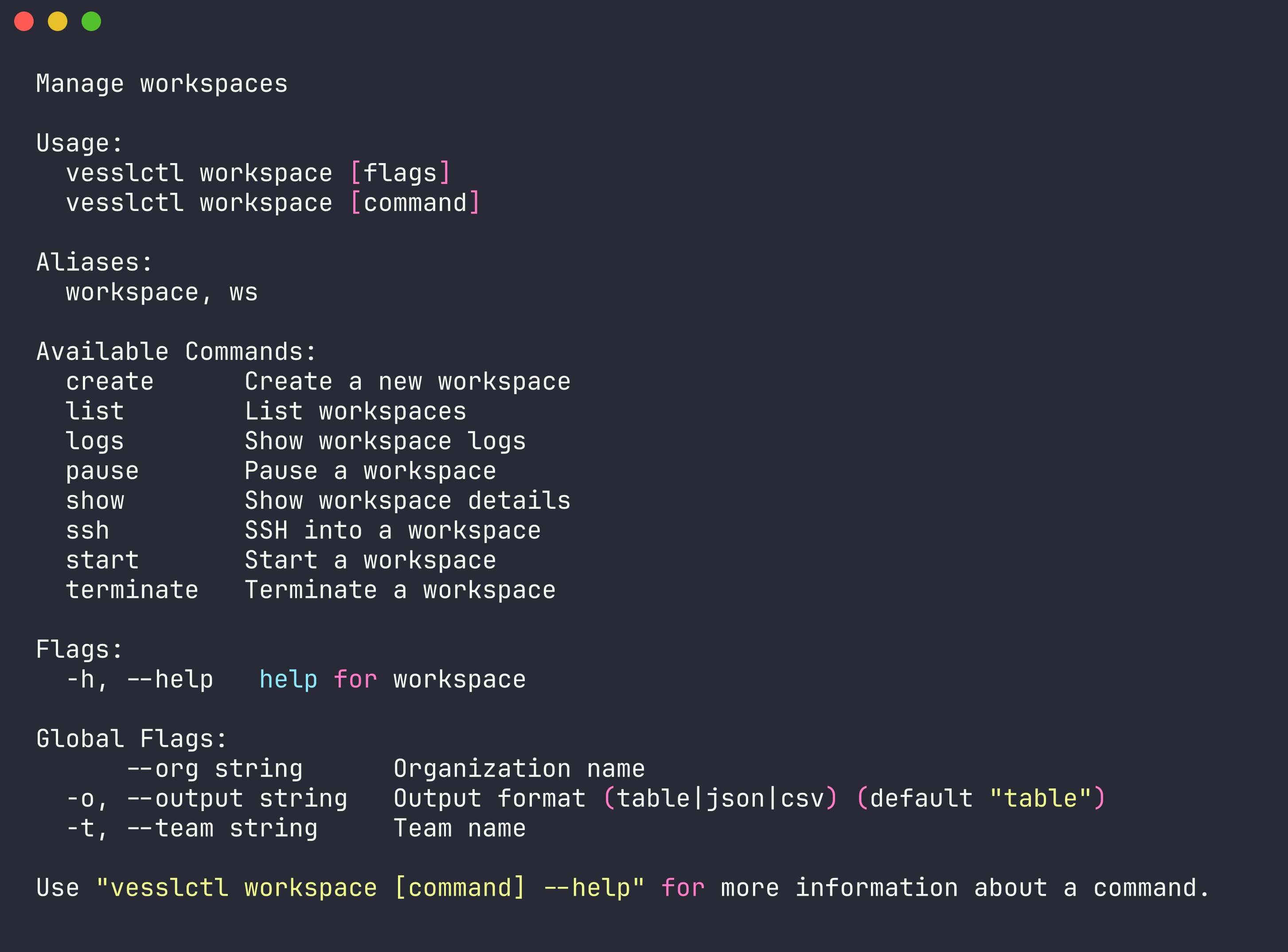
The `workspace` command (alias: `ws`) lets you manage interactive development environments on VESSL Cloud. Workspaces provide persistent compute sessions you can pause and resume without losing data.
## list
List all workspaces in the current team.
```bash theme={null}
vesslctl workspace list
```
| Flag | Default | Description |
| ------- | ------- | ------------------------------------------------ |
| `--all` | `false` | Show all workspaces in the team (not just yours) |
## show
Display detailed information about a specific workspace.
```bash theme={null}
vesslctl workspace show
```
| Argument | Description |
| -------- | -------------------------------- |
| `slug` | Slug of the workspace to inspect |
## create
Create a new workspace with a specified cluster, resource spec, and container image.
```bash theme={null}
vesslctl workspace create --name my-workspace --cluster --resource-spec --image
```
| Flag | Required | Description |
| ------------------ | -------- | ------------------------------------------------------------------------------------------ |
| `--name` | Yes | Name for the workspace |
| `--cluster` | Yes | Cluster slug to run the workspace on |
| `--resource-spec` | Yes | Resource spec slug (GPU type, count, CPU, memory) |
| `--image` | No | Container image to use |
| `--init-script` | No | Shell script to run on workspace startup |
| `--object-volume` | No | Mount an Object storage volume as `SLUG:MOUNT_PATH` (repeatable) |
| `--cluster-volume` | No | Mount a Cluster storage volume as `SLUG:MOUNT_PATH` (repeatable) |
| `--ssh-key` | No | SSH key slug to attach (repeatable). Run `vesslctl ssh-key list` to find slugs. |
| `--port` | No | Additional port as `NAME:PORT:PROTOCOL` (repeatable). Protocol is `http`, `tcp`, or `udp`. |
**Example:**
```bash theme={null}
vesslctl workspace create \
--name my-workspace \
--cluster \
--resource-spec \
--image quay.io/vessl-ai/torch:2.9.1-cuda13.0.1-py3.13-slim \
--ssh-key \
--port jupyter:8888:http \
--port api:8000:tcp
```
Run `vesslctl cluster list` and `vesslctl resource-spec list` to see available clusters and GPU specs. Run `vesslctl ssh-key list` to see SSH key slugs.
**Pricing summary and credit balance.** `workspace create` and `workspace start` show the resource spec, hourly cost, current credit balance, and estimated remaining hours before launching. Creation is blocked when the balance is zero or negative — run `vesslctl billing show` to inspect, or top up before retrying.
**Run vesslctl inside a running workspace.** Every workspace ships with the following environment variables already set, so `vesslctl` is ready to use from a JupyterLab terminal or SSH session without re-authenticating:
* `VESSLCTL_ACCESS_TOKEN` — a workload-scoped token used as the bearer for API calls
* `VESSLCTL_ORG` — the organization that owns the workspace
* `VESSLCTL_TEAM` — the team that owns the workspace
Commands like `vesslctl workspace list`, `vesslctl job create`, and `vesslctl volume upload` work straight away. The workload token has two restrictions worth knowing:
* **Scoped to a single team.** It can only see and modify resources in the team that owns the workspace. It cannot list other teams or change context with `vesslctl team switch`.
* **Cannot manage SSH keys.** Registering or deleting SSH keys is an account-level action and is rejected for workload tokens. Run [`vesslctl ssh-key add`](/cli/commands/ssh-key#add) from your local machine first, then attach the key at create time with `vesslctl workspace create --ssh-key `.
## start
Resume a previously paused workspace.
```bash theme={null}
vesslctl workspace start
```
| Argument | Description |
| -------- | ------------------------------- |
| `slug` | Slug of the workspace to resume |
## pause
Pause a running workspace. Billing stops while paused, but all data is preserved.
```bash theme={null}
vesslctl workspace pause
```
| Argument | Description |
| -------- | ------------------------------ |
| `slug` | Slug of the workspace to pause |
## terminate
Permanently delete a workspace and all associated data.
```bash theme={null}
vesslctl workspace terminate
```
| Flag | Short | Description |
| ------- | ----- | ------------------------ |
| `--yes` | `-y` | Skip confirmation prompt |
**Example:**
```bash theme={null}
vesslctl workspace terminate my-workspace-abc123 --yes
```
## logs
View logs from a workspace.
```bash theme={null}
vesslctl workspace logs
```
| Flag | Short | Default | Description |
| --------- | ----- | ------- | ----------------------------- |
| `--limit` | | `100` | Number of log lines to return |
**Example:**
```bash theme={null}
vesslctl workspace logs my-workspace-abc123 --limit 500
```
## ssh
Open an SSH session into a running workspace.
```bash theme={null}
vesslctl workspace ssh
```
| Flag | Short | Description |
| ------- | ----- | ---------------------------- |
| `--key` | `-i` | Path to SSH private key file |
**Example:**
```bash theme={null}
vesslctl workspace ssh my-workspace-abc123 -i ~/.ssh/id_rsa
```
The command launches your local `ssh` binary against the workspace's SSH endpoint and authenticates with a registered SSH key — there is no browser OAuth step. Register a key first with [`vesslctl ssh-key add`](/cli/commands/ssh-key#add) or in the console under **Settings > SSH Keys**.
**Prefer the browser, JupyterLab, or VS Code?** The console **Connect** tab on each workspace lists every HTTP service (JupyterLab and any custom ports) as clickable URLs and provides a copy-paste SSH config block for VS Code Remote-SSH. See [Connect to a workspace](/member/workspace/connect) for the full set of connection methods.