> ## Documentation Index
> Fetch the complete documentation index at: https://docs.cloud.vessl.ai/llms.txt
> Use this file to discover all available pages before exploring further.
# 워크로드 확인하기
> 내 워크로드 현황, GPU 사용량, 비용을 한눈에 확인해 보세요.
홈 대시보드에서는 소속된 모든 팀의 워크로드 상태를 한 화면에서 확인할 수 있어요. 사이드바에서 **Home**을 클릭하면 대시보드가 열려요.
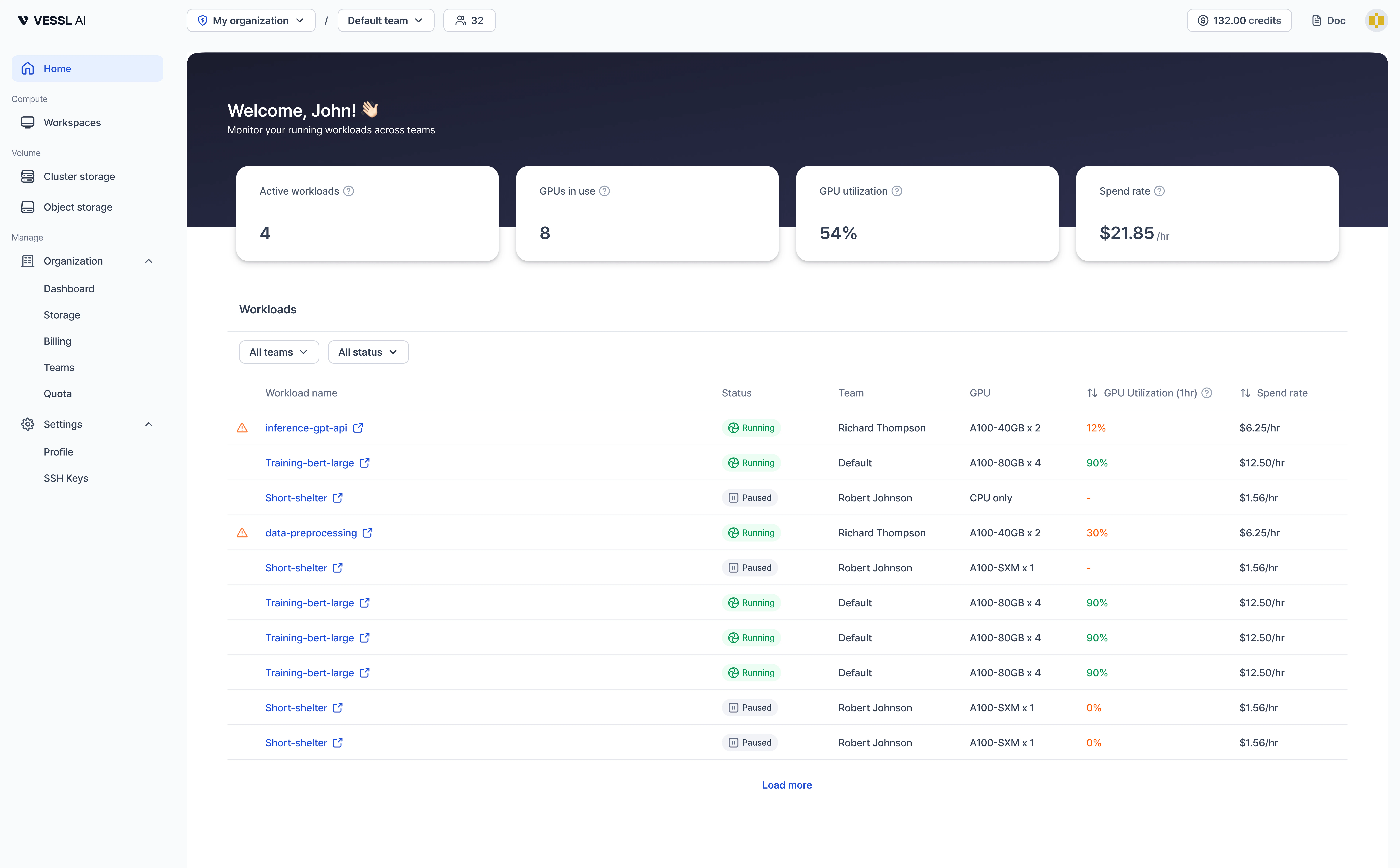 예시: 요약 카드와 워크로드 목록이 표시된 홈 대시보드
## Summary 카드
화면 상단 4개의 카드로 워크로드 현황을 빠르게 파악할 수 있어요.
| 카드 | 설명 |
| -------------------- | -------------------------------------------------------------------------------------------- |
| **Active workloads** | Terminated를 제외한 전체 워크로드 수(Running, Paused, Queued, Initializing 포함) |
| **GPUs in use** | 현재 Running 상태인 Workspace에 할당된 GPU 수 |
| **GPU utilization** | Running Workspace의 최근 1시간 GPU 가중 평균 사용률. 실행 시간이 1시간 미만이면 임시 수집 상태로 표시돼요(예: `Collecting...`). |
| **Spend rate** | 현재 Running Workspace 전체의 시간당 비용(\$/hr). 스토리지 비용은 제외돼요. |
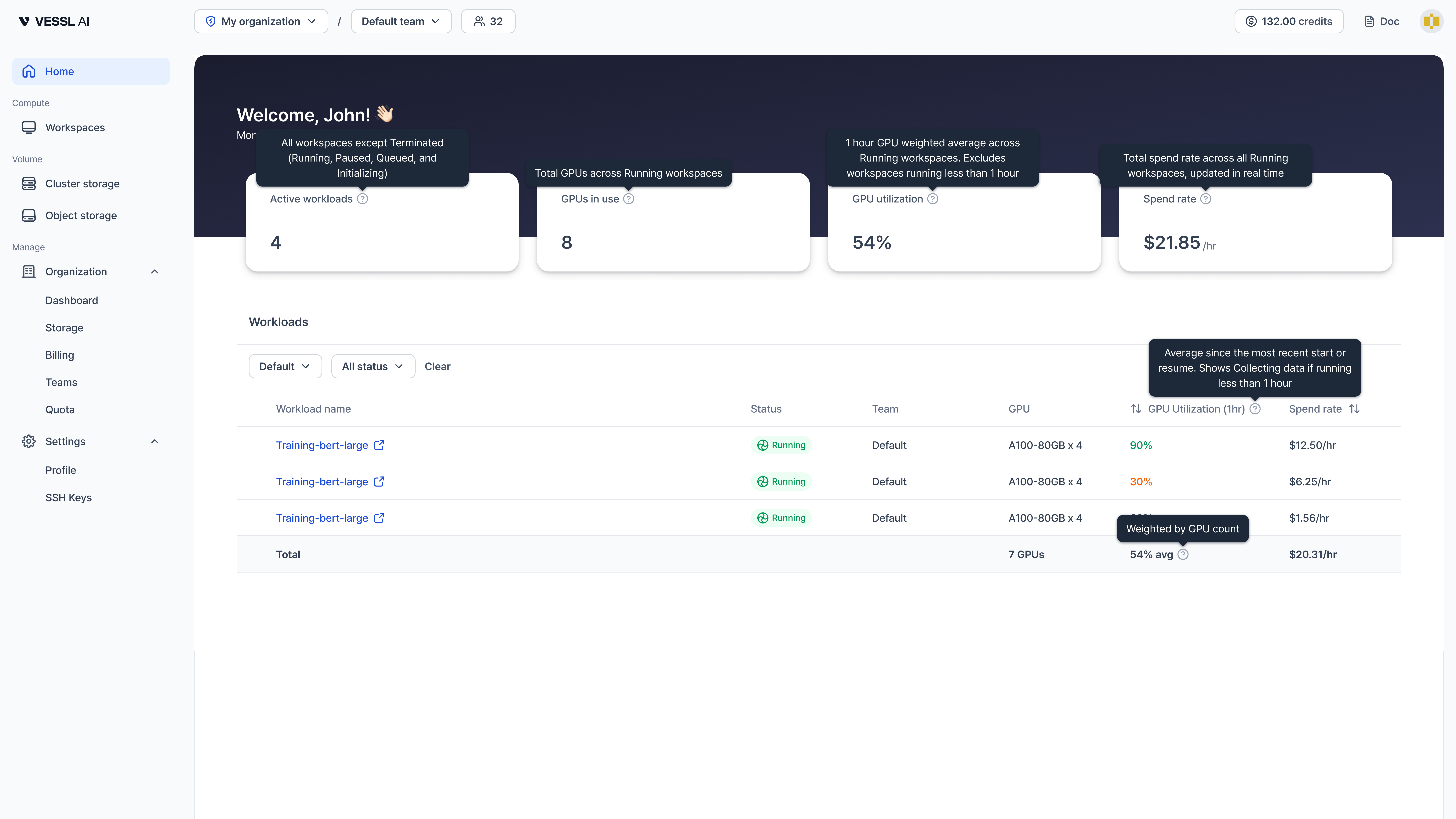 예시: 툴팁 아이콘에 마우스를 올리면 각 지표의 계산 방식을 확인할 수 있어요.
각 카드의 툴팁 아이콘에 마우스를 올리면 지표 계산 방식을 확인할 수 있어요.
## Workloads
워크로드 테이블에서는 팀별로 그룹핑된 Workspace 목록을 보여줘요.
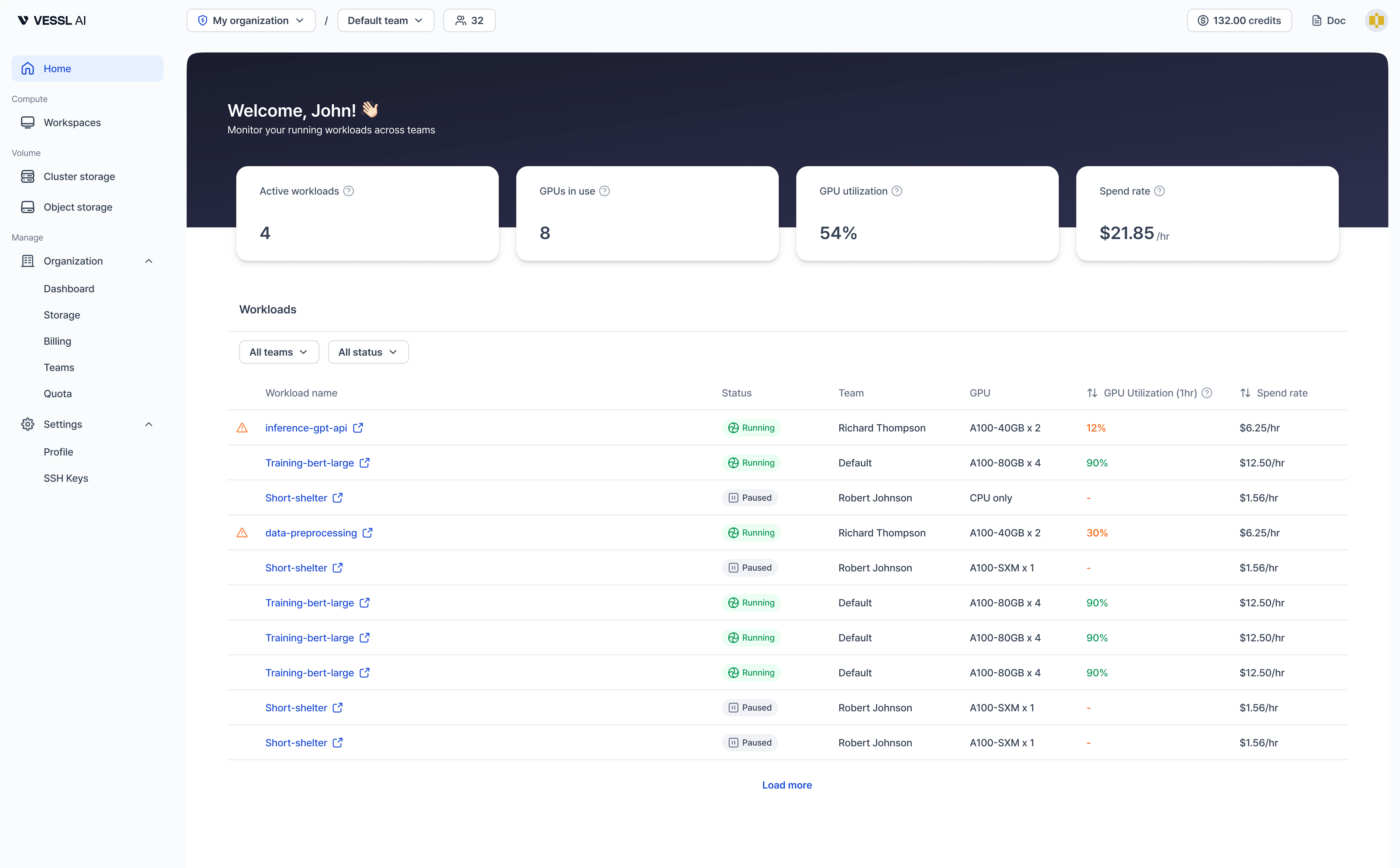 예시: 워크로드 테이블
### 필터
* **Team**: 특정 팀 또는 전체 팀의 워크로드를 표시해요.
* **Status**: 워크로드 상태별로 필터링해요(예: Running, Paused).
* **Clear**: 모든 필터를 초기화해요.
### 테이블 컬럼
| 컬럼 | 설명 |
| ------------------------ | -------------------------------------------------------------------------------------------------- |
| **Workload name** | Workspace 이름. GPU 사용률이 **30%** 미만인 워크로드에는 under-utilization 경고가 표시돼요. 클릭하면 Workspace 상세 페이지로 이동해요. |
| **Status** | 현재 상태(Running, Paused, Stopped 등) |
| **Team** | 워크로드가 속한 팀 |
| **GPU** | GPU 종류와 수량(예: "A100-80GB x 4") |
| **GPU Utilization(1hr)** | 최근 1시간 GPU 가중 평균 사용률. 색상 구분: 초록(**90%** 이상), 회색(**30%**\~**90%**), 주황(**30%** 미만) |
| **Spend rate** | 해당 워크로드의 시간당 비용(\$/hr) |
특정 팀으로 필터링하면 하단에 GPU 수 합계, 평균 사용률, 총 비용을 보여주는 **Total** 행이 표시돼요.
## Quickstart 카드
실행 중인 워크로드가 없으면 3가지 퀵스타트 카드가 표시돼요.
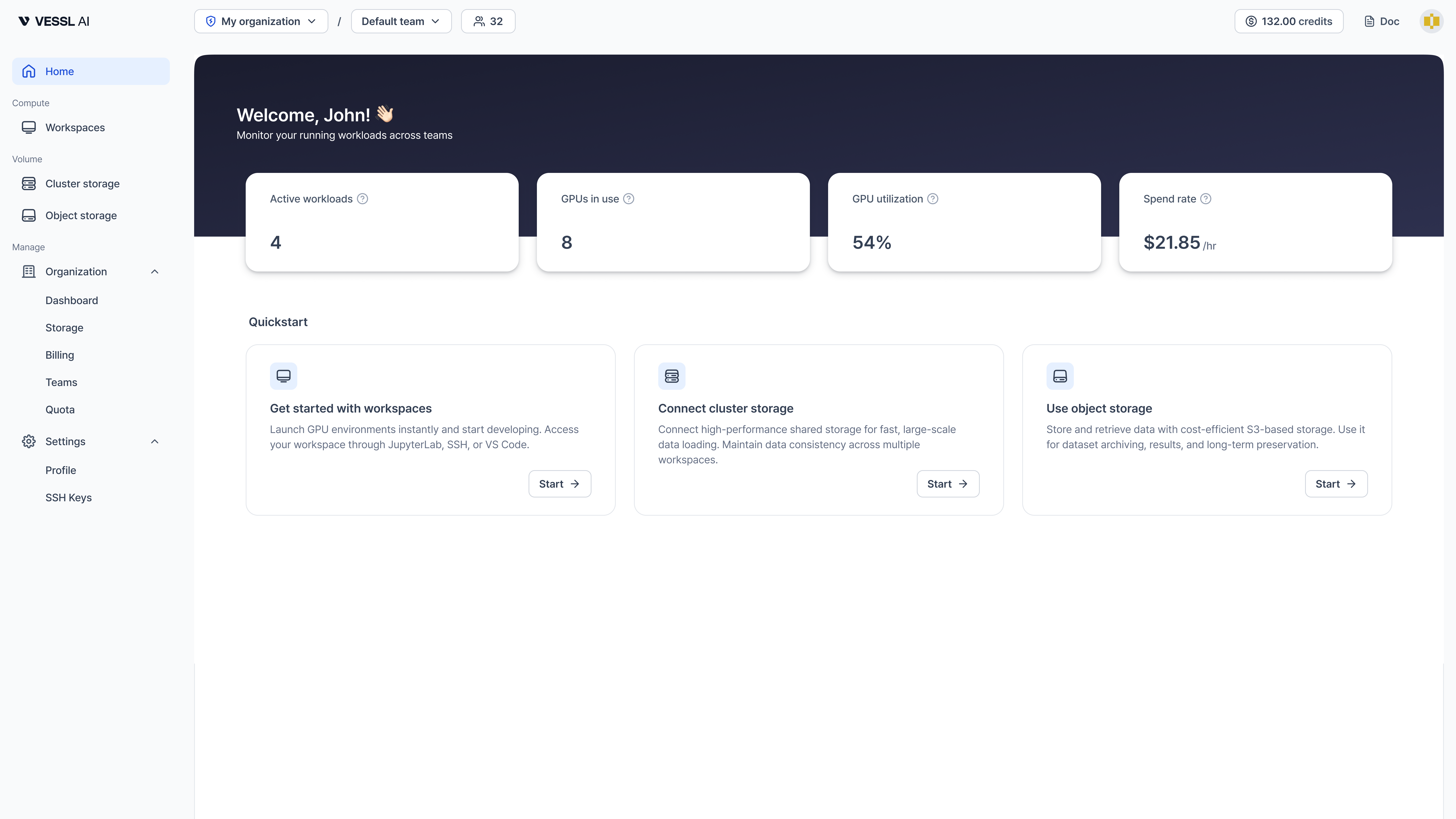 예시: 퀵스타트 카드
* **Get started with workspaces**: GPU 환경을 시작하고 바로 개발할 수 있어요.
* **Connect Cluster storage**: 고성능 공유 스토리지를 연결해서 대규모 데이터를 빠르게 로딩할 수 있어요.
* **Use Object storage**: S3 기반 비용 효율적인 스토리지로 데이터를 보관하고 관리할 수 있어요.
## 예외 상황
| 상황 | 동작 |
| ------------- | ------------------------------------ |
| 실행 중인 워크로드 없음 | 워크로드 테이블 대신 퀵스타트 카드가 표시돼요. |
| 메트릭 데이터 없음 | 실행 시간이 1시간 미만인 워크로드는 임시 수집 상태로 표시돼요. |
| 필터 결과 없음 | 빈 상태 안내와 함께 필터 조정 힌트가 표시돼요. |
| CPU 전용 워크로드 | GPU 관련 컬럼에 `-`로 표시돼요. |