> ## Documentation Index
> Fetch the complete documentation index at: https://docs.cloud.vessl.ai/llms.txt
> Use this file to discover all available pages before exploring further.

# 정리하기(Clean up)

> 비용을 아끼려면 Workspace를 멈추거나 삭제해 주세요.

작업이 끝났다면 불필요한 비용이 나가지 않도록 정리하는 게 좋아요.

<Tip>아래 데모에서 Workspace를 **Pause**하고, 필요하면 **Terminate**로 종료한 뒤, **View Terminated**에서 기록을 확인하고 **Delete**로 완전히 삭제하는 흐름을 한 번에 볼 수 있어요.</Tip>

<div style={{ position: 'relative', paddingBottom: 'calc(65.9375% + 41px)', height: 0, width: '100%' }}>
  <iframe src="https://demo.arcade.software/yFpFdw2PHryDXSnawPp3?embed&embed_mobile=inline&embed_desktop=inline&show_copy_link=true" title="Pause and Permanently Delete a Workspace" frameBorder="0" loading="lazy" webkitAllowFullScreen="" mozAllowFullScreen="" allowFullScreen allow="clipboard-write" style={{ position: 'absolute', top: 0, left: 0, width: '100%', height: '100%', colorScheme: 'light' }} />
</div>

<div>
  <Frame>
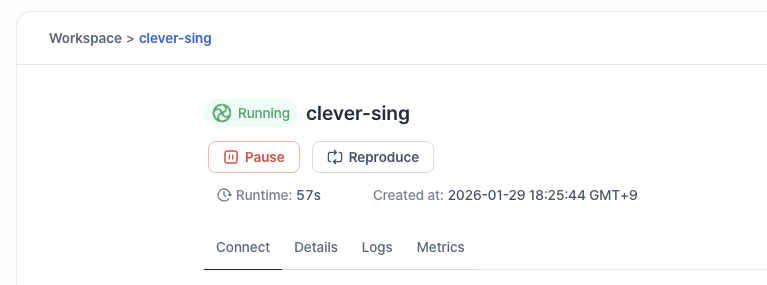
    <img src="https://mintcdn.com/dora/vPFagCAoutrvcxVV/images/newpauseandterminate.png?fit=max&auto=format&n=vPFagCAoutrvcxVV&q=85&s=2b585206690e598bfb0bc07b1215c194" alt="실행 중인 Workspace의 케밥 메뉴에서 Pause를 선택하는 화면" width="767" height="285" data-path="images/newpauseandterminate.png" />
  </Frame>

  <small>예시: Workspace 일시정지</small>
</div>

### 잠시 멈추기(Pause)

1. <strong>Workspaces</strong> 목록이나 상세 페이지로 이동해 주세요.
2. 실행 중인 Workspace의 케밥 메뉴(점 세 개)를 누르고 <strong>Pause</strong>를 선택하세요.

### 완전히 삭제하기(Terminate)

Workspace를 더 이상 안 쓴다면 완전히 삭제할 수 있어요.

<div>
  <Frame>
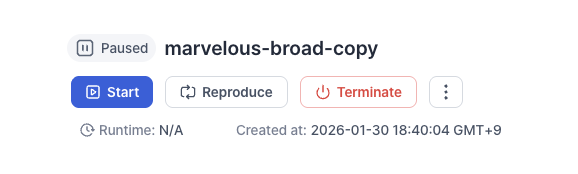
    <img src="https://mintcdn.com/dora/vPFagCAoutrvcxVV/images/newterminate.png?fit=max&auto=format&n=vPFagCAoutrvcxVV&q=85&s=b0676b24ad09f5b9925e798f634fe95d" alt="Workspace 이름을 다시 입력하도록 요구하는 Terminate 확정 대화상자" width="578" height="174" data-path="images/newterminate.png" />
  </Frame>

  <small>예시: Workspace 종료</small>
</div>

1. 케밥 메뉴에서 <strong>Terminate</strong>를 눌러주세요.
2. 실수로 삭제하는 걸 막기 위해, Workspace 이름을 똑같이 입력하고 종료를 확정해 주세요.

<Warning>
  <strong>Paused</strong> 상태에서는 컴퓨팅 비용은 안 나가지만, 스토리지 비용(Cluster storage: \$0.20/GiB/월)은 계속 청구돼요. 비용을 완전히 0으로 만들려면 <strong>Terminated</strong> 상태로 삭제해야 해요.
</Warning>

## 리스트에서 완전히 삭제하기(Delete)

종료(Terminated)된 Workspace를 리스트에서 완전히 지우고 싶다면:

<div>
  <Frame>
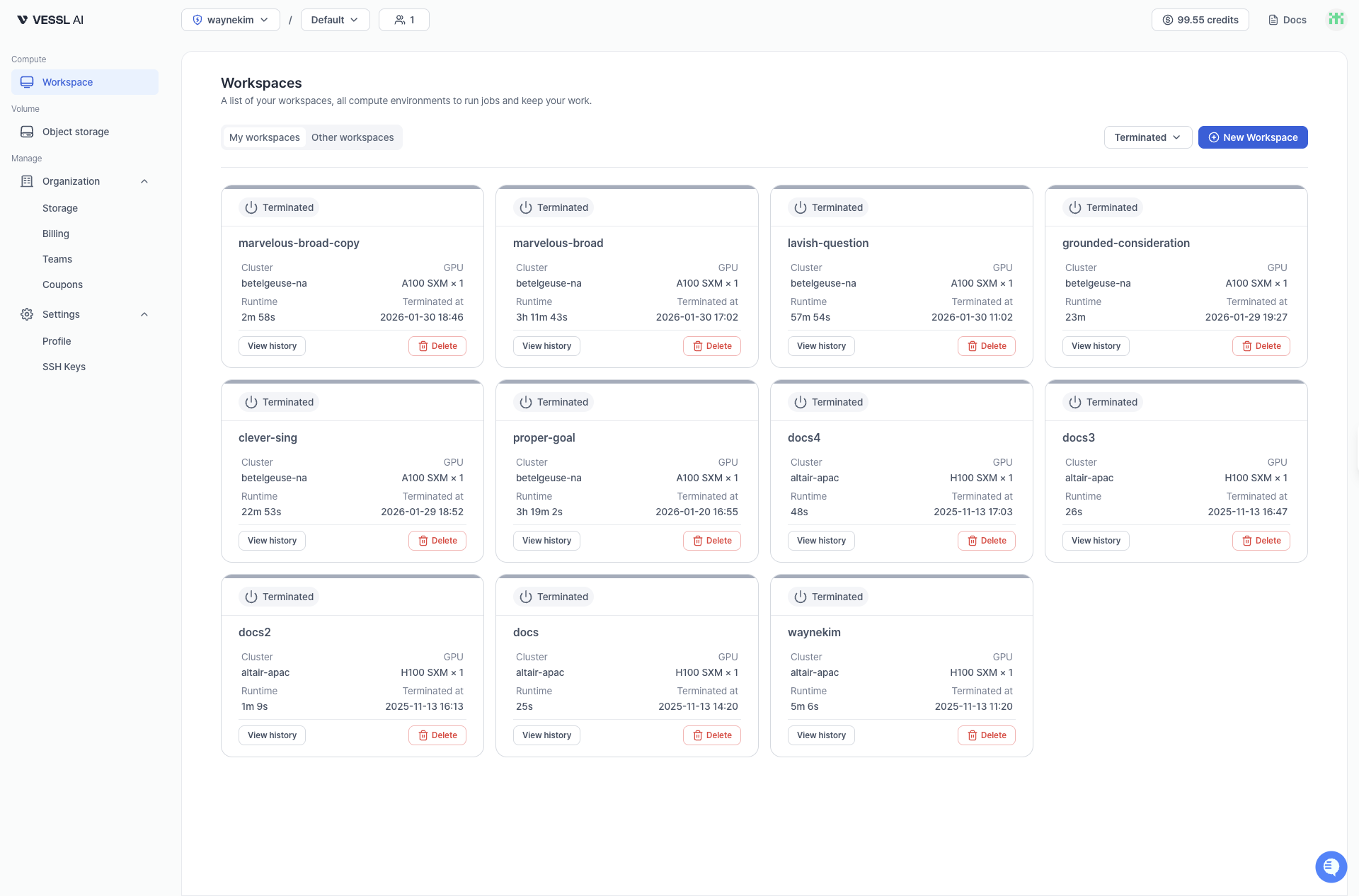
    <img src="https://mintcdn.com/dora/vPFagCAoutrvcxVV/images/newterminatedlist.png?fit=max&auto=format&n=vPFagCAoutrvcxVV&q=85&s=74eeb2b93cfe038915a51f0539de4686" alt="View Terminated 토글을 켜서 나타난 종료된 Workspace 목록과 Delete 버튼" width="1920" height="1266" data-path="images/newterminatedlist.png" />
  </Frame>

  <small>예시: 종료된 Workspace 목록</small>
</div>

1. <strong>View Terminated</strong> 토글을 켜서 종료된 Workspace를 확인하세요.
2. Workspace 카드에 있는 <strong>Delete</strong> 버튼을 클릭하세요.
3. Workspace 이름을 입력하고 삭제를 확정하세요.

<Info>
  종료(Terminated)된 Workspace는 더 이상 24시간 후에 자동으로 삭제되지 않아요. 히스토리가 더 이상 필요 없다면 <strong>Delete</strong>로 직접 삭제해 주세요.
</Info>