> ## Documentation Index
> Fetch the complete documentation index at: https://docs.cloud.vessl.ai/llms.txt
> Use this file to discover all available pages before exploring further.
# SSH Keys
> View SSH public keys stored in VESSL Cloud, add existing keys, or generate new key pairs.
View SSH public keys associated with your account. Use **Add key** to register an existing key, or **Generate Key** to create a new key pair for SSH access to workspaces.
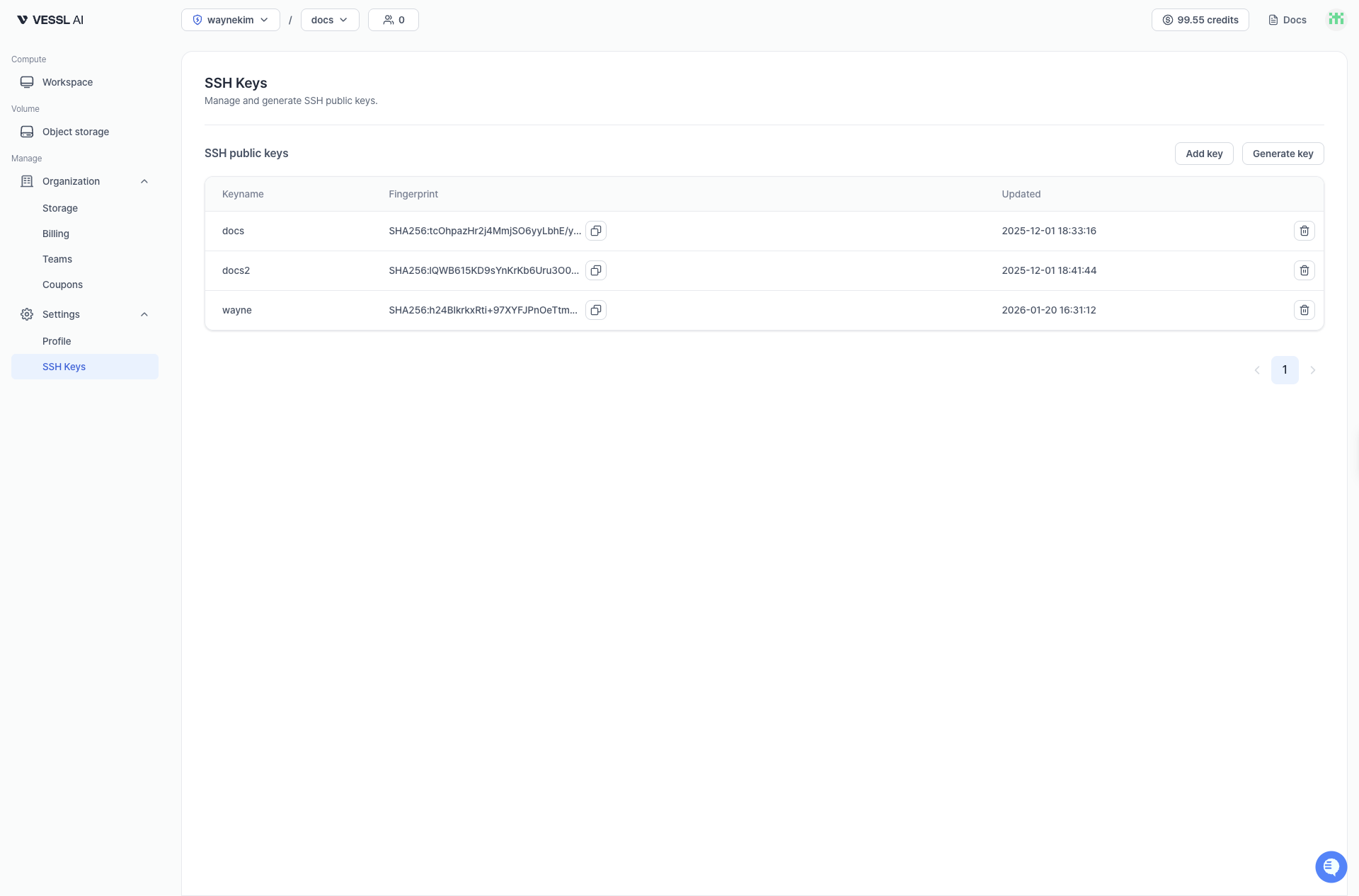 Example: SSH keys list
| Field | Description |
| ----------- | ------------------------------------------------------------- |
| Key name | User-defined name for identification |
| Fingerprint | Unique identifier used to validate key pairs (public/private) |
| Updated at | Last update time |
| Action | Edit or delete the key |
## Use in workspaces
* SSH keys registered here are used when connecting to workspaces using SSH.
* In a workspace's **Connect** tab, copy the SSH command and replace `/path/to/key` with your private key path.
* See [Connect](/member/workspace/connect) for step-by-step instructions.
* If you use VS Code Remote-SSH, see the “Connect using VS Code Remote-SSH” section on that page.
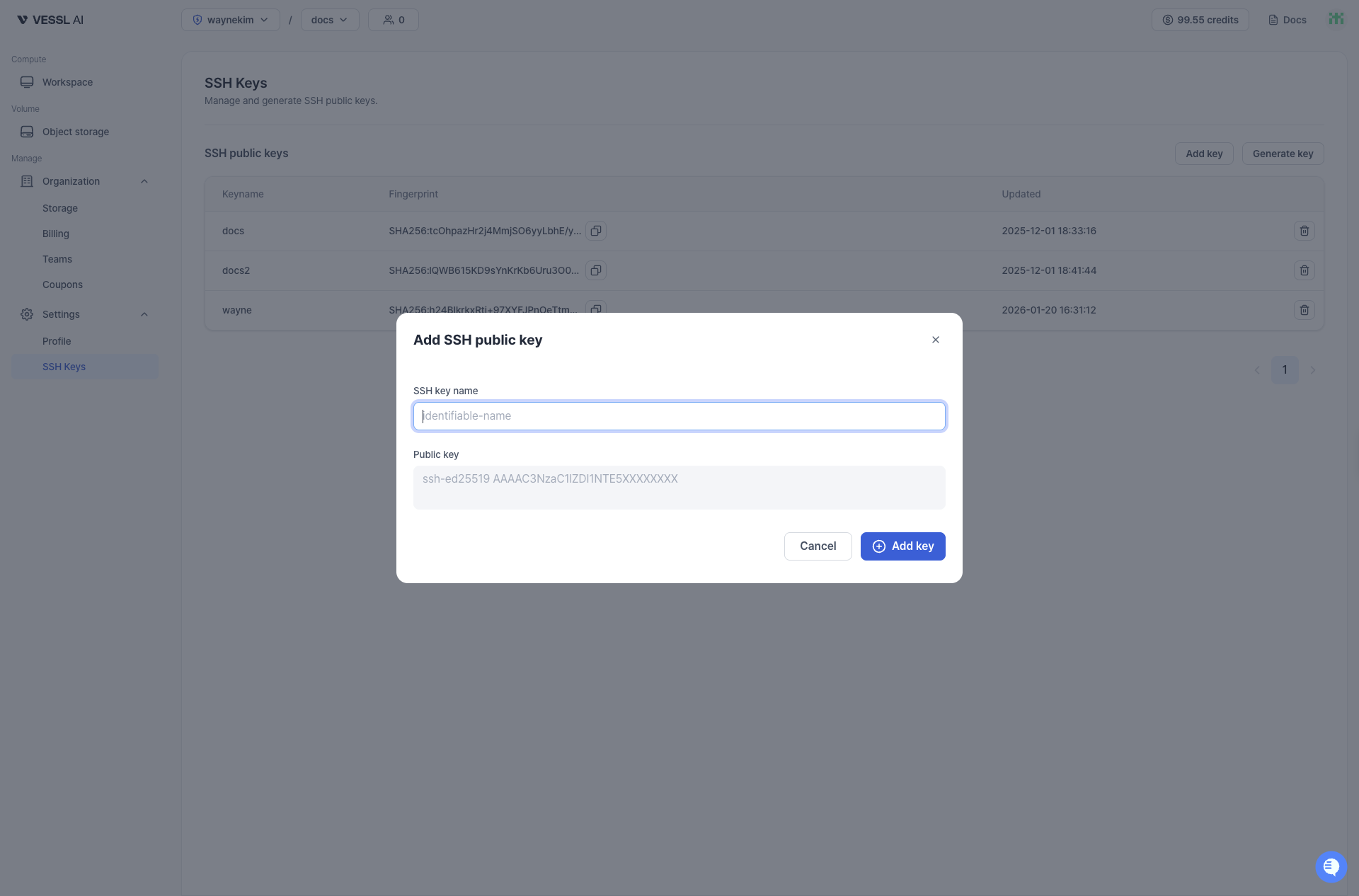 Example: Add SSH public key
## Generate a new SSH key
Click **Generate Key** to create a new SSH key pair:
You can also generate SSH keys directly during the **Workspace creation** process (Step 2).
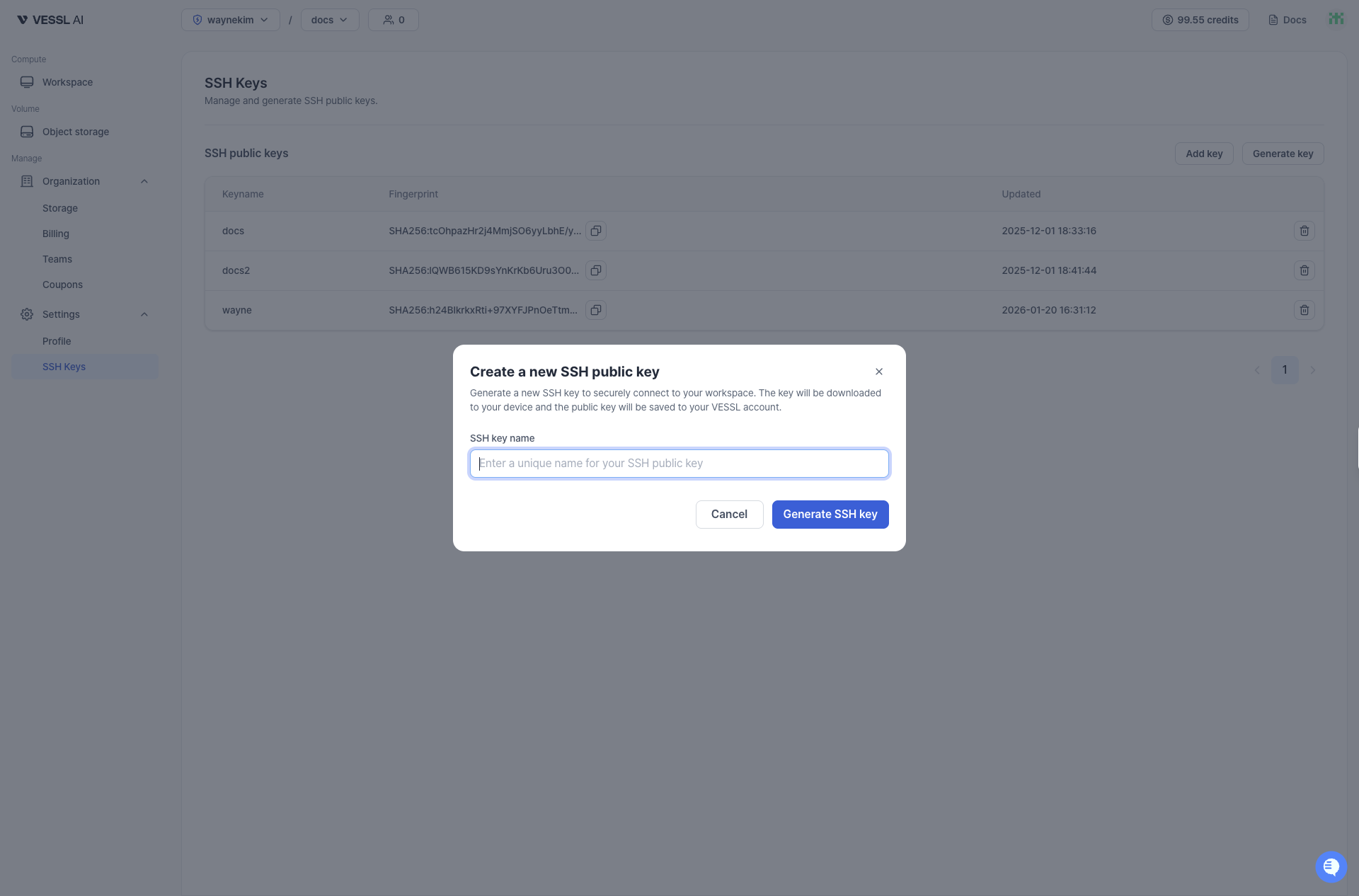 Example: Generate SSH key
1. Enter a unique name for your SSH key.
2. Click **Generate SSH Key**.
3. The private key is automatically downloaded to your device, and the public key is saved to your VESSL Cloud account.