> ## Documentation Index
> Fetch the complete documentation index at: https://docs.cloud.vessl.ai/llms.txt
> Use this file to discover all available pages before exploring further.
# Create Object storage volume
> Create an Object storage volume to share data across your team.
**Prefer the terminal?** Create the same volume from the CLI with `vesslctl volume create --name --storage --teams `. See [`vesslctl volume create`](/cli/commands/volume#create) for the full flag reference.
You can create **Object storage** volumes to store datasets, models, and other files that need to be accessed by multiple workspaces or team members.
This page covers creating **Object storage** volumes (self-service for all members). Cluster storage volumes can only be created by organization admins from the [admin storage page](/admin/storage/create-volume).
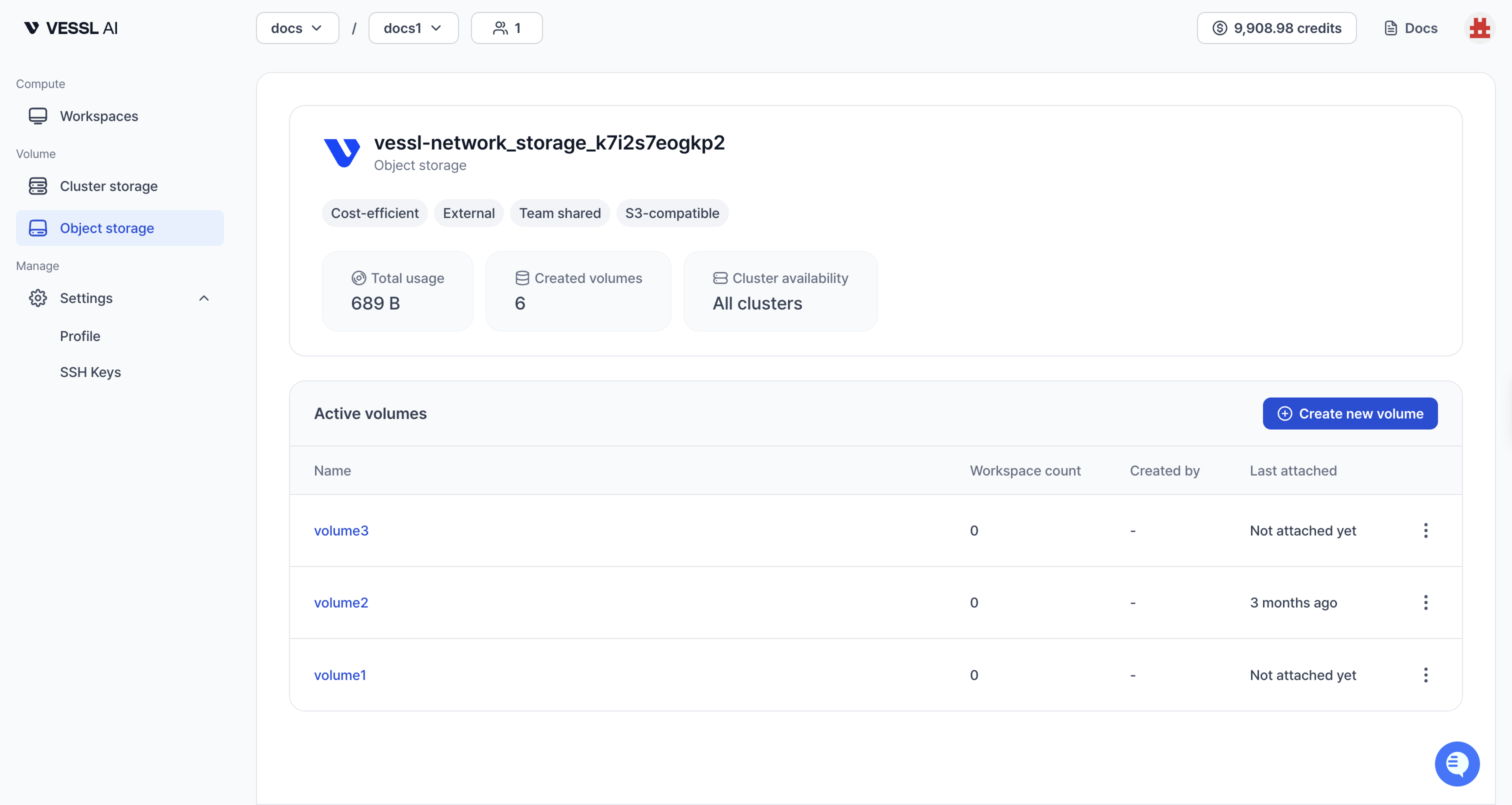 Example: Volume list
Object storage volumes are backed by S3 with **Read-Write-Many (RWX)** support. They can be mounted to multiple workspaces simultaneously across any cluster in your organization, making them ideal for collaborative work.
## Steps to create
1. Go to the **Object storage** tab in the sidebar.
2. Click **Create new volume**.
3. Configure the volume settings:
* **Name**: A unique name for your volume.
* **Description**: Optional details about the volume's purpose.
* **Storage**: Select the Object storage backend for this volume.
* **Size (GiB)**: The storage capacity. You can increase this later, but cannot decrease it.
* **Access**: Select one or more **teams** that will have access to this volume.
4. Click **Create**.
## Pricing
Object storage is billed daily based on actual usage (effective 2026-07-01). See [Storage pricing](/pricing/storage) for the latest rates and FAQ.
* **Pay-as-you-go**: You pay for what you actually store, measured daily.
* **No quota limits**: You don't need to request a quota from an admin. You can create volumes as needed, subject to your organization's billing policies.
## Next steps
* [Mount the volume](/member/workspace/create) to your workspace.
* Manage files using the [File Manager](/member/volume/detail) or by connecting to a workspace.