> ## Documentation Index
> Fetch the complete documentation index at: https://docs.cloud.vessl.ai/llms.txt
> Use this file to discover all available pages before exploring further.
# Manage volume data
> View files, active workspaces, and manage data with the CLI.
## Files
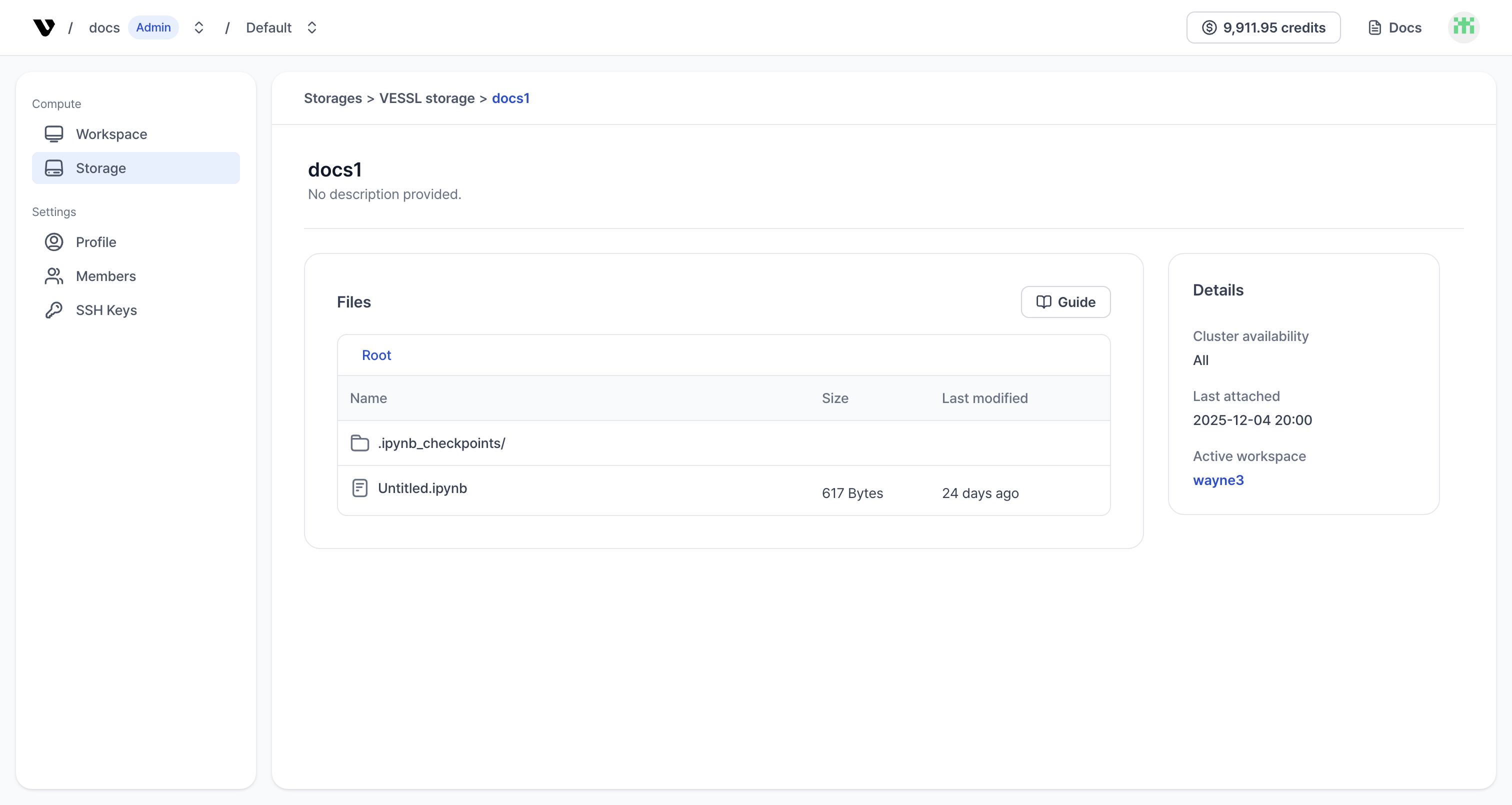 Example: Files in a volume
See files stored in the volume.
* Name: file name
* Size: file size
* Last modified: last modification timestamp
## Details
View volume metadata and status information.
* **Cluster availability**: Clusters where this volume can be mounted.
* **Size**: Total provisioned storage capacity.
* **Teams**: Teams that have access to this volume.
* **Last attached**: Last time the volume was attached to a workspace.
## Active workspaces
View workspaces currently attached to this volume. Active workspaces can read/write files. Data is automatically synchronized across sessions at the configured mount paths.
## Data management (CLI)
Use short-lived credentials to manage data on Object storage volumes with the AWS CLI.
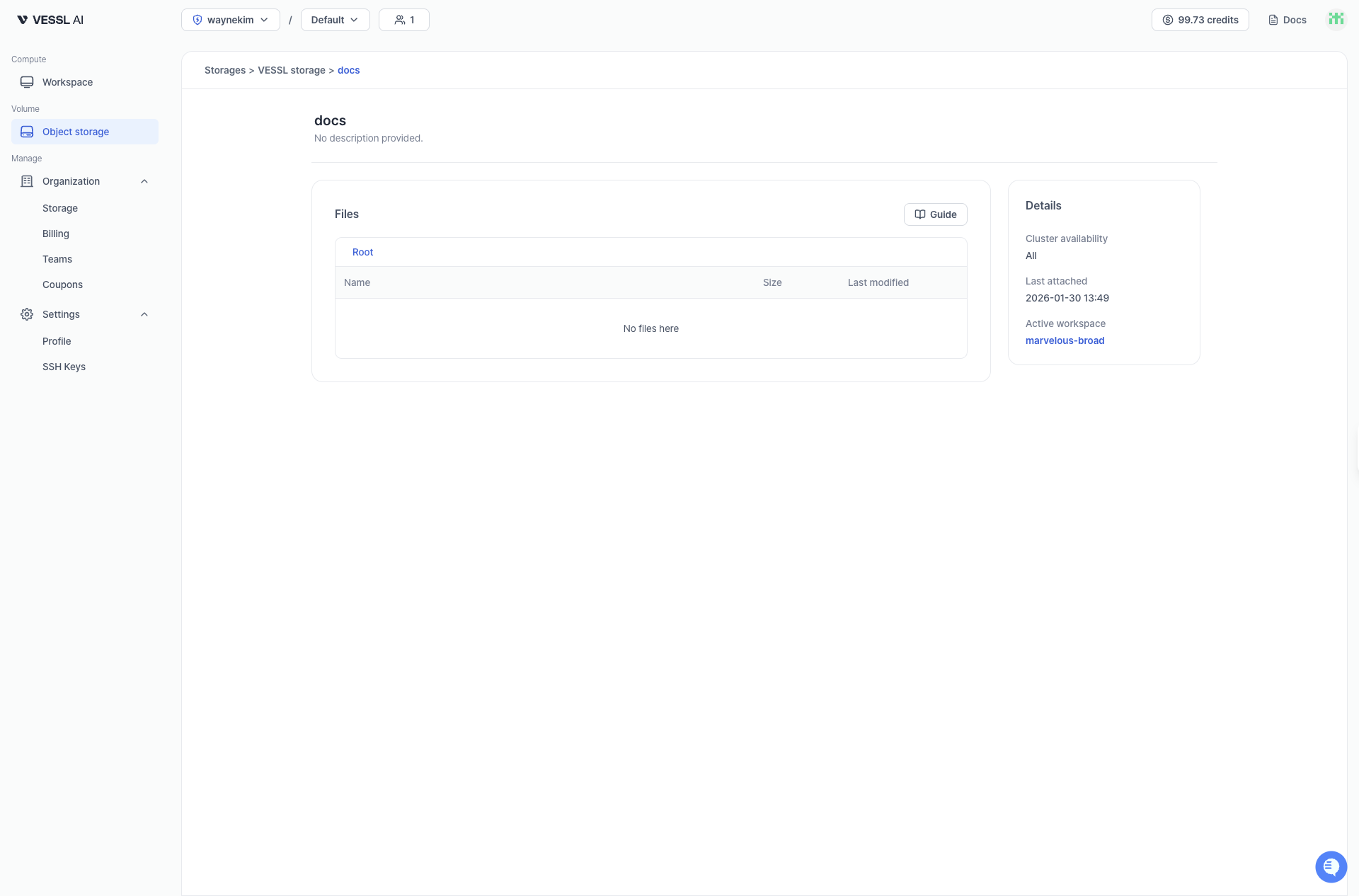 Example: Volume detail page
### Access guide
On the **Volume detail** page, click the **Guide** button (book icon) to open the CLI guide modal. The modal includes:
* **AWS Credentials**: Temporary credentials are automatically generated (expire after 36 hours). Click **Copy All** to copy all credentials at once. Use the **Regenerate** button to create new credentials if needed.
* **AWS S3 Commands**: Common commands for managing files. Each command has a copy button for easy use.
### CLI operations
```bash theme={null}
aws s3 ls s3://dora-managed-storage-prod///
```
```bash theme={null}
aws s3 cp my_file.txt s3://dora-managed-storage-prod///my_directory/my_file.txt
```
```bash theme={null}
aws s3 cp s3://dora-managed-storage-prod///my_directory/my_file.txt .
```
```bash theme={null}
aws s3 rm s3://dora-managed-storage-prod///my_directory/my_file.txt
```
Replace `` and `` with the actual values shown in the Guide modal. Refer to [AWS S3 CLI docs](https://docs.aws.amazon.com/cli/latest/reference/s3/) for advanced operations.
## Permissions
Volume access is controlled by team membership.
* **View and use**: You can view and use volumes that are assigned to teams you belong to.
* **Update**: You can update volumes (name, description, team assignments) if you belong to at least one team assigned to the volume. When modifying team assignments, you can only add or remove teams you belong to.
* **Delete**: You can delete volumes if you belong to at least one team assigned to the volume.
Organization admins can view, update, and delete all volumes regardless of team membership.
## Delete volume
Deleting a volume permanently removes all data. This action cannot be undone.
**Deletion restrictions:**
* You cannot delete a volume while it is attached to active workspaces. Before deleting, you must stop or terminate all workspaces using this volume.
* You must belong to at least one team assigned to the volume, or be an organization admin.
* This applies to both Object storage and Cluster storage volumes.
Watch the demo below to see the delete flow.
To delete a volume:
1. Go to the **Volume detail** page.
2. Click the **Delete** button.
3. Confirm the deletion by typing the volume name.