> ## Documentation Index
> Fetch the complete documentation index at: https://docs.cloud.vessl.ai/llms.txt
> Use this file to discover all available pages before exploring further.
# View volumes
> View team-assigned storage volumes and their usage.
**Prefer the terminal?** `vesslctl volume list` shows the same volumes; use `vesslctl volume upload`/`download` to move files. See [`vesslctl volume`](/cli/commands/volume) for the full reference.
The volume list shows all storage volumes available to your team(s). Click **Object storage** or **Cluster storage** in the sidebar to view each type.
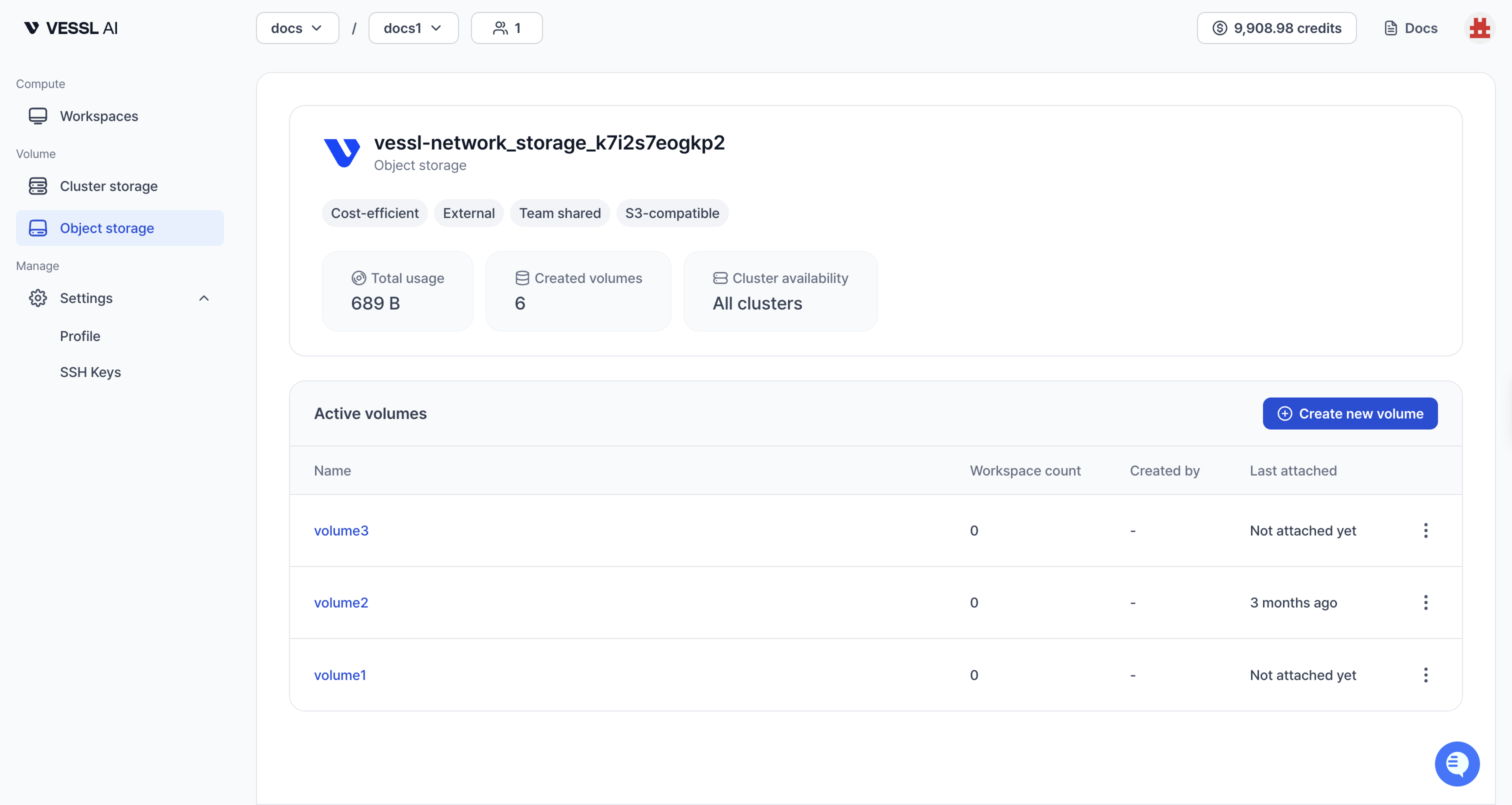 Example: Object storage volumes
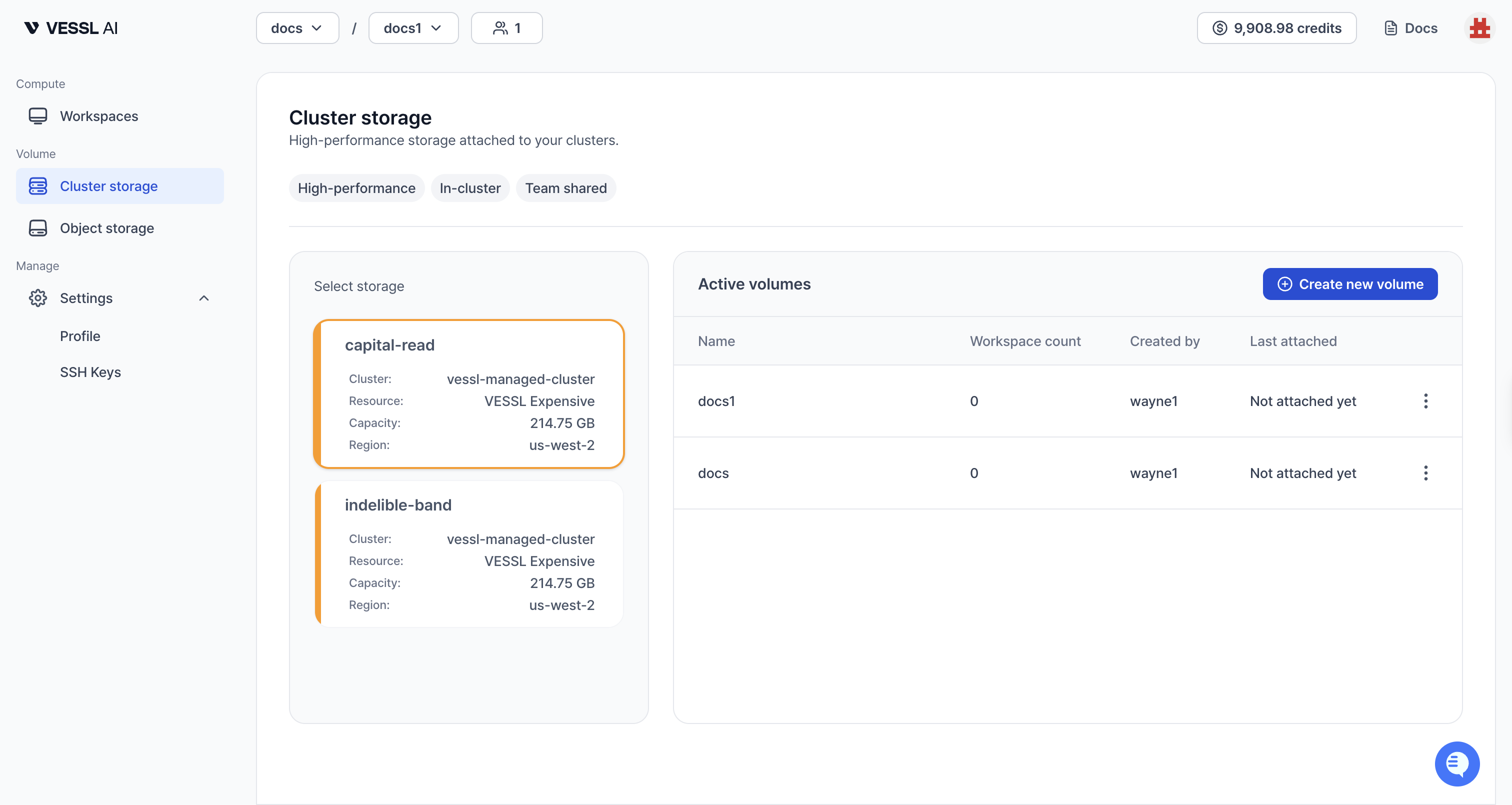 Example: Cluster storage volumes
If you don't see any volumes, you can [create one yourself](/member/volume/create) or ask your Organization Admin to create and assign one to your team.
## Quick demo
Explore how to view and access storage volumes with the quick demo below.
The volume list shows the following columns:
* **Name**: Volume name
* **Type**: Storage type (Object storage or Cluster storage)
* **Usage**: Current storage usage
* **Teams**: Teams with access to this volume
* **Created by**: User who created this volume
* **Cluster**: Clusters where the volume can be mounted (Object storage is accessible across all clusters)
* **Last accessed**: Last time it was attached to any workspace