> ## Documentation Index
> Fetch the complete documentation index at: https://docs.cloud.vessl.ai/llms.txt
> Use this file to discover all available pages before exploring further.
# Connect to a workspace
> Open services in your browser or connect using SSH from your terminal or VS Code.
**Prefer the terminal?** Run `vesslctl workspace ssh ` to open the same SSH session straight from your shell. See [`vesslctl workspace ssh`](/cli/commands/workspace#ssh).
## HTTP services
In the workspace detail page, open the **Connect** tab. All HTTP-accessible services—including JupyterLab and any custom ports you opened during workspace creation—are listed here.
* Click the URL to open the service directly in your browser.
* Use the copy button to copy the URL to your clipboard.
## SSH key connection
The **Connect** tab also provides SSH connection details. Two options are available:
* **Connect using SSH**: A one-line command to run directly in your terminal.
* **SSH host setup for VS Code**: An SSH config block to add to `~/.ssh/config` for VS Code Remote-SSH.
SSH keys must be registered in your account settings before connecting. See [SSH keys](/member/settings/ssh-keys) for details.
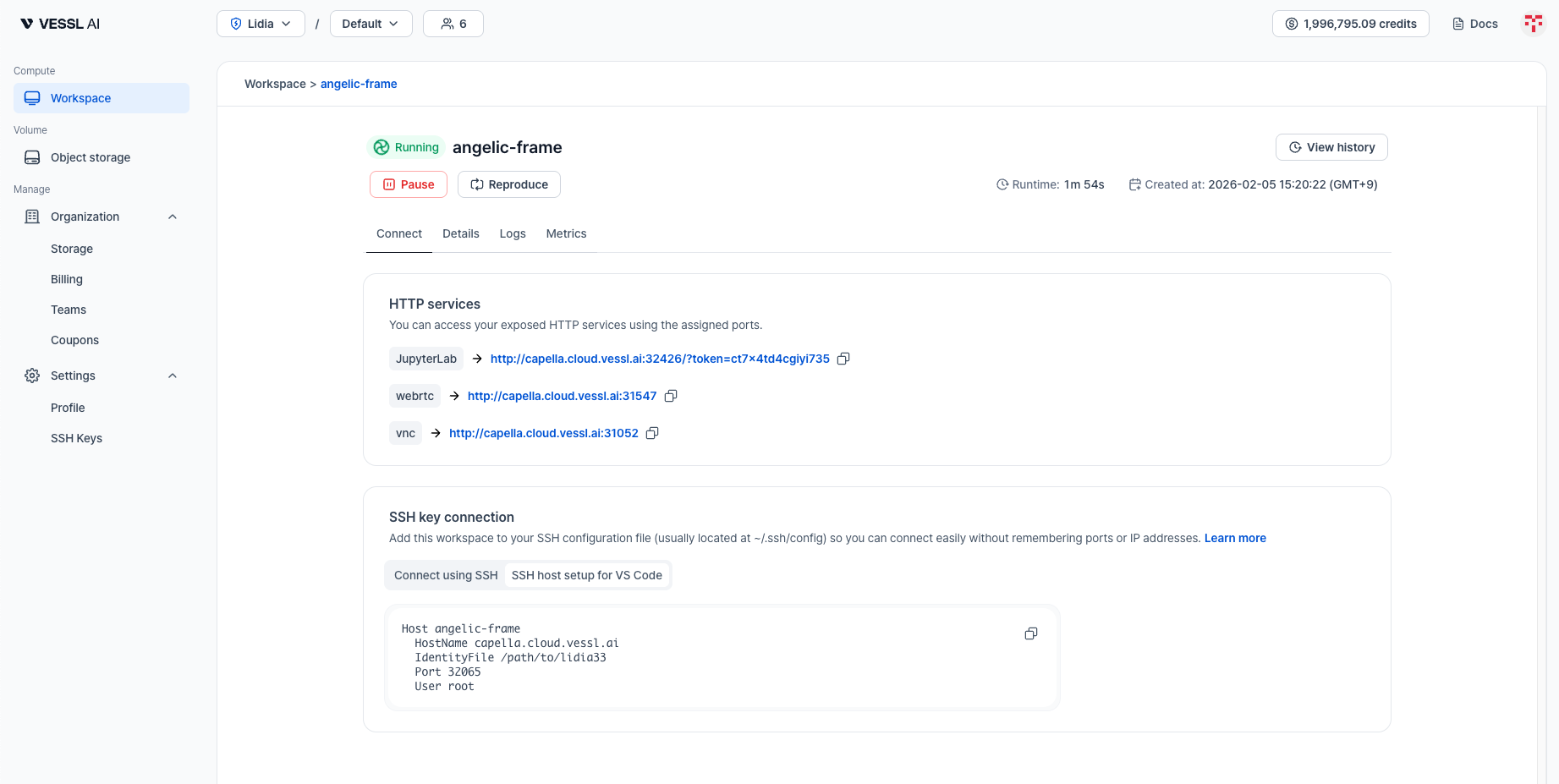 Example: The Connect tab with HTTP services and SSH connection options
### Connect from terminal
1. Open the **Connect** tab and select the **Connect using SSH** tab.
2. Click the copy icon to copy the SSH command.
3. Replace `/path/to/` with the actual path to your private key file (usually in `~/Downloads`).
4. Paste and run the command in your terminal.
### Connect using VS Code Remote-SSH
1. Install the VS Code extension **Remote-SSH**.
2. Open the **Connect** tab and select the **SSH host setup for VS Code** tab.
3. Click the copy icon to copy the SSH config block.
4. Paste the block into your `~/.ssh/config` file.
5. Replace `/path/to/` with your downloaded private key path (usually in `~/Downloads`).
6. In VS Code, open the Command Palette and run `Remote-SSH: Connect to Host...`, then select the workspace name.
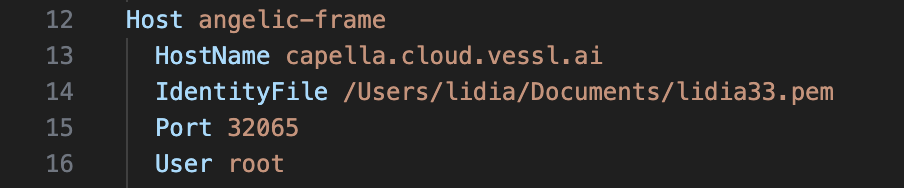
Example `~/.ssh/config` entry:
```sshconfig theme={null}
Host
HostName capella.cloud.vessl.ai
IdentityFile /path/to/
Port 32154
User root
```
If you experience input latency in the remote terminal, enable VS Code's **local echo** feature. It displays your keystrokes immediately before the remote server confirms them. Turn it on in [terminal.integrated.localEchoEnabled](vscode://settings/terminal.integrated.localEchoEnabled). See [Reducing remote input latency](https://code.visualstudio.com/docs/terminal/advanced#_reducing-remote-input-latency-preview) for details.