> ## Documentation Index
> Fetch the complete documentation index at: https://docs.cloud.vessl.ai/llms.txt
> Use this file to discover all available pages before exploring further.
# Convert a workspace to a Job
> Reuse a workspace's image, resource spec, and volumes to launch a Job in one click.
When you've prototyped in a workspace and want to run the same setup as a job — longer training or parameter sweeps — **Convert to Job** clones the environment in one click. The original workspace is untouched, so you can keep iterating in it while the job runs in parallel.
## What carries over
The job inherits everything needed to reproduce the workspace runtime, and drops the interactive pieces a job doesn't use:
| Cloned to the job | Dropped |
| ----------------------------------------------------- | ------------------------------- |
| Container image | SSH keys |
| Resource spec (GPU, CPU, region) | Custom exposed ports |
| Mounted Object and Cluster volumes (with mount paths) | Init script |
| | The workspace's own root volume |
Jobs run a command to completion and don't need SSH access, custom ports, or a root volume.
## What you provide
* **Command** — the job entrypoint, for example `python train.py --epochs 50`.
* **Environment variables** or secret references (optional) — run-specific settings plus any [secrets](/member/settings/secrets) the script needs.
* Override the **resource spec**, **image**, or **volumes** (optional) before submitting.
## Convert from the GUI
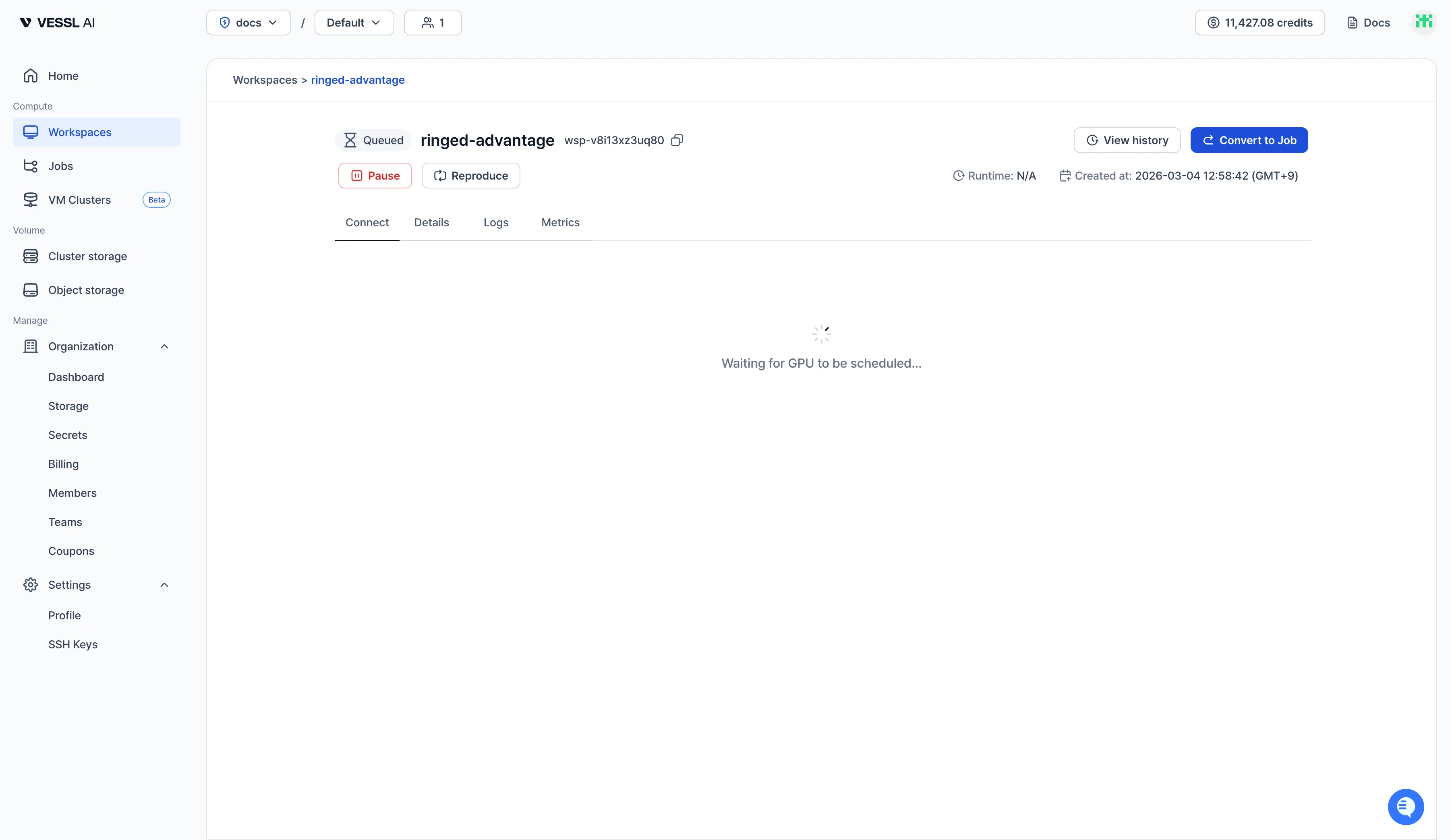 Example: the Convert to Job action on a workspace detail page
1. Open the workspace detail page (**Workspaces** → the workspace).
2. Click **Convert to Job** in the top-right action bar.
3. Fill in the **Command** and any env vars or secrets.
4. Override the resource spec, image, or volumes if you need a different runtime for the run.
5. Click **Create job**.
You're redirected to the new job's detail page. The source workspace stays exactly as it was, so you can keep developing in it while the job runs.
## Convert with a coding agent
VESSL Cloud extends beyond the web console to coding agents like Claude Code. The vesslctl skill includes a guide for converting a workspace into a job.
Tell the coding agent which workspace to convert and ask in plain language:
```
Convert this workspace to a job
```
It moves the environment over without the manual, multi-step flow. If a runtime setting needs to change, just ask the agent in plain language and follow its guidance.
## Tips
* **Store your data on a Cluster storage or Object storage volume.** The workspace's root volume isn't carried over. Keep datasets, checkpoints, and converted scripts on it, mounted on both the workspace and the job, and the job reads them directly — no data to move.
* **Set a working directory.** Separating the working directory from the command keeps runs consistent without repeating the path each time. The same `.py` can resolve to a different file depending on the working directory, so pinning it helps especially when you run experiments in parallel.
The conversion is a one-shot clone, not a live link. Changes you make to the workspace after conversion don't flow into the running job, and vice versa.