> ## Documentation Index
> Fetch the complete documentation index at: https://docs.cloud.vessl.ai/llms.txt
> Use this file to discover all available pages before exploring further.
# View workspaces
> Understand columns and lifecycle states on the workspace list.
**Prefer the terminal?** `vesslctl workspace list` shows the same workspaces along with a SLUG column you can copy straight into other commands. See [`vesslctl workspace list`](/cli/commands/workspace#list).
Go to the **Workspaces** tab in the sidebar to view all your environments at a glance.
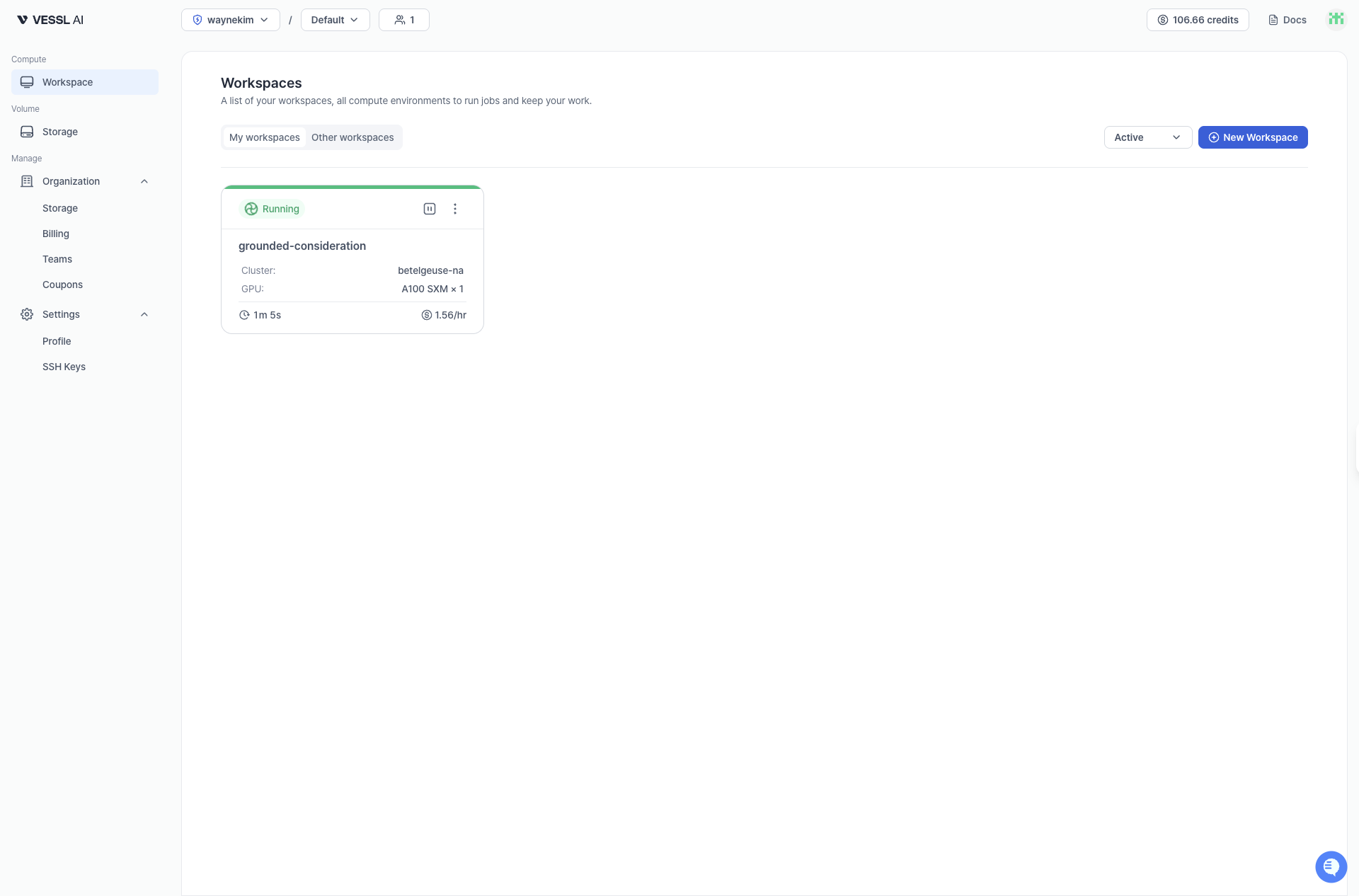 Example: Workspace list
The workspace list shows the following columns:
* **Name**: Workspace name
* **Status**: current state (see below)
* **Cluster**: where resources are located
* **Resource spec**: GPU, CPU, memory, Temporary storage
* **Runtime**: accumulated running time
* **Hourly cost**: rate for the selected spec (visible if pricing is enabled)
## Statuses
* **Queued**: Waiting for resources. Shows specific reason such as *Waiting for GPU capacity*.
* **Initializing**: Preparing the environment. Shows specific reason such as *Downloading image*.
* **Running**: Actively running. Runtime counter is active.
* **Paused**: Session is suspended. Runtime shows `N/A`.
* Temporary storage data is cleared and not preserved.
* **Terminating**: Workspace is being deleted.
* **Terminated**: Fully terminated. Shows **Total runtime** for billing reference.
* **Failed**: Stopped due to an error (for example, Out of Memory Killed (OOMKilled), credit exhaustion, Temporary storage exceeded).
## View terminated workspaces
Terminated workspaces are no longer auto-deleted after 24 hours. Use the **View Terminated** toggle at the top of the workspace list to show or hide terminated workspaces.
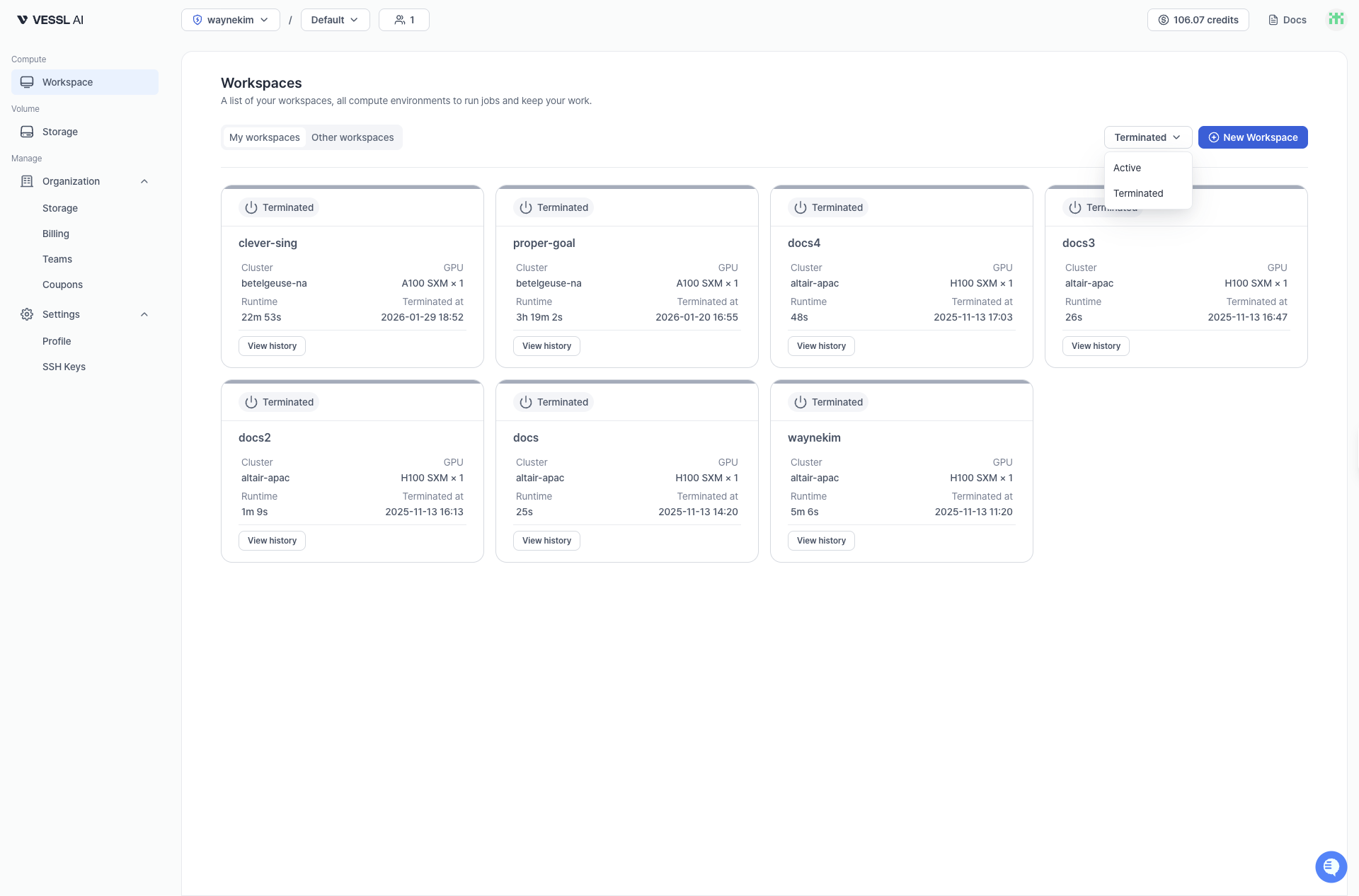 Toggle to show terminated workspaces
Use the demo below to see how to review terminated workspaces with **View Terminated** and permanently remove them with **Delete**.
* View event history and termination reasons for debugging
* Manually delete workspaces when no longer needed
* Keep your active workspace list clean while preserving history