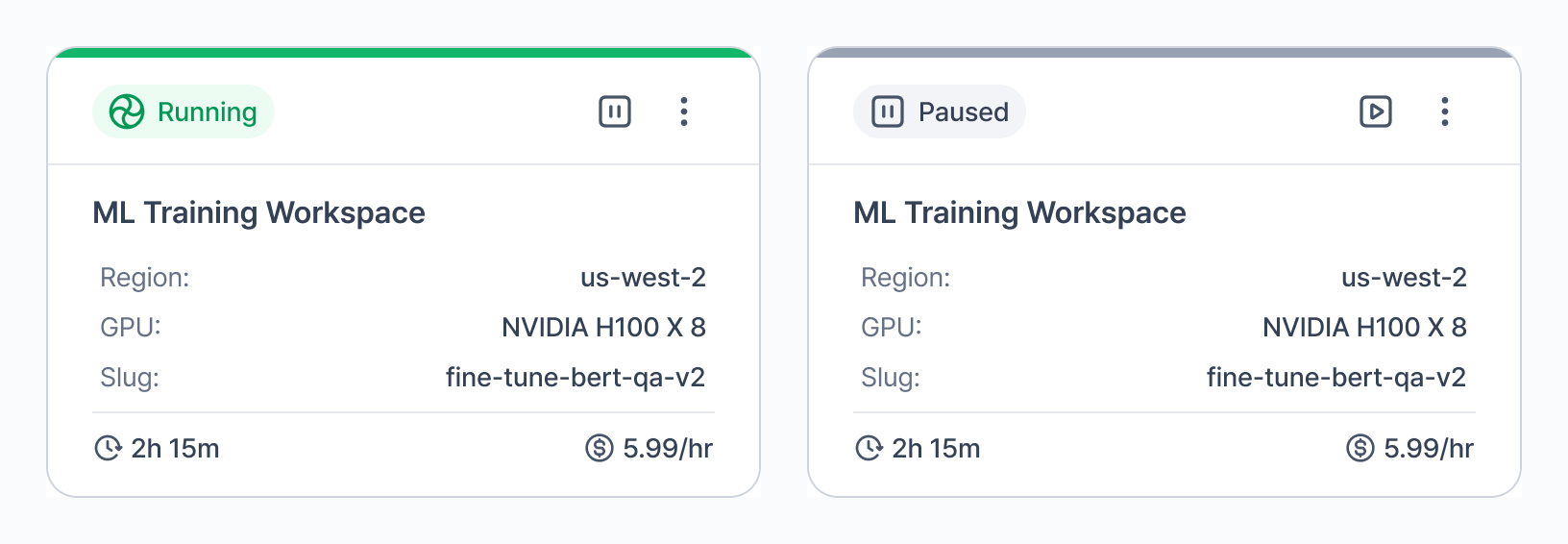
This quickstart is for Members (end users). If you’re the first person in your org, you’re also the Admin. See the Admin quickstart after completing this flow.
1
Create account
Go to cloud.vessl.ai and create an account. Verify your email to activate your account.
2
Complete your profile
After verifying your email, enter your ID (username), select your Occupation and Use case. Check the required boxes to agree to the Terms of Service and confirm your age, then click Let’s get started!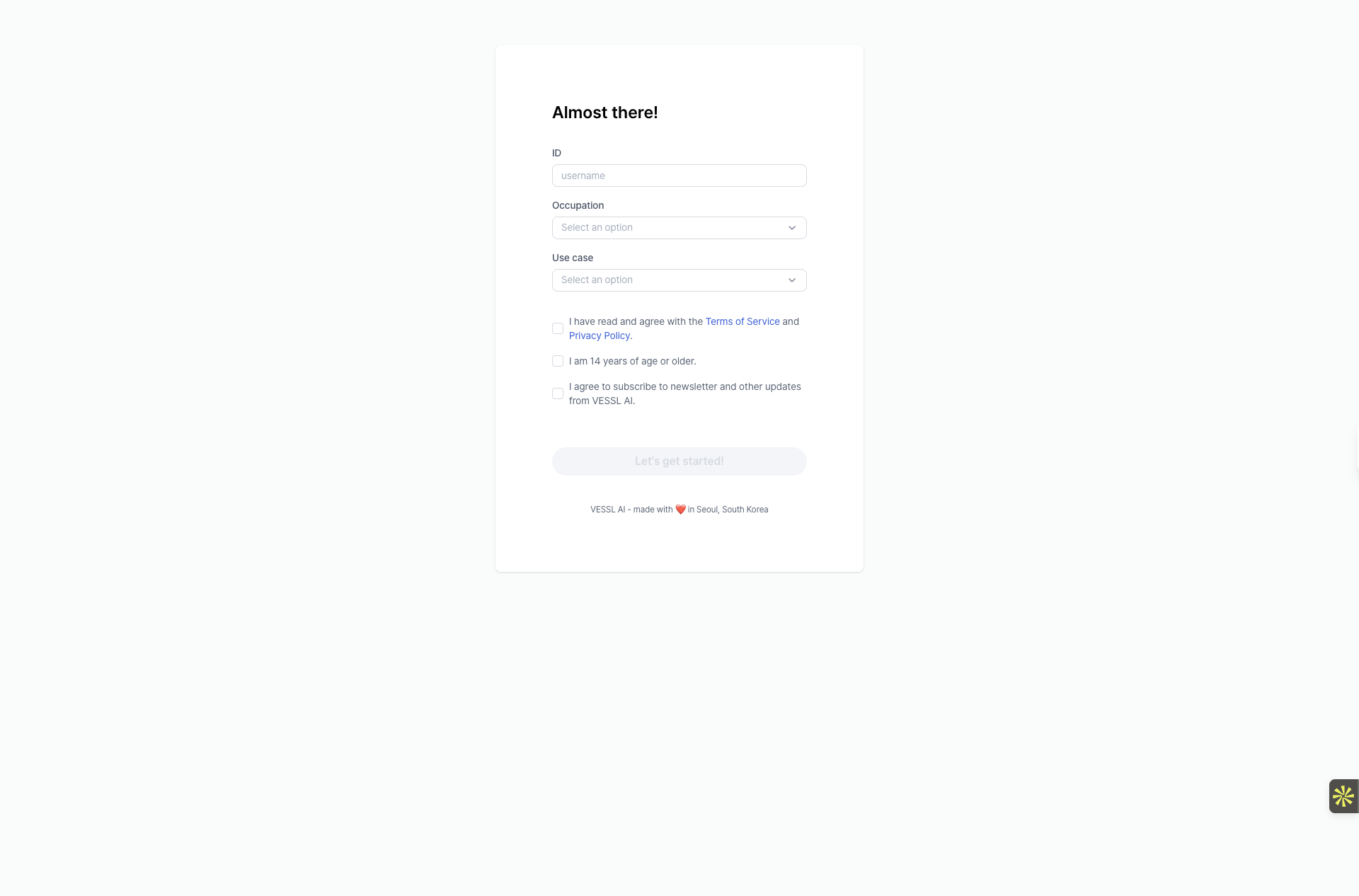
3
Create organization
Enter your organization name and click Create to set up your workspace.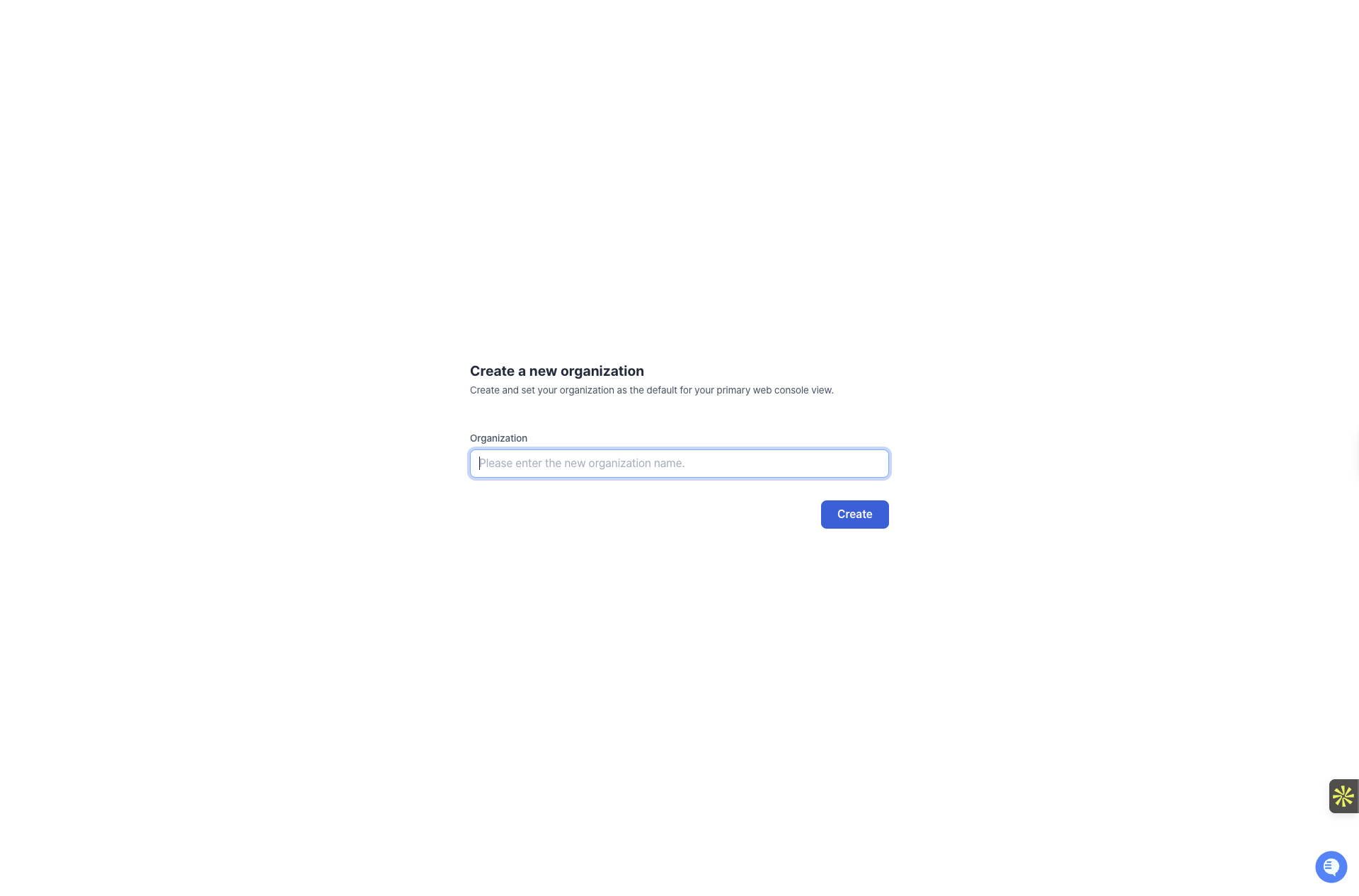
4
Explore the dashboard
After creating your organization, you’ll land on the main Workspaces dashboard. This is where you can manage all your compute environments.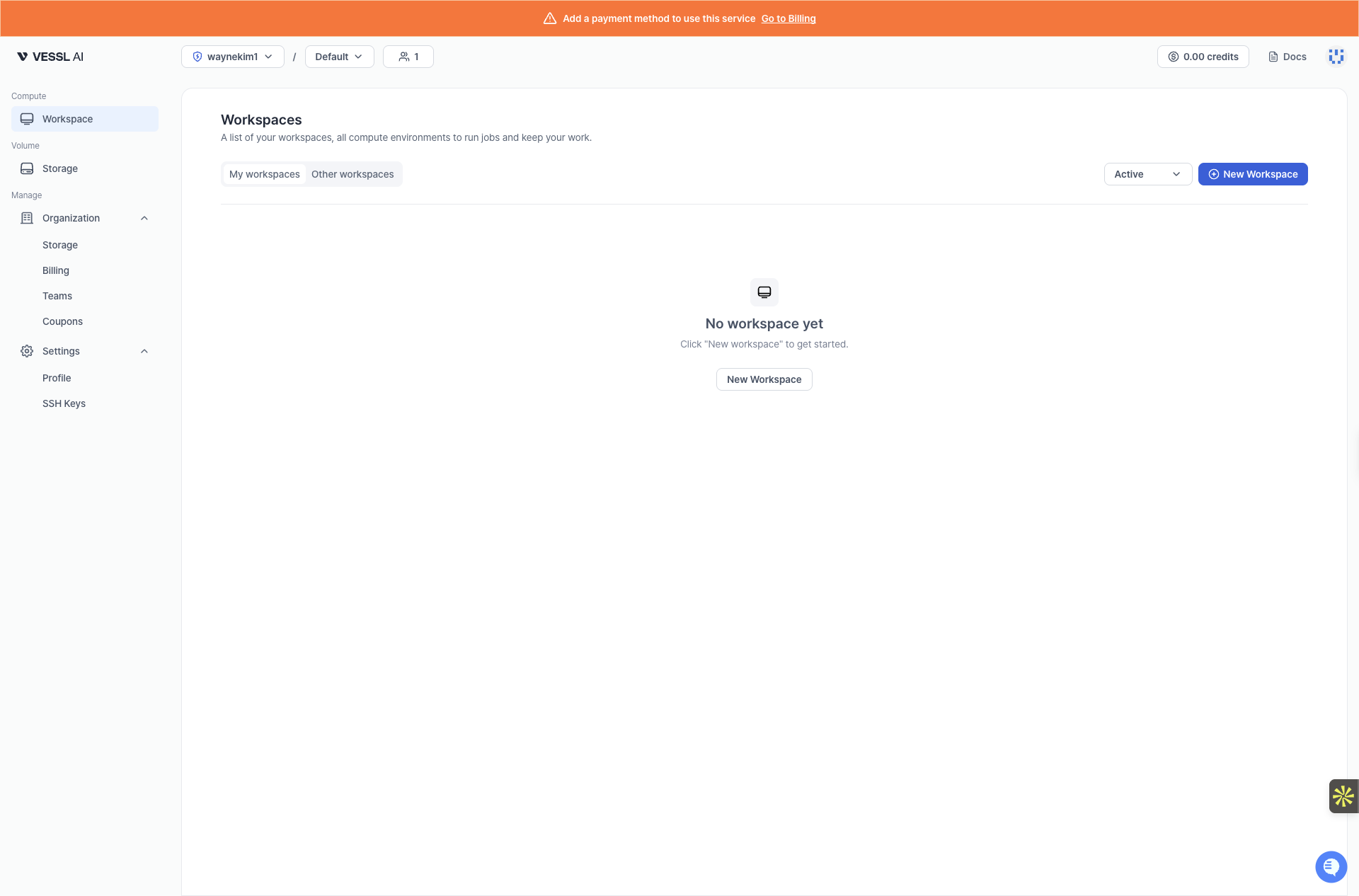
5
Register payment method
Before creating workspaces, register a payment method. In the sidebar, select Settings, then select Billing under Organization. Click Manage payment method to add your card, then use Add credits to top up your credit balance.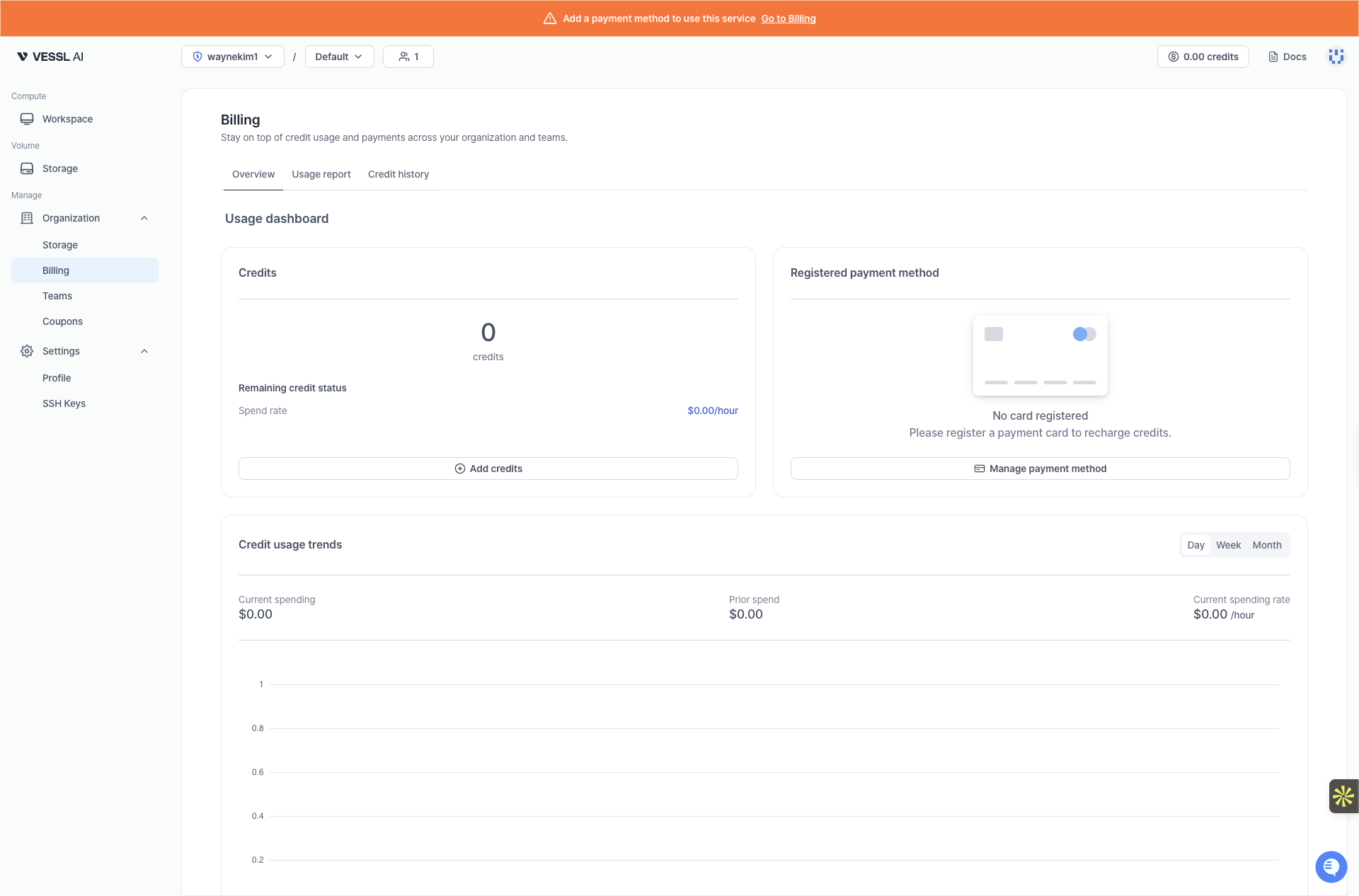
6
Create a storage volume
VESSL Cloud offers three storage types. Picking the right one up front avoids I/O bottlenecks and accidental data loss later.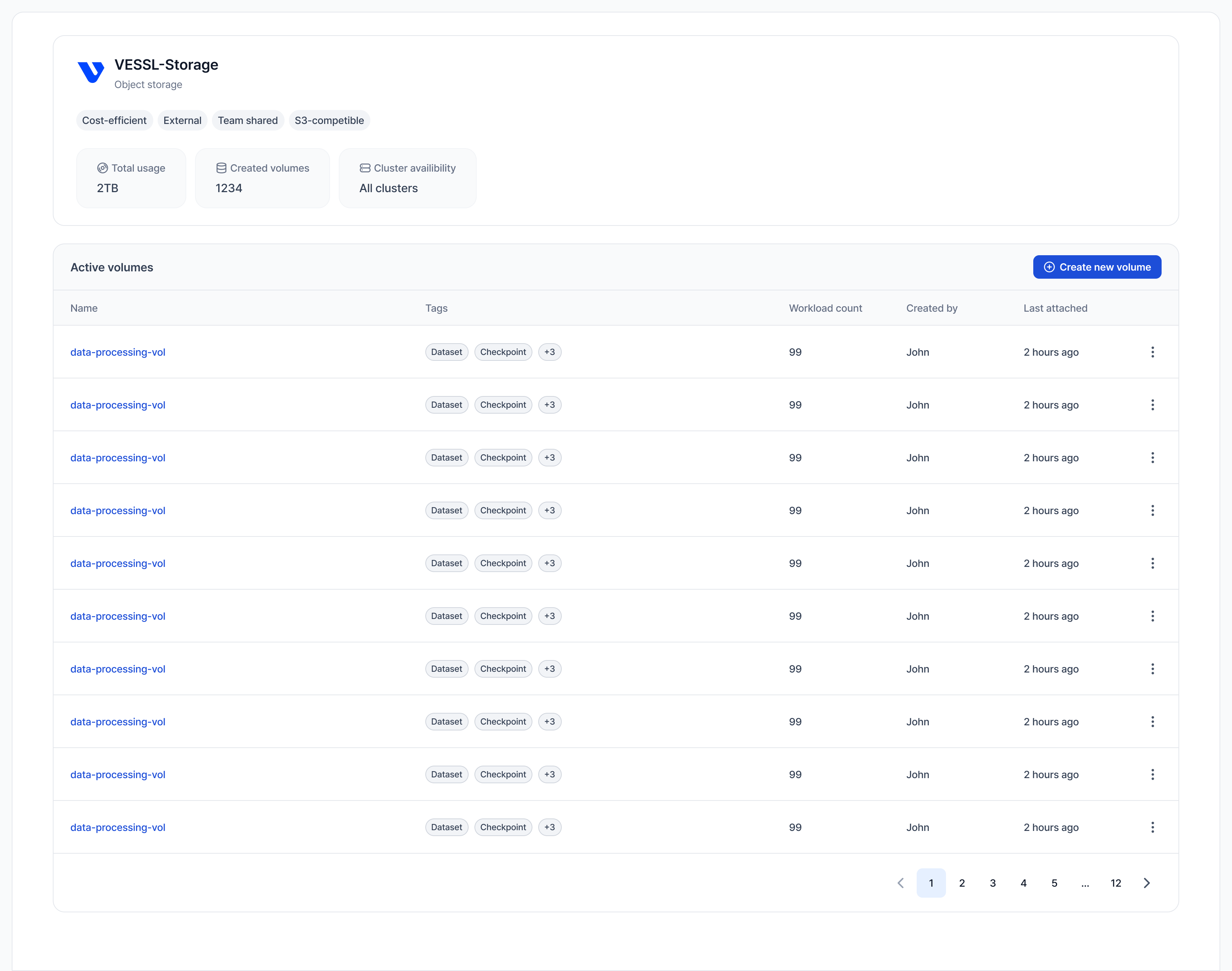
For this quickstart, create an Object storage volume — it works even before your admin provisions Cluster storage. Click Object storage in the sidebar and click Create new volume. Enter a Volume name and Description to create an Object storage volume.
Cluster storage volumes are managed by Organization Admins. If Cluster storage is available for your team, you can also create volumes under Cluster storage in the sidebar.
- Mount Cluster storage at
/rootso code,~/.cache, and pip/conda packages survive pauses. - Mount Object storage at
/shared— VESSL Cloud rejects/rootas an Object storage mount path because Object storage is slower and has different filesystem semantics. Other paths that overlap with your Cluster storage mount are also blocked. - Cluster storage is region-bound: only volumes from the same region as your selected GPU appear when creating a workspace.
7
Create a workspace
Open the Workspaces tab in the sidebar and click New Workspace. Enter a name, then select a GPU product, region, and GPU count under Resource spec for testing.Attach the Object storage volume you just created, then click Create.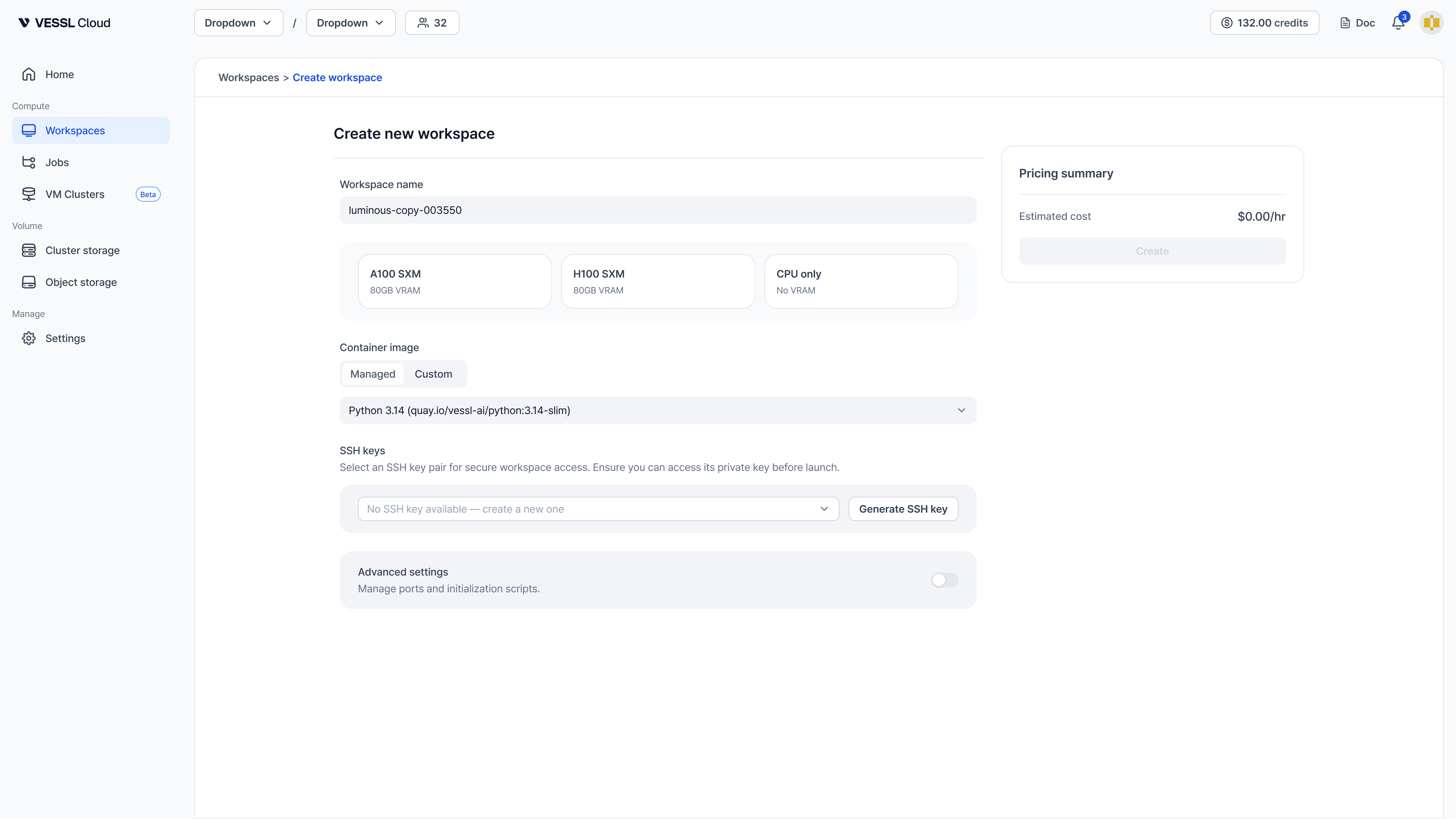
8
Explore workspace details
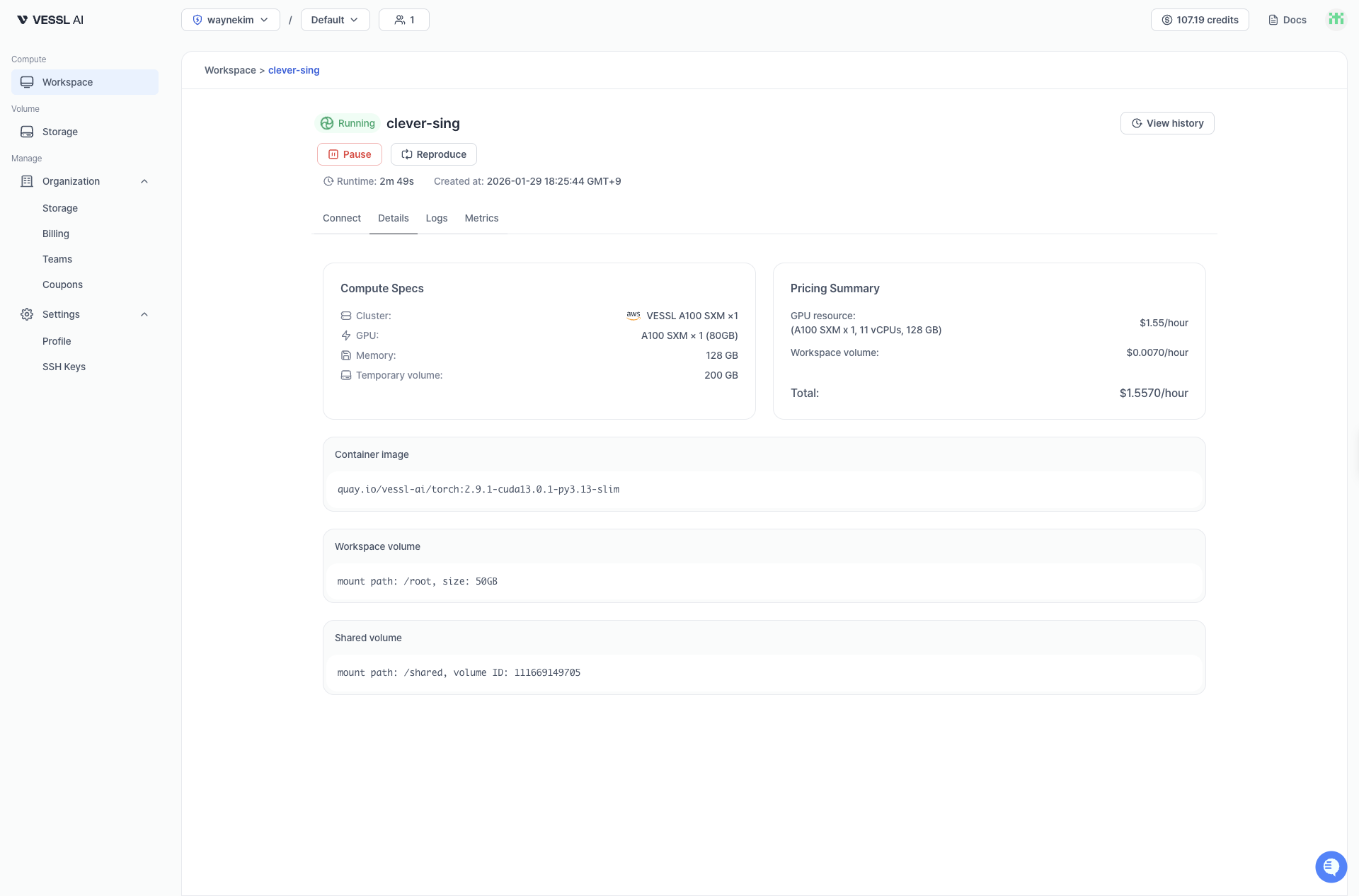
- Connect: In the workspace detail page, open the Connect tab to access using Jupyter (port 8888) or SSH (port 22). See Connect.
- Details: view GPU, volumes, image and other specs.
- Logs: view container logs in real time.
- Metrics: monitor CPU/GPU/Memory graphs.
9
Run code in JupyterLab
In the workspace detail page, open the Connect tab and click JupyterLab.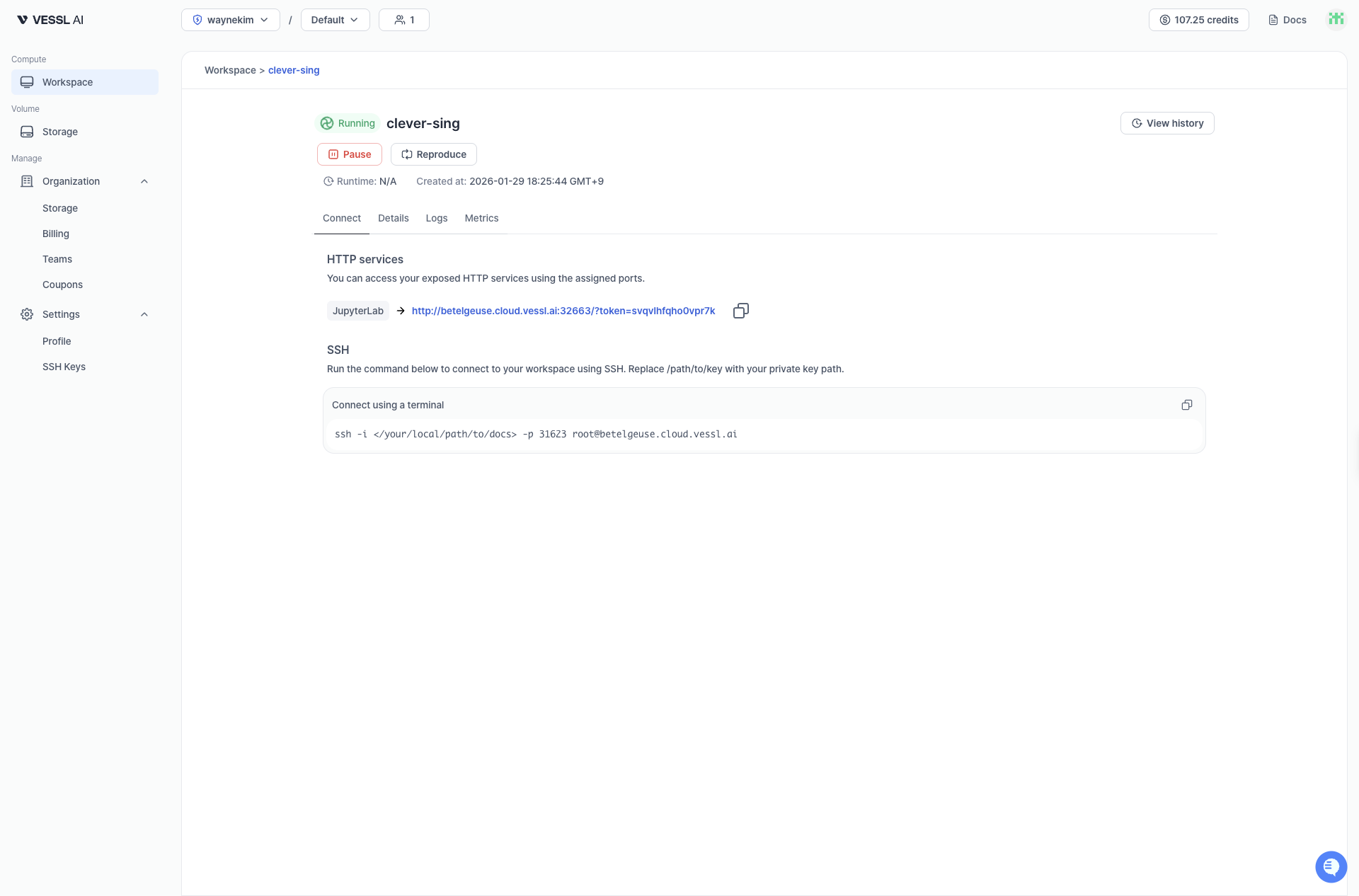
Notebook → Python 3 (ipykernel). Run the following code:10
Clean up
To avoid charges: go to the Workspaces tab in the sidebar and open the kebab menu on a running workspace. Click Pause to stop billing for compute. To delete the workspace permanently, pause it first — Terminate appears in the kebab menu once the workspace is paused.