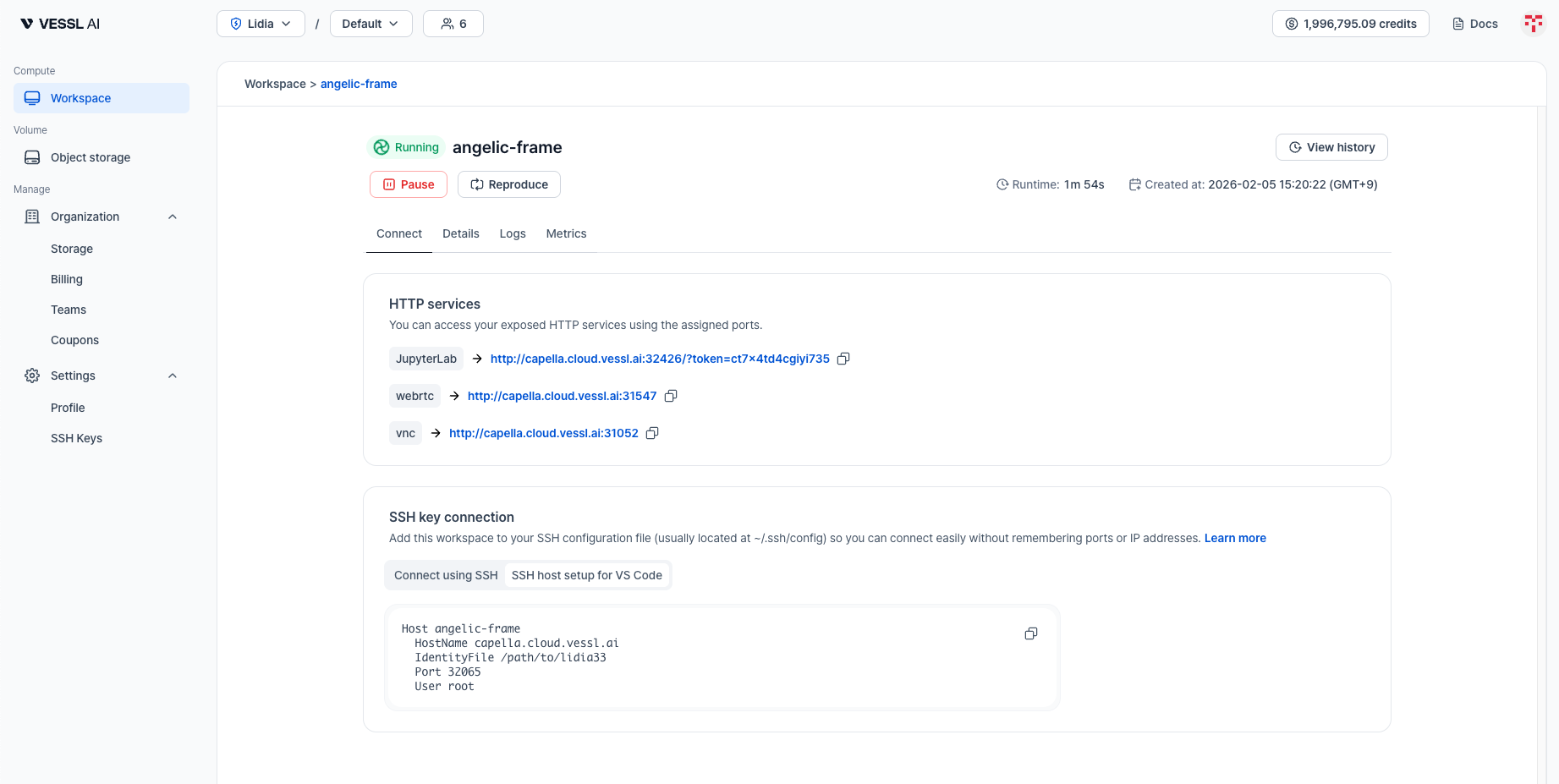
HTTP services
In the workspace detail page, open the Connect tab. All HTTP-accessible services—including JupyterLab and any custom ports you opened during workspace creation—are listed here.- Click the URL to open the service directly in your browser.
- Use the copy button to copy the URL to your clipboard.
SSH key connection
The Connect tab also provides SSH connection details. Two options are available:- Connect using SSH: A one-line command to run directly in your terminal.
- SSH host setup for VS Code: An SSH config block to add to
~/.ssh/configfor VS Code Remote-SSH.
SSH keys must be registered in your account settings before connecting. See SSH keys for details.
Connect from terminal
- Open the Connect tab and select the Connect using SSH tab.
- Click the copy icon to copy the SSH command.
- Replace
/path/to/<key-name>with the actual path to your private key file (usually in~/Downloads). - Paste and run the command in your terminal.
Connect using VS Code Remote-SSH
- Install the VS Code extension Remote-SSH.
- Open the Connect tab and select the SSH host setup for VS Code tab.
- Click the copy icon to copy the SSH config block.
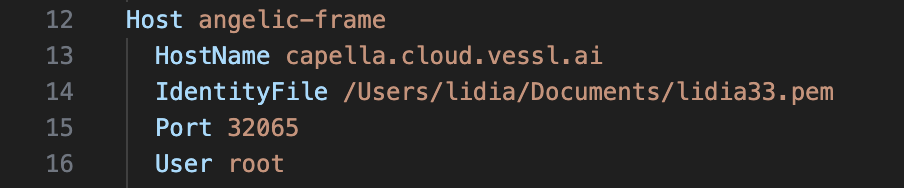
- Paste the block into your
~/.ssh/configfile. - Replace
/path/to/<key-name>with your downloaded private key path (usually in~/Downloads). - In VS Code, open the Command Palette and run
Remote-SSH: Connect to Host..., then select the workspace name.
~/.ssh/config entry: