

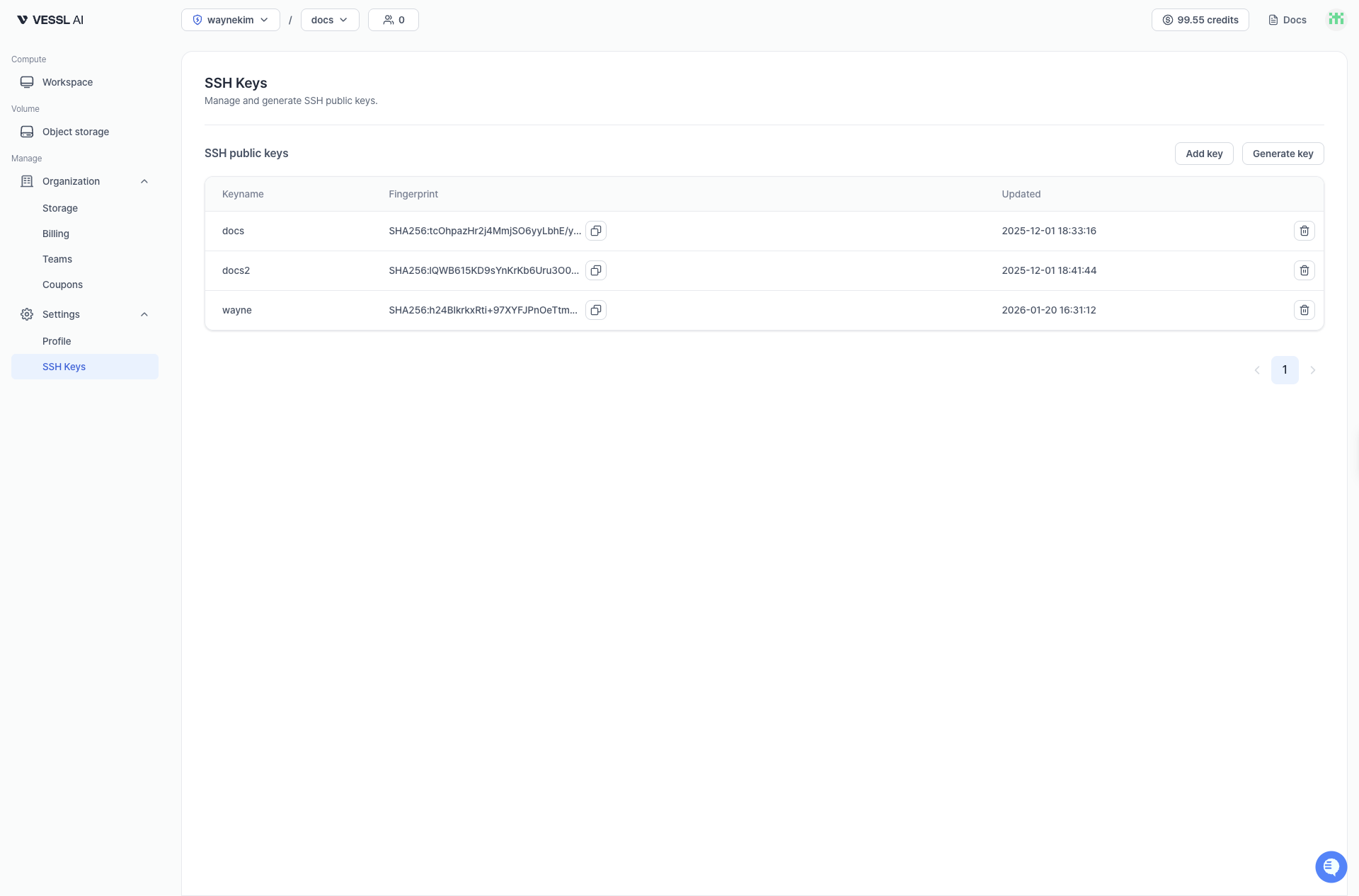
Use in workspaces
- SSH keys registered here are used when connecting to workspaces using SSH.
- In a workspace’s Connect tab, copy the SSH command and replace
/path/to/keywith your private key path. - See Connect for step-by-step instructions.
- If you use VS Code Remote-SSH, see the “Connect using VS Code Remote-SSH” section on that page.
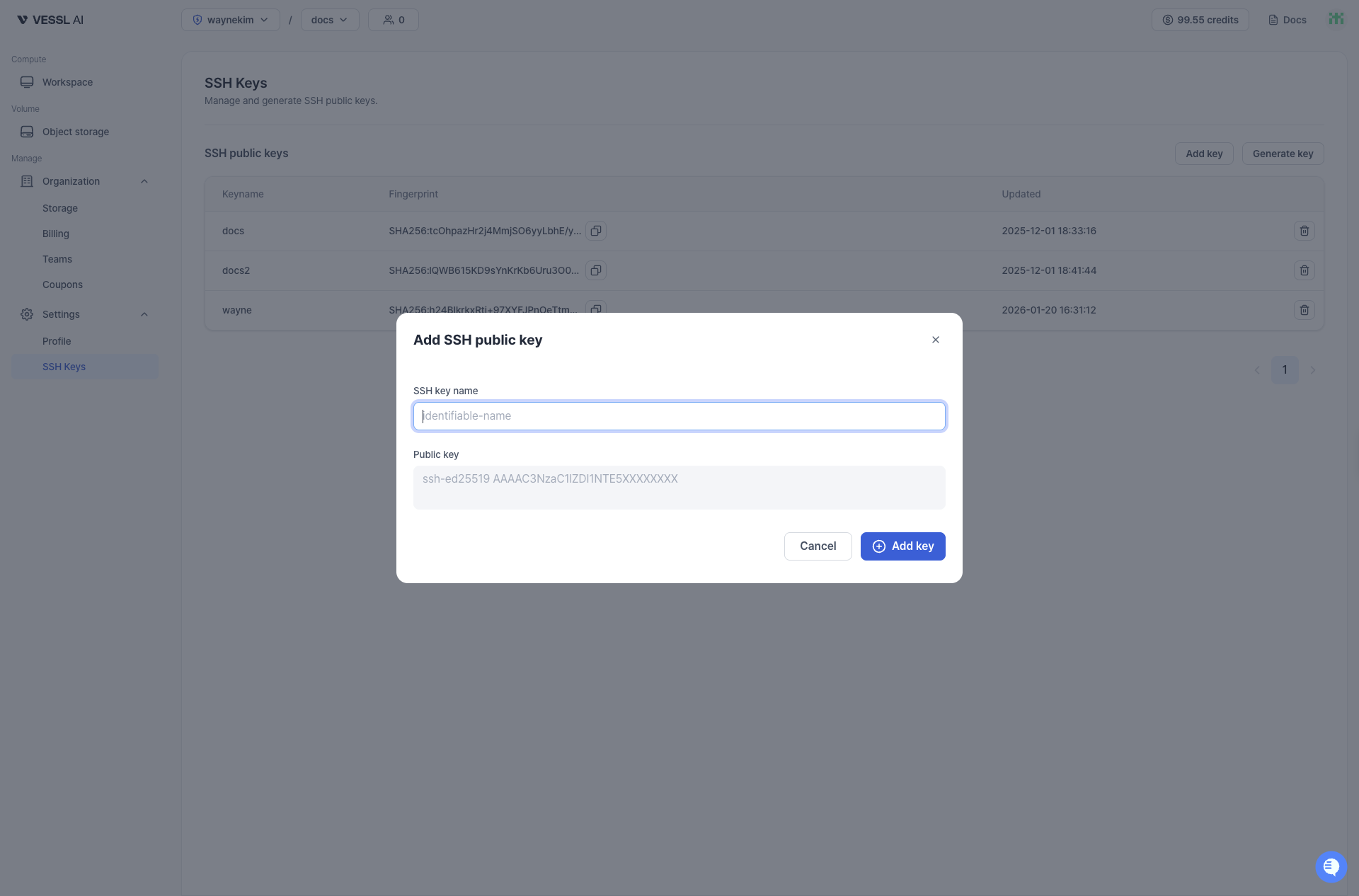
Generate a new SSH key
Click Generate Key to create a new SSH key pair:You can also generate SSH keys directly during the Workspace creation process (Step 2).
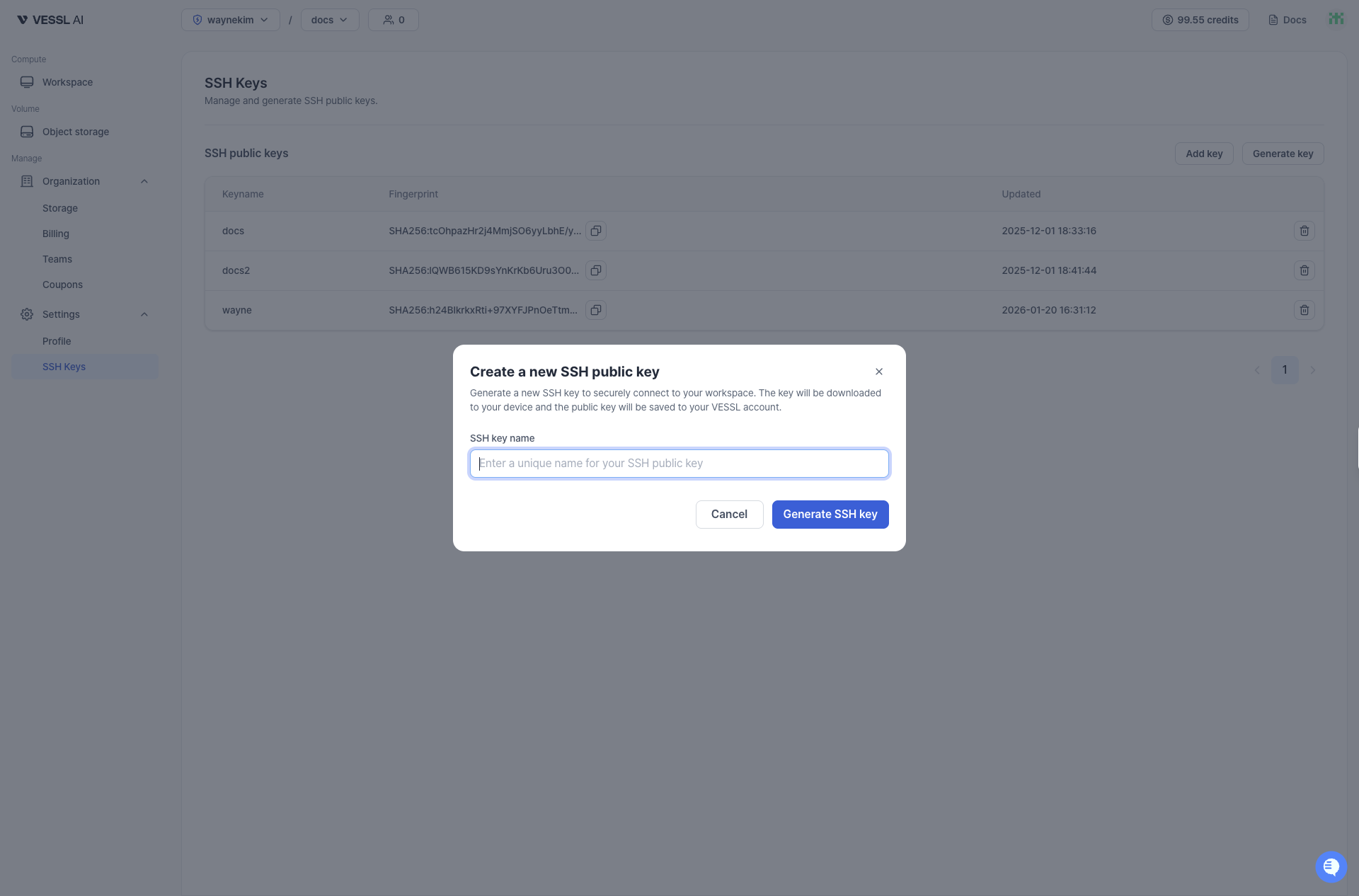
- Enter a unique name for your SSH key.
- Click Generate SSH Key.
- The private key is automatically downloaded to your device, and the public key is saved to your VESSL Cloud account.