

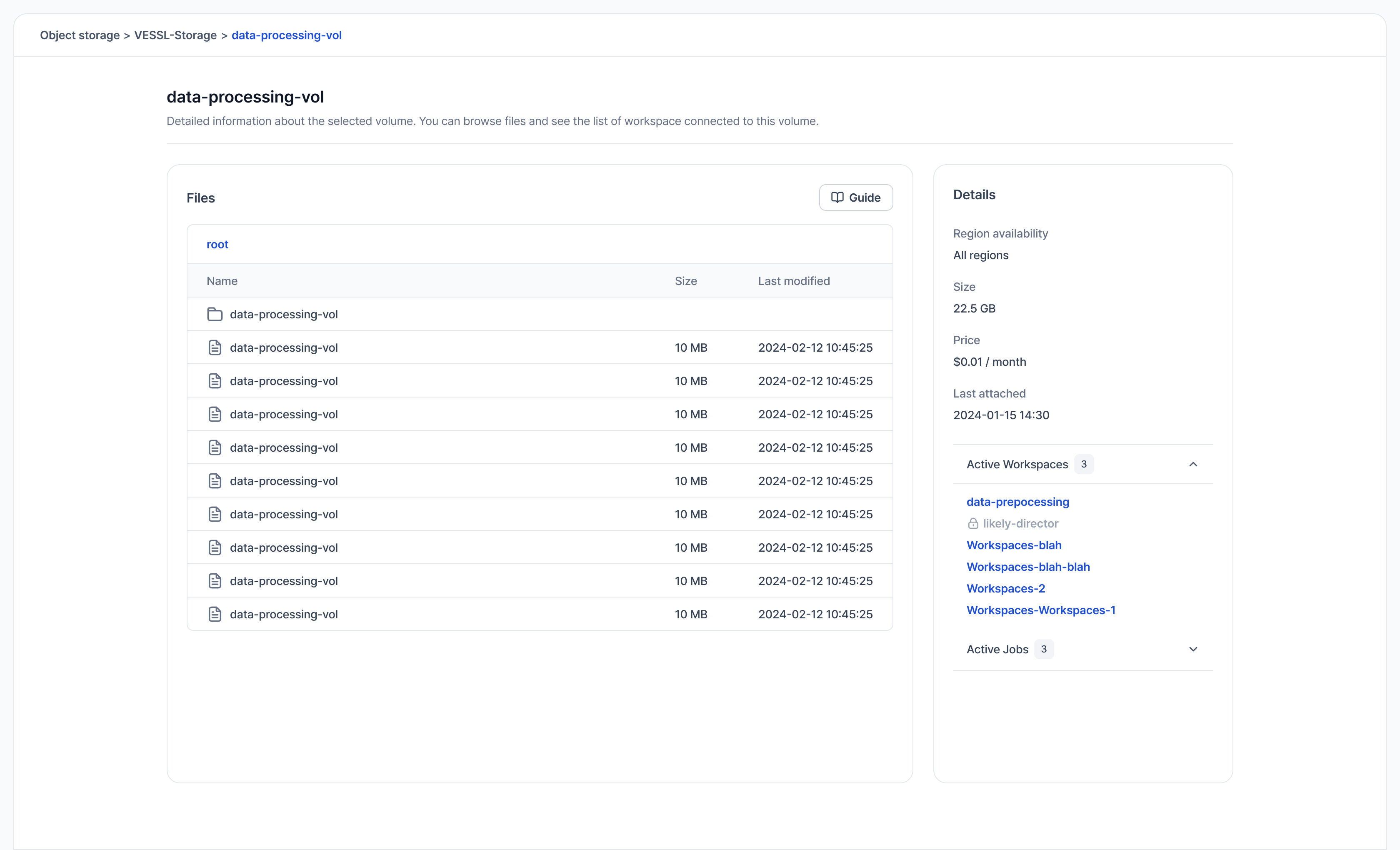
Manage volume data
Learn how to browse files, see attached workspaces, and use AWS CLI with temporary credentials to manage data.
Permissions
Volume access is controlled by team membership and organization roles.Who can view and use volumes
- Organization admins: Can view, update, and delete all volumes in the organization.
- Team members: Can view and use volumes that are assigned to teams they belong to.
Who can update volumes
- Organization admins: Can update any volume, including changing the name, description, and team assignments.
- Team members: Can update volumes if they belong to at least one team assigned to the volume. When modifying team assignments:
- You can add teams you belong to.
- You can remove teams you belong to.
- You cannot add or remove teams you do not belong to (admin only).
Who can delete volumes
- Organization admins: Can delete any volume in the organization.
- Team members: Can delete volumes if they belong to at least one team assigned to the volume.
- Unassigned volumes: Volumes without any team assignments can only be deleted by organization admins.
Delete volume
Deletion restrictions:
- You cannot delete a volume while it is attached to active workspaces. Before deleting, you must stop or terminate all workspaces using this volume.
- You must be an organization admin or a member of at least one team assigned to the volume.
- This applies to both Object storage and Cluster storage volumes.
- Go to the Volume detail page.
- Click the Delete button.
- Confirm the deletion by typing the volume name.