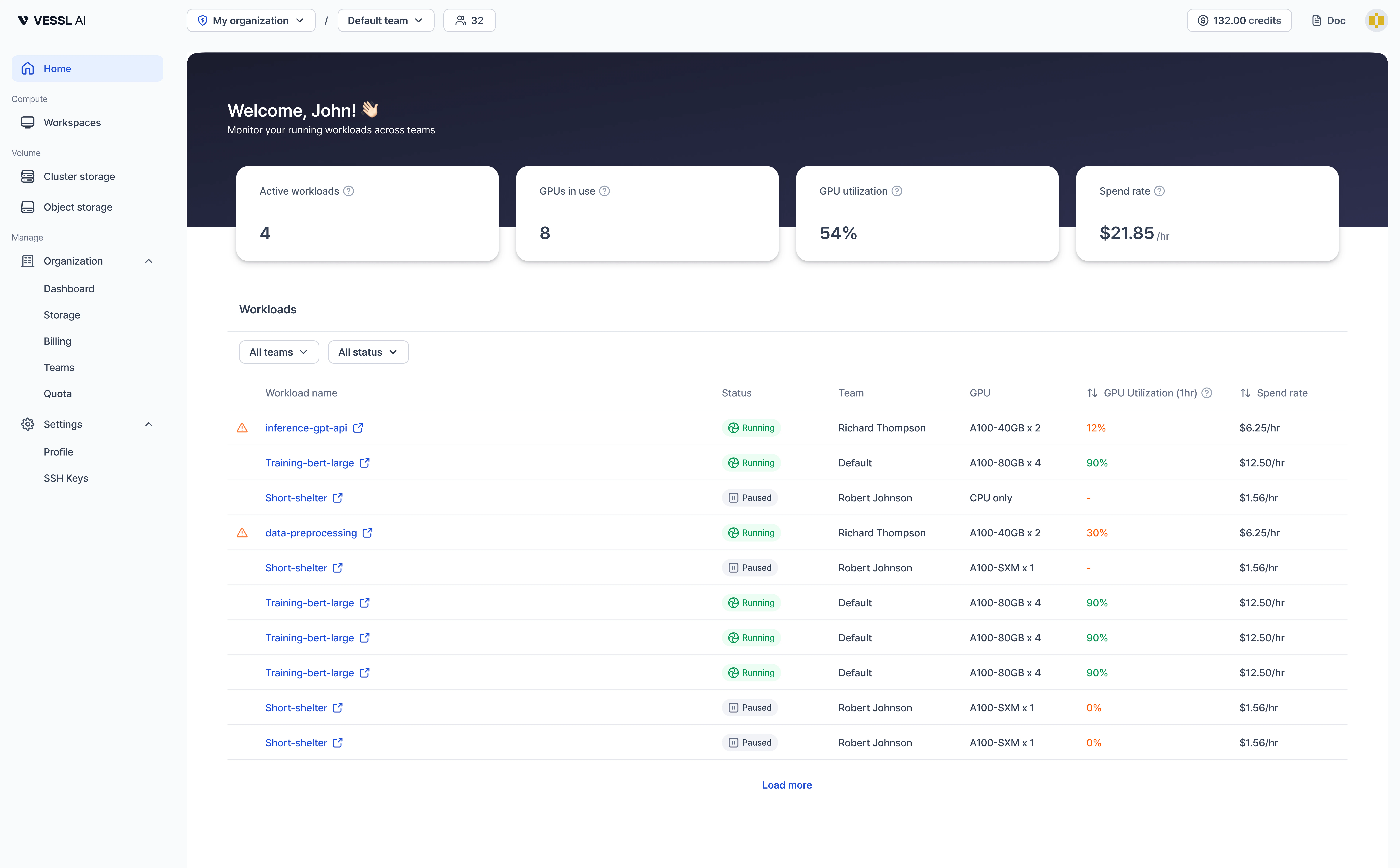
The Home dashboard gives you a single view of all your running workloads across every team you belong to. Click Home in the sidebar to open the dashboard.
Summary cards
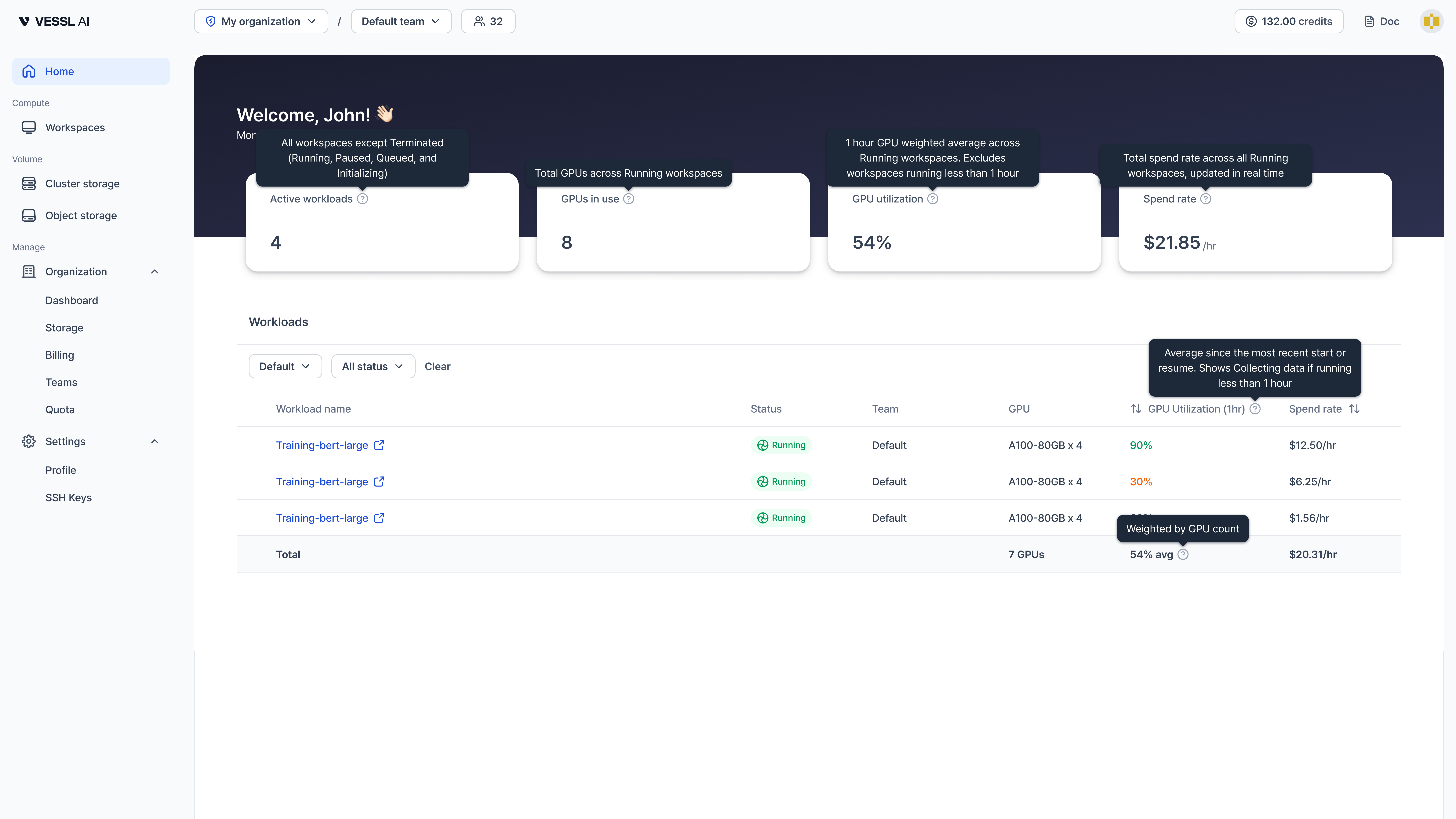
Four cards at the top provide an at-a-glance overview of your workloads.
| Card | Description |
|---|
| Active workloads | Total number of your workloads excluding terminated ones (running, paused, queued, and initializing) |
| GPUs in use | Number of GPUs currently allocated to your running workspaces |
| GPU utilization | One-hour GPU-weighted average across your running workspaces. If runtime is under one hour, the card stays in a temporary collecting state (for example, Collecting...) |
| Spend rate | Current hourly cost across all your running workspaces ($/hr). Excludes storage costs |
Hover over the tooltip icon on each card to see how the metric is calculated.
Workloads
The workloads table lists your active workspaces grouped by team.
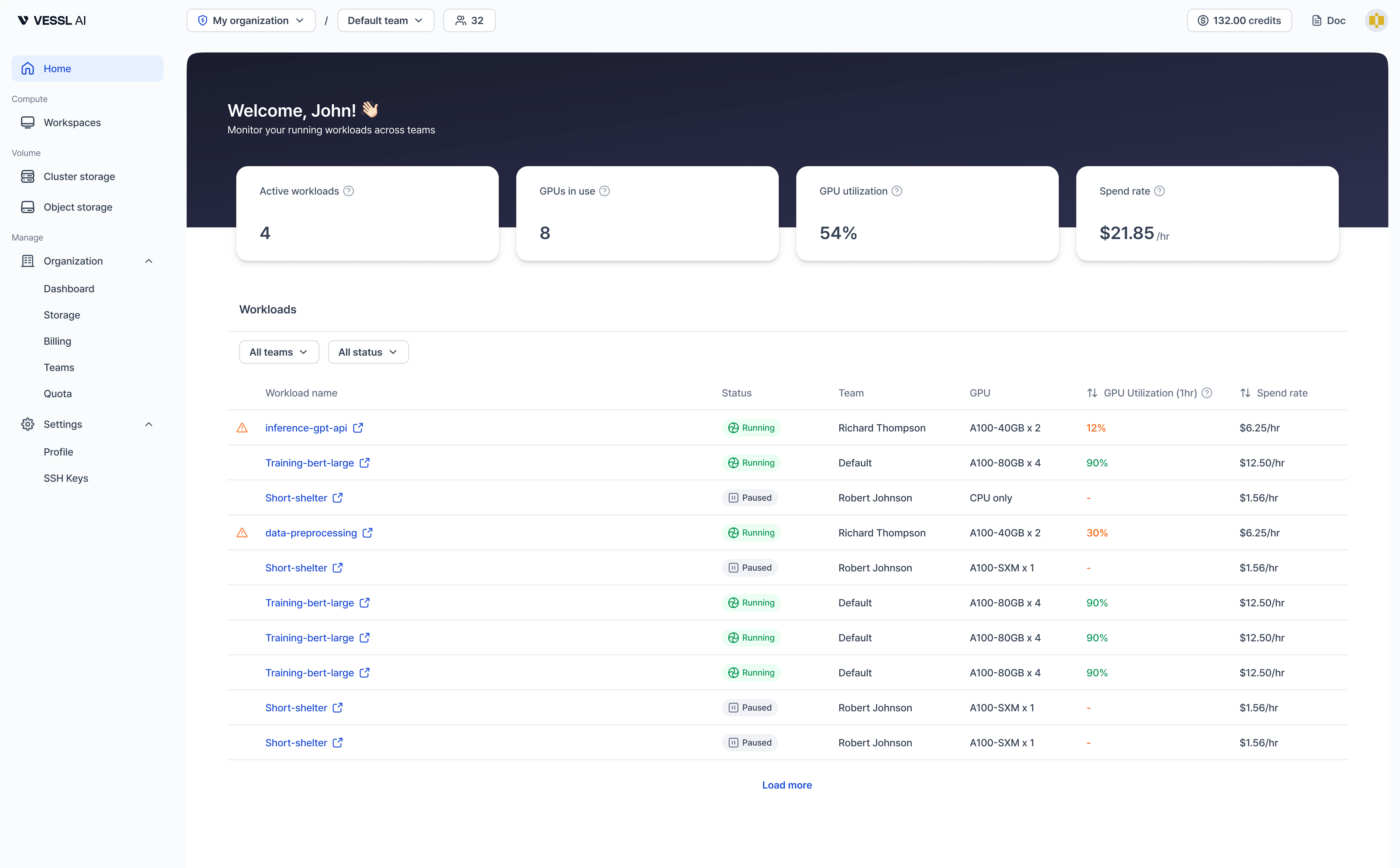
Filters
- Team: Show workloads from a specific team or all teams
- Status: Filter by workload status (for example, Running, Paused)
- Clear: Reset all filters
Table columns
| Column | Description |
|---|
| Workload name | Workspace name. Workloads with low GPU utilization show an under-utilization warning. Click to open the workspace detail page. |
| Status | Current status (Running, Paused, Stopped, and so on) |
| Team | Team the workload belongs to |
| GPU | GPU type and count (for example, “A100-80GB x 4”) |
| GPU Utilization (1hr) | One-hour average GPU utilization, weighted by GPU count. Color-coded: green (90%+), gray (30–90%), orange (below 30%) |
| Spend rate | Hourly cost for this workload ($/hr) |
When you filter by a specific team, a Total row appears at the bottom showing combined GPU count, average utilization, and total spend rate.
Quickstart cards
When you have no running workloads, the dashboard shows three quickstart cards to help you get started:
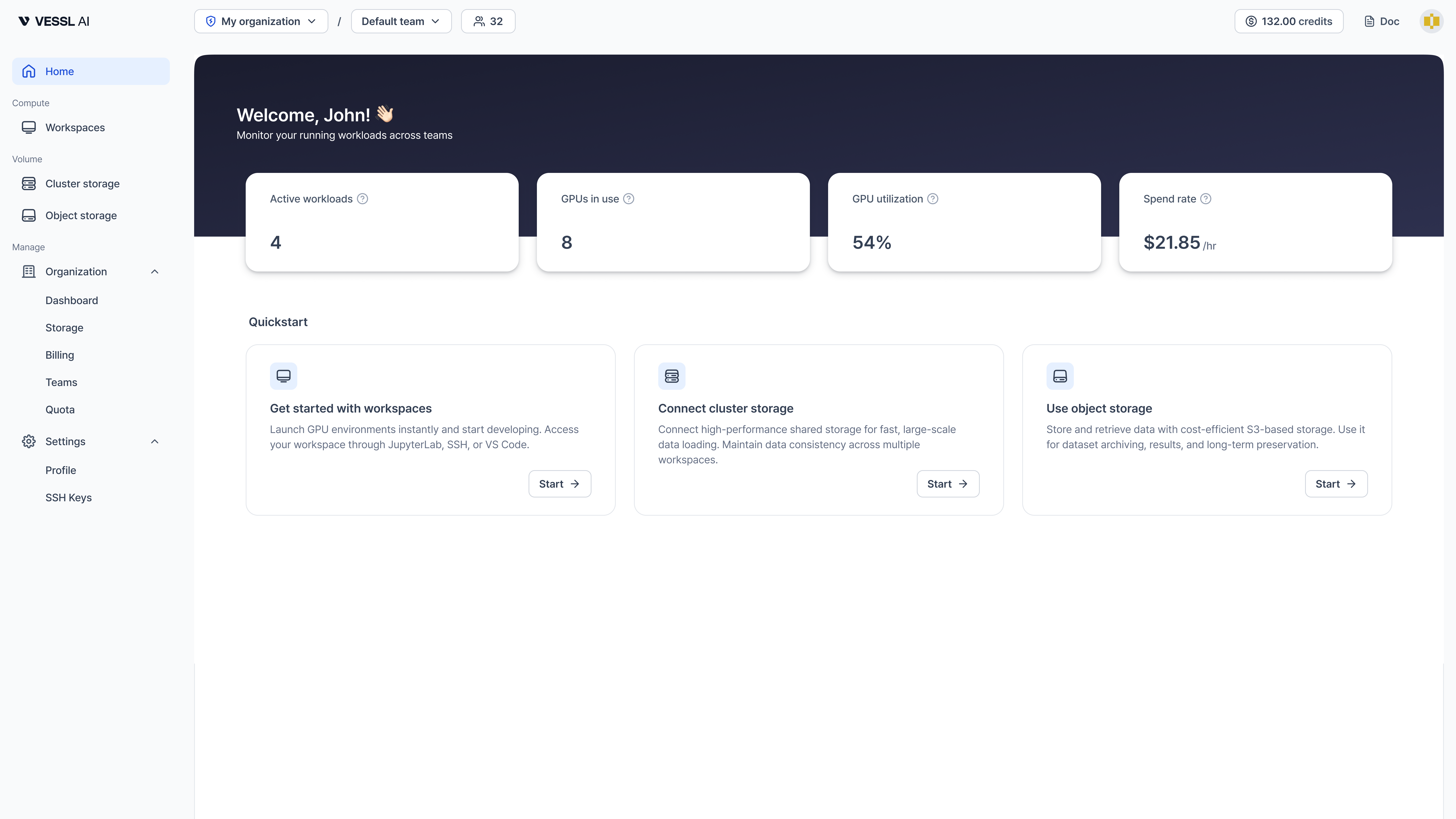
- Get started with workspaces — Launch a GPU environment and start developing
- Connect cluster storage — Set up high-performance shared storage for fast, large-scale data loading
- Use object storage — Store and retrieve data with cost-efficient S3-based storage for archiving and long-term preservation
Edge cases
| Scenario | Behavior |
|---|
| No running workloads | Quickstart cards are displayed instead of the workload table |
| No metric data | Workloads running for less than one hour stay in a temporary collecting state |
| No matches after filtering | The table shows an empty-state hint suggesting filter adjustment |
| CPU-only workload | GPU columns show - |