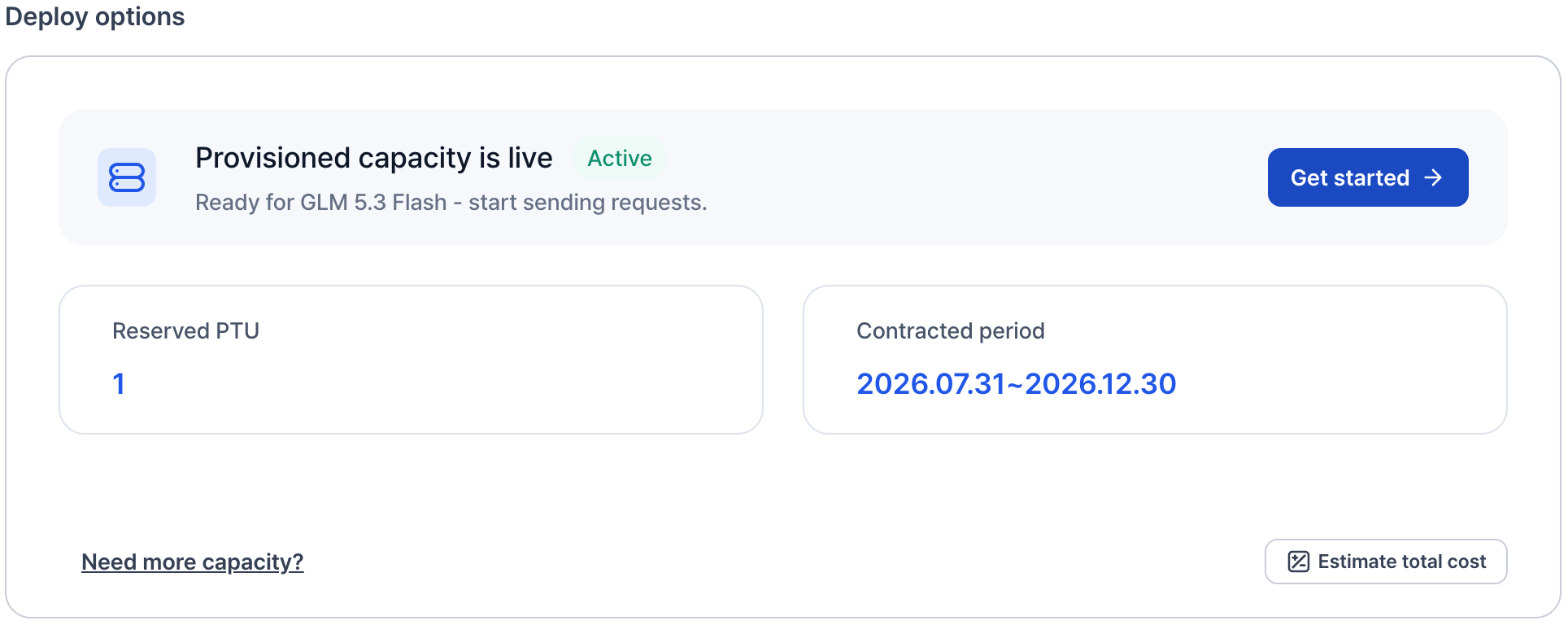
Your contract details are on the model page, in the Deploy options section.
Deploy options card showing Provisioned capacity is live with an Active badge and a Get started button, above the reserved PTU count and the contracted period, with a Need more capacity? link and an Estimate total cost button

Contract status

While a contract is active, the Deploy options card shows Provisioned capacity is live with an Active badge, plus:
  • Reserved PTU — the Provisioned Throughput Units (PTUs) you contracted.
  • Contracted period — the start and end dates of the term.
Get started opens a ready-to-copy sample request for the model, with the model ID already filled in. See Send your first request.

Add capacity

Click Need more capacity? on the model page, or talk to sales, to add PTUs. Traffic above your contracted capacity is served on a best-effort basis up to a set limit above that capacity and isn’t covered by the SLA. See Understand the SLA.

Change models

You can switch to another model in the same model family during the contract term. For other changes, talk to sales.

Renew or extend

The contract term is arranged individually with sales. To extend or renew, talk to sales.

Contract history

The Previous contracts table at the bottom of the model page lists every Provisioned Throughput contract for the model, with its contracted period, reserved PTUs, SLA terms, and creation date.