

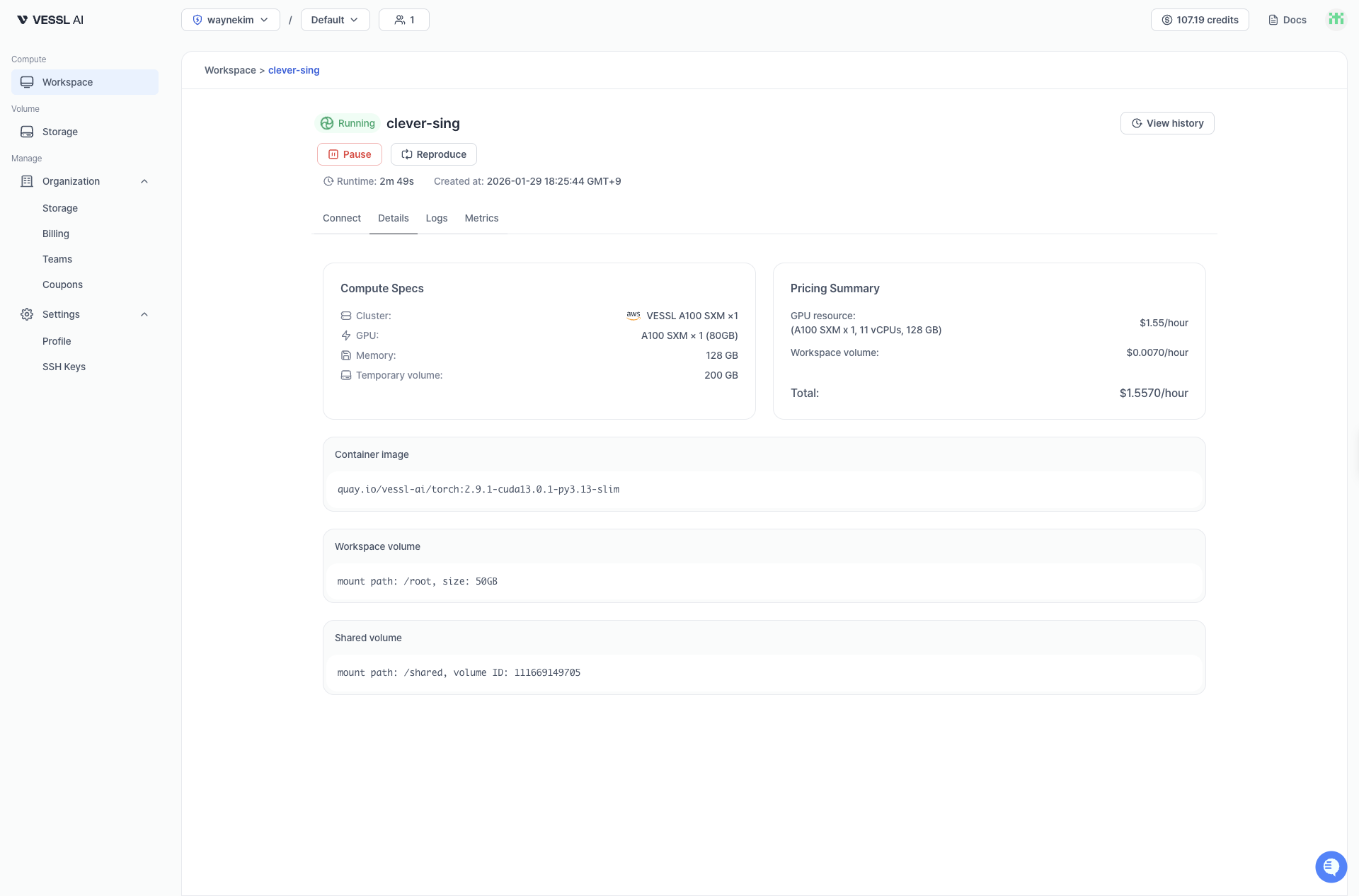
The details page shows the following sections:
- Compute specs: Cluster, GPU, CPU, memory, and Temporary storage size
- Pricing summary: Hourly GPU resource cost and storage cost
- Container image: The Docker image running in the workspace
- Cluster storage: Mount path and capacity of Cluster storage volumes
- Object storage: Object storage volumes and their mount paths
These details stay visible on paused workspaces too, so you can review the configuration before resuming.
Cost states
Status & history
Get detailed visibility into your workspace’s lifecycle.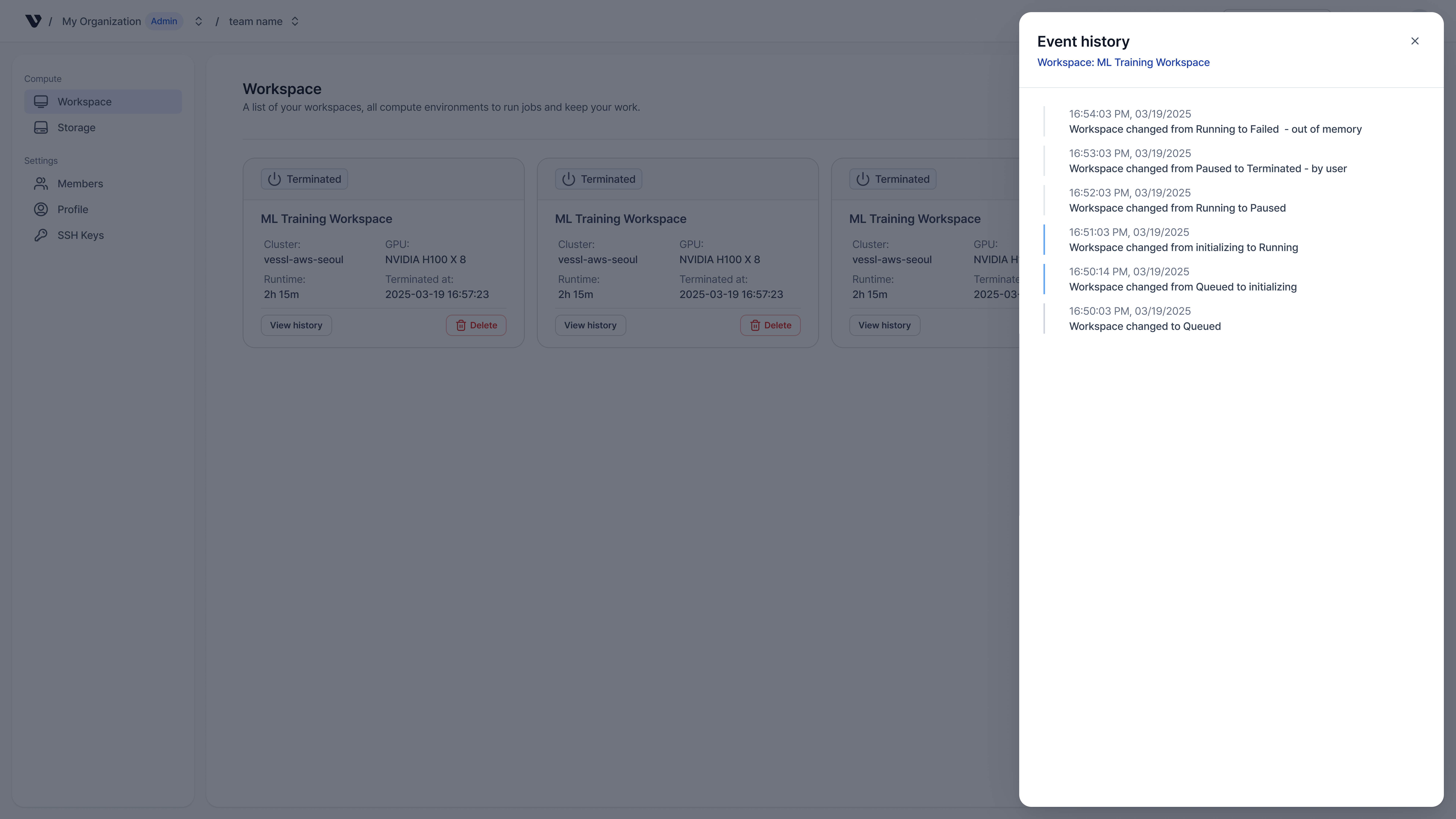
The status panel shows:
- Detailed status: Specific reason — Waiting for GPU capacity when
Queued, Downloading image whenInitializing - Event history: Timeline of state transitions, errors (for example,
OOMKilled, credit exhaustion), and scheduling events - Runtime: Elapsed time when running,
N/Awhen paused, total runtime when terminated