

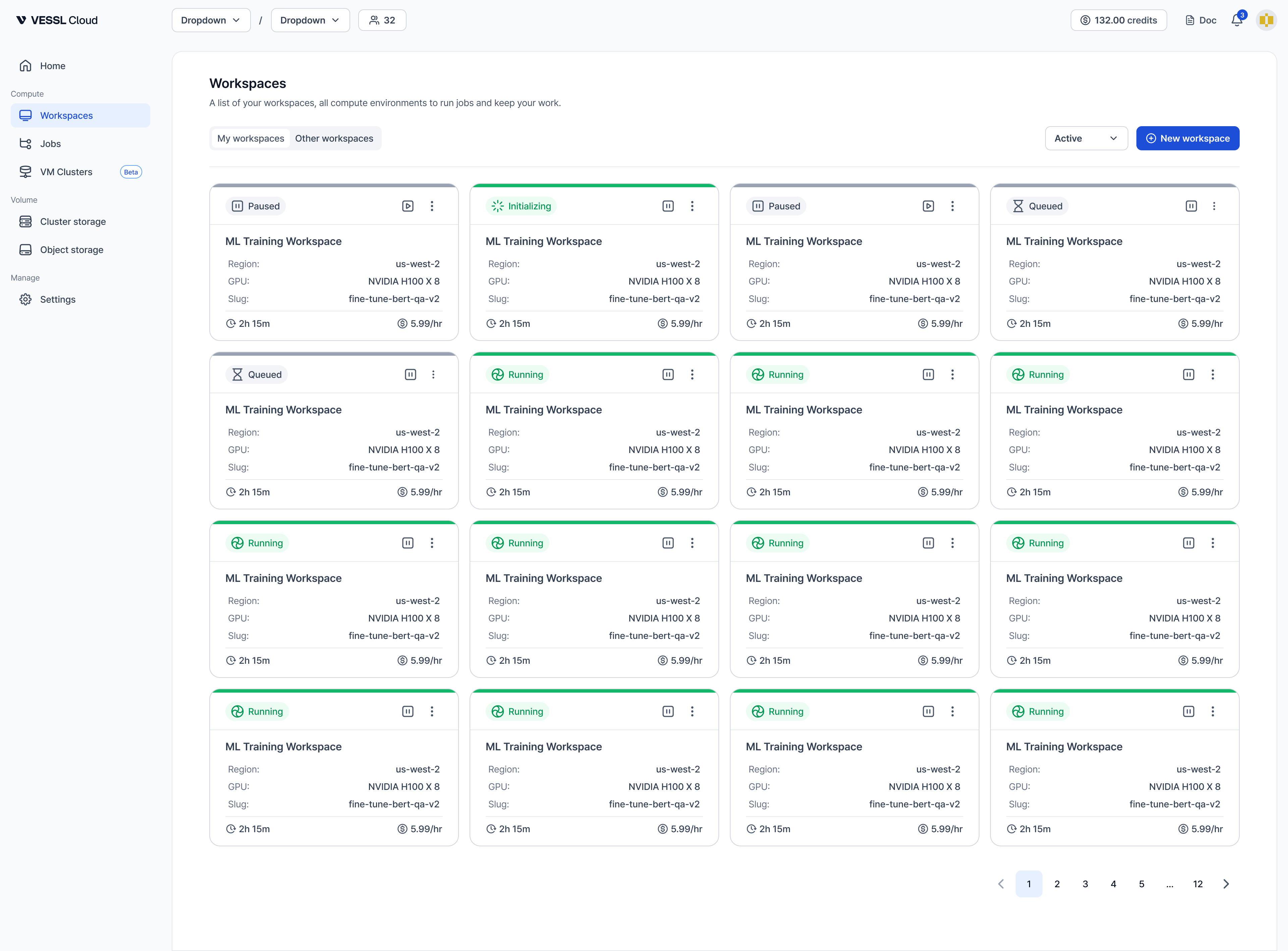
The workspace list shows the following columns:
- Name: Workspace name
- Status: current state (see below)
- Cluster: where resources are located
- Resource spec: GPU, CPU, memory, Temporary storage
- Runtime: accumulated running time
- Hourly cost: rate for the selected spec (visible if pricing is enabled)
Statuses
- Queued: Waiting for resources. Shows specific reason such as Waiting for GPU capacity.
- Initializing: Preparing the environment. Shows specific reason such as Downloading image.
- Running: Actively running. Runtime counter is active.
- Paused: Session is suspended. Runtime shows
N/A.- Temporary storage data is cleared and not preserved.
- Terminating: Workspace is being deleted.
- Terminated: Fully terminated. Shows Total runtime for billing reference.
- Failed: Stopped due to an error (for example, Out of Memory Killed (OOMKilled), credit exhaustion, Temporary storage exceeded).
View terminated workspaces
Terminated workspaces are no longer auto-deleted after 24 hours. Use the View Terminated toggle at the top of the workspace list to show or hide terminated workspaces.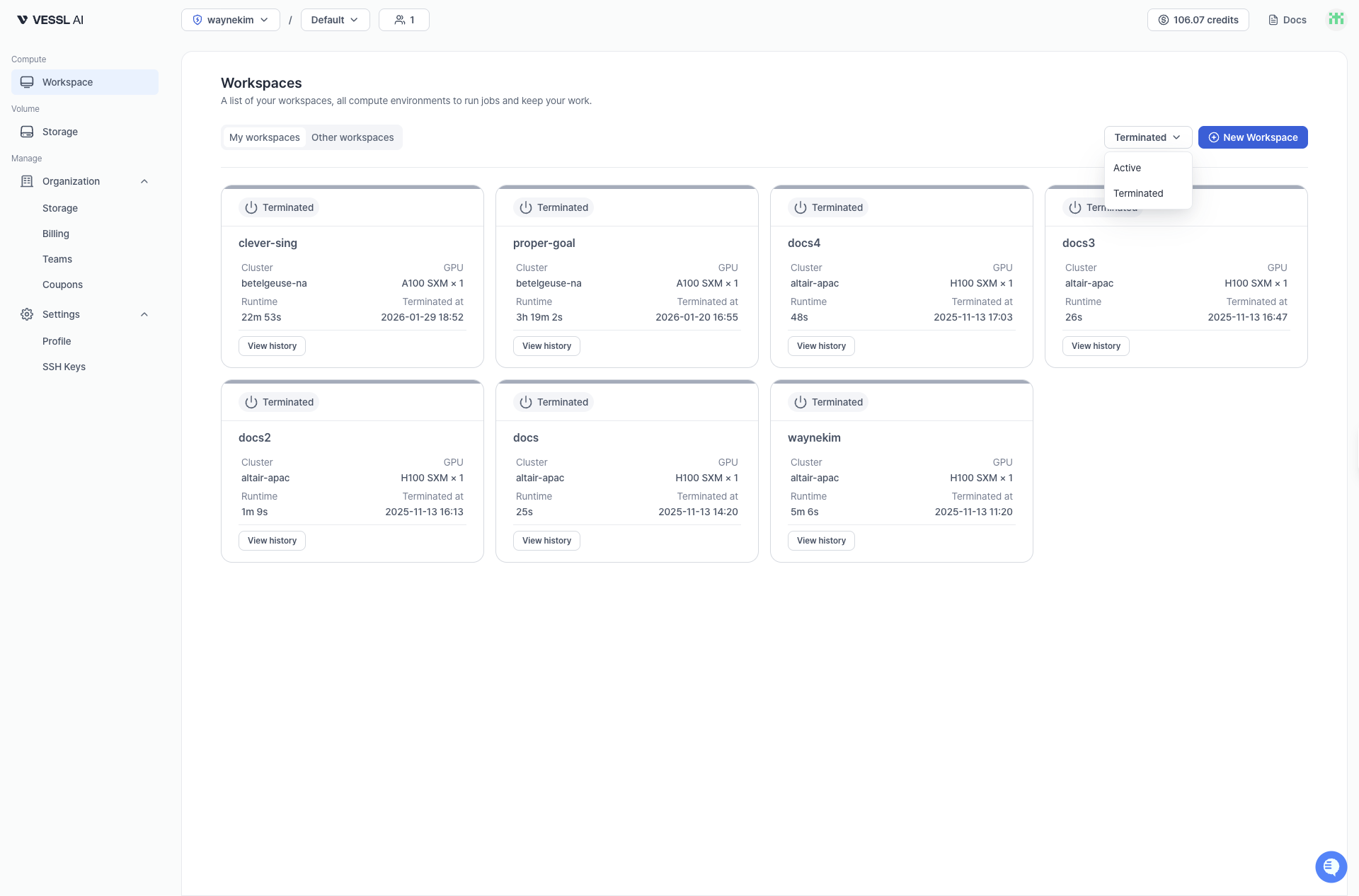
- View event history and termination reasons for debugging
- Manually delete workspaces when no longer needed
- Keep your active workspace list clean while preserving history