
The Organization dashboard gives admins a comprehensive view of GPU utilization, spending, and workload health across the entire organization. To access the dashboard, click your Organization name in the top navigation bar and select Dashboard from the sidebar.
Organization dashboard showing summary cards, spend trend, team breakdown, and workloads

Summary cards

Four cards at the top provide an at-a-glance overview of organization-wide resource usage.
CardDescription
Running workloadsTotal number of running workloads across the organization
GPUs in useTotal GPUs currently allocated to running workspaces
Organization GPU utilizationGPU-weighted average utilization across all running workspaces, weighted by GPU count
Organization spend rateTotal hourly cost across all running workspaces ($/hr)
When idle workloads are detected, a banner appears showing the count of workloads with zero GPU activity for three or more hours.
A workload is considered idle when its GPU utilization remains at 0% for three consecutive hours. Idle workloads display an Idle (3hr) badge.

Spend trend

The spend trend chart breaks down cost by team, displaying the organization total and each team as a separate line. Chart lines:
  • All teams: Total spend across all teams
  • Default: The default-assigned team
  • Others: Usage from other resources such as storage
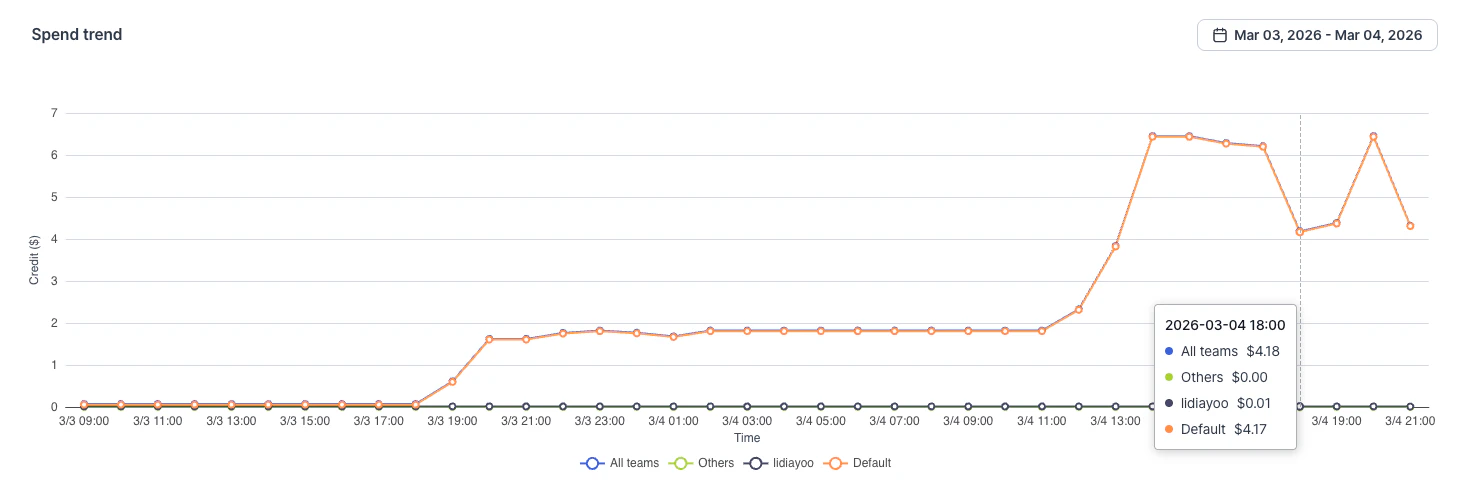
Spend trend chart showing spend by team

Date range options

Click Date range to select a time period:
  • Last 24 hours: Hourly granularity
  • Last 7 days: Daily granularity
  • Last 30 days: Daily granularity
You can also pick a custom date range by selecting start and end dates from the calendar UI. The chart automatically adjusts the time granularity based on the selected range (hourly for up to three days, daily for up to six months, monthly beyond that).

Team breakdown

The team breakdown table shows GPU usage and utilization by team. Click the expand arrow on any team row to drill down into individual users.
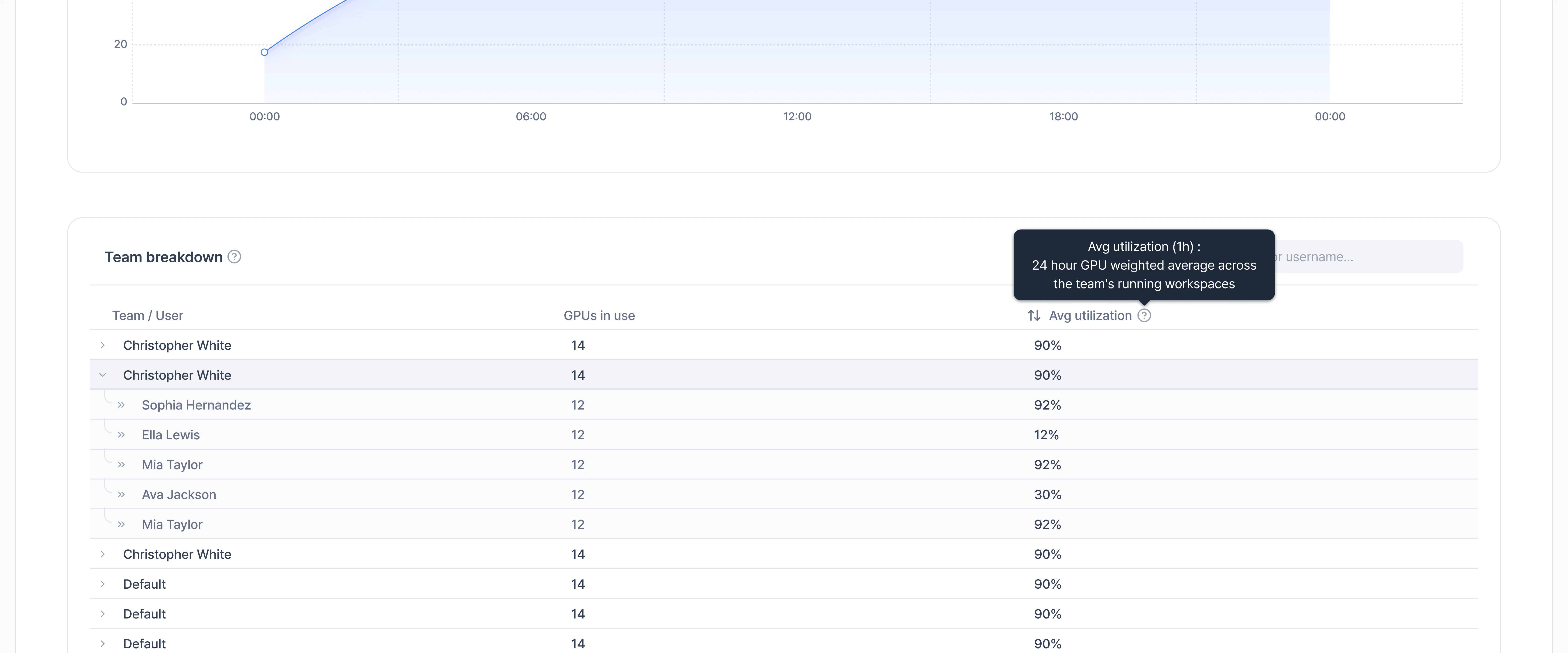
Team breakdown table with user drill-down
ColumnDescription
Team / UserTeam name (expandable) or user name (indented under team)
GPUs in useGPU count for the team or user
Avg UtilizationOne-day average GPU utilization weighted by GPU count. Workloads with 0% utilization for three or more consecutive hours are marked as Idle.
You can sort by Avg Utilization and search for specific teams or users using the search box.

Workloads

The workloads table lists all running workspaces with detailed metrics.
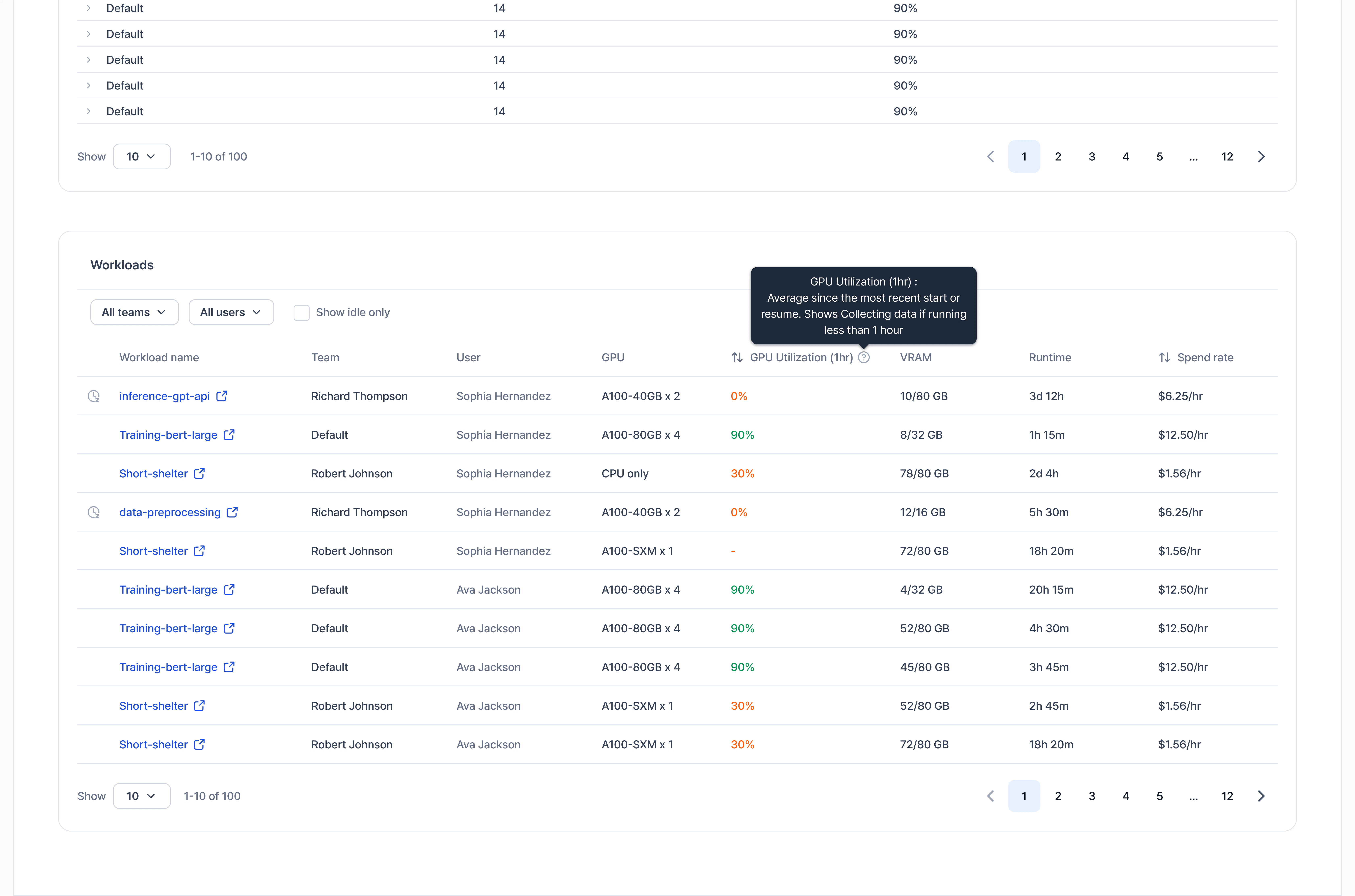
Workloads table with filters

Filters

  • All teams: Filter by a specific team
  • All users: Filter by a specific user
  • Show idle only: Toggle to display only idle workloads (GPU utilization at 0% for three or more hours)

Table columns

ColumnDescription
Workload nameWorkspace name. Click to open the workspace detail page
TeamTeam the workload belongs to
UserOwner of the workload
GPUGPU type and count (for example, “A100-40GB x 2”)
GPU Utilization (1hr)One-hour average GPU utilization. Color-coded: green (90%+), orange (below 30%), red (0% idle)
VRAMCurrent VRAM usage out of total (for example, “10/80 GB”)
RuntimeHow long the workload has been running
Spend rateHourly cost ($/hr)

Edge cases

ScenarioBehavior
No running workloadsSummary cards show zero values; tables display empty states
No idle workloadsIdle workloads banner is hidden
Non-admin userOrganization Dashboard tab is not visible in the sidebar
CPU-only workloadGPU columns show CPU only; VRAM shows a dash
The Organization dashboard is read-only. To take action on a workload (for example, pause or edit), click the workload name to open its detail page.

See also