

What carries over
The job inherits everything needed to reproduce the workspace runtime, and drops the interactive pieces a job doesn’t use:
Jobs run a command to completion and don’t need SSH access, custom ports, or a root volume.
What you provide
- Command — the job entrypoint, for example
python train.py --epochs 50. - Environment variables or secret references (optional) — run-specific settings plus any secrets the script needs.
- Override the resource spec, image, or volumes (optional) before submitting.
Convert from the GUI
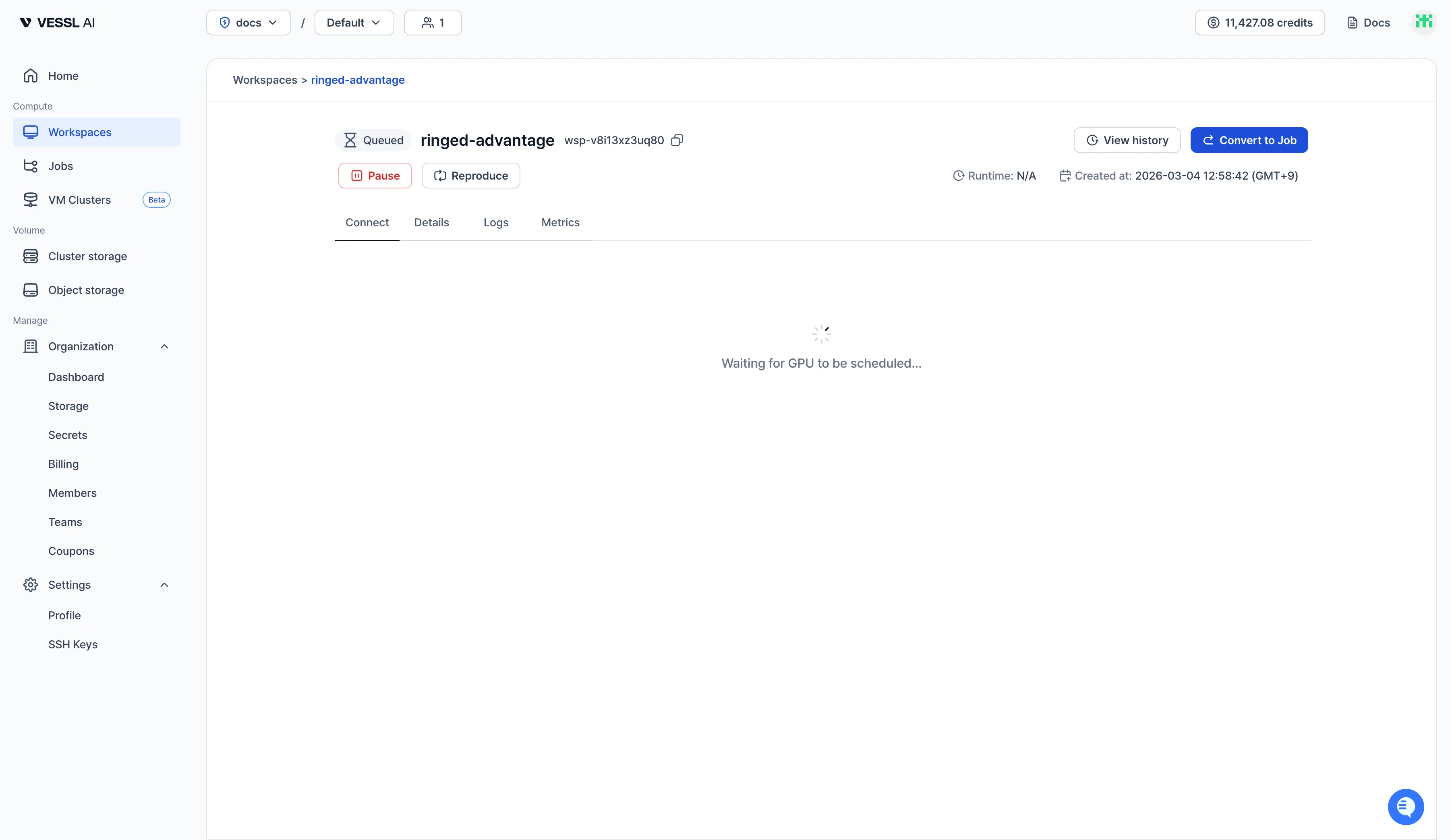
- Open the workspace detail page (Workspaces → the workspace).
- Click Convert to Job in the top-right action bar.
- Fill in the Command and any env vars or secrets.
- Override the resource spec, image, or volumes if you need a different runtime for the run.
- Click Create job.
Convert with a coding agent
VESSL Cloud extends beyond the web console to coding agents like Claude Code. The vesslctl skill includes a guide for converting a workspace into a job. Tell the coding agent which workspace to convert and ask in plain language:Tips
- Store your data on a Cluster storage or Object storage volume. The workspace’s root volume isn’t carried over. Keep datasets, checkpoints, and converted scripts on it, mounted on both the workspace and the job, and the job reads them directly — no data to move.
- Set a working directory. Separating the working directory from the command keeps runs consistent without repeating the path each time. The same
.pycan resolve to a different file depending on the working directory, so pinning it helps especially when you run experiments in parallel.
The conversion is a one-shot clone, not a live link. Changes you make to the workspace after conversion don’t flow into the running job, and vice versa.